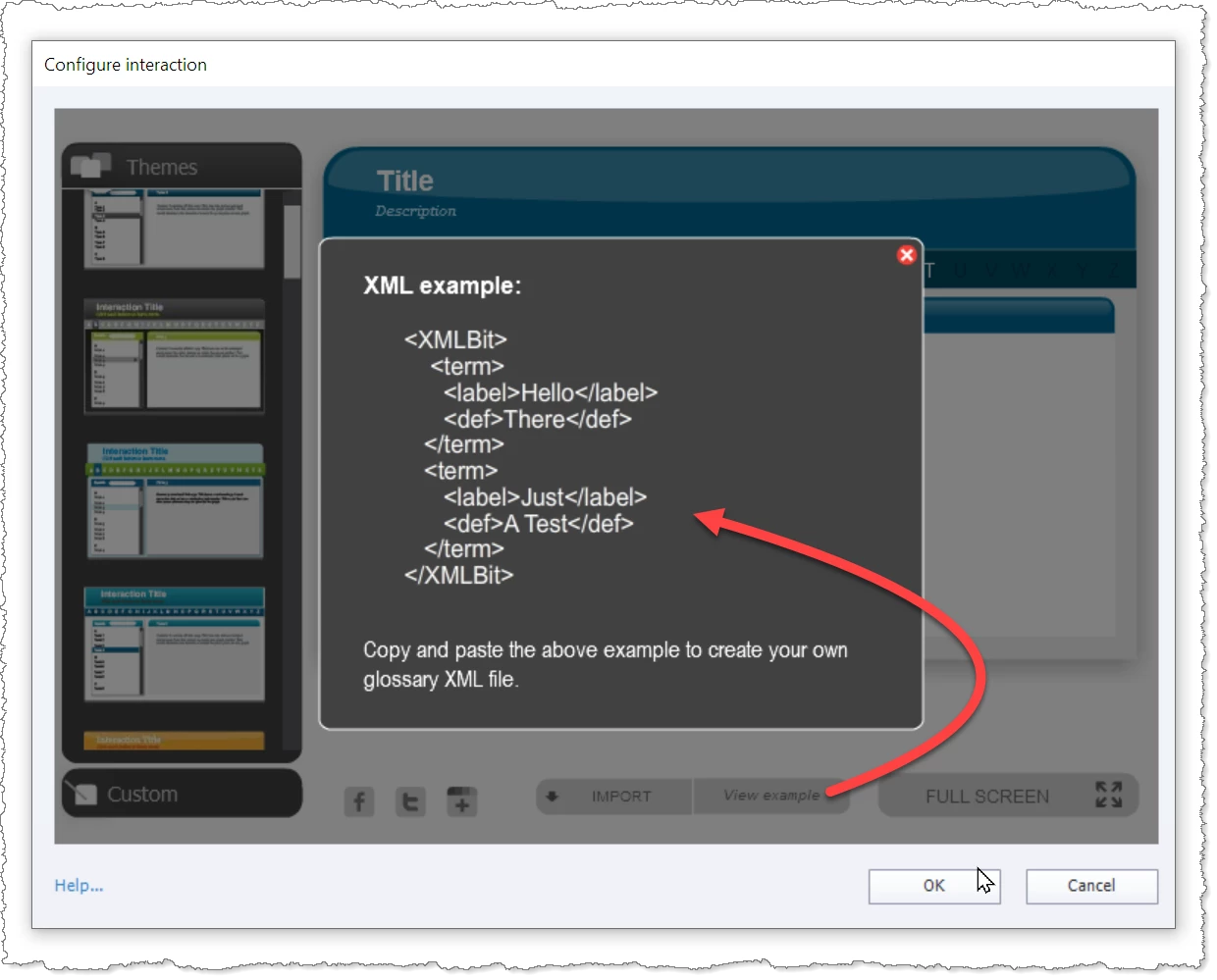
The XML is actually very simple. If you go into the glossary interaction's properties and click the Show Example button it shows you the structure of a typical valid XML file.
When I have a new project to work on where there will be multiple modules that all need to have the same Glossary terms and definitions I set up an Excel spreadsheet that has several columns. The second column contains the Terms, the fourth column contains the Definitions and the first, third and fifth columns just contain the XML tags that need to be present to make the valid XML file.
The first line of the spreadsheet just has the opening <XMLBit> tag and nothing else on other columns. The linne AFTER the last term and definition contains the closing </XMLBit> tag.
Here's what the Excel file structure looks like:
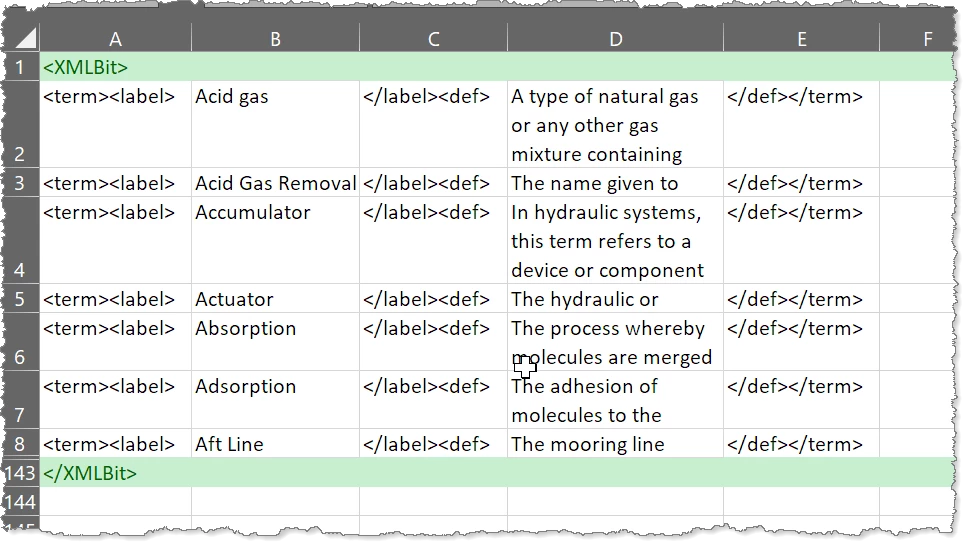
So you just enter in all your terms and definitions to their relevant columns, then enter the XML tags for the second line. Use Excel's features to drag/copy all of the tags down through all of the rows in their columns.
Then the final steps to create the XML file from this is to just save your Excel spreadsheet out as a Unicode TXT file. You change the TXT file ending to XML and that's your file to upload into the Glossary Widget interaction.
One caveat here is that you will often find that after you import a new XML file (or even the first time you do it) the Glossary widget does not appear when you preview your HTML5 in a web browser. The reason is usually that you have some text characters in your Glossary terms or definitions that the widget is mistaking for HTML or JavaScript code and that's the reason it is not working. One thing to watch out for is having any parentheses ( or ) in the Terms column. Other text characters that stop it from working are things like ampersands (&) and chevrons < >. These are all characters used in programming code. So you need to take these out of your terms and definitions.
Debugging your XML file sometimes turns out to be the longest part of this process. However, once you have a nice clean XML uploading it into each of your Captivate modules takes only seconds.




 AdChoices