


Inspiring
October 14, 2021
Question

Photoshop and Acrobat not showing same color

  • October 14, 2021
  • 5 replies
  • 1753 views

I do not know why I am getting two different results when viewing an image on photoshop versin 22.5.1 and Acrobat Pro 2021.007.20099. I have screened captures the result and you can see that the Acrobat is much more saturated than Photoshop on the same monitor. 
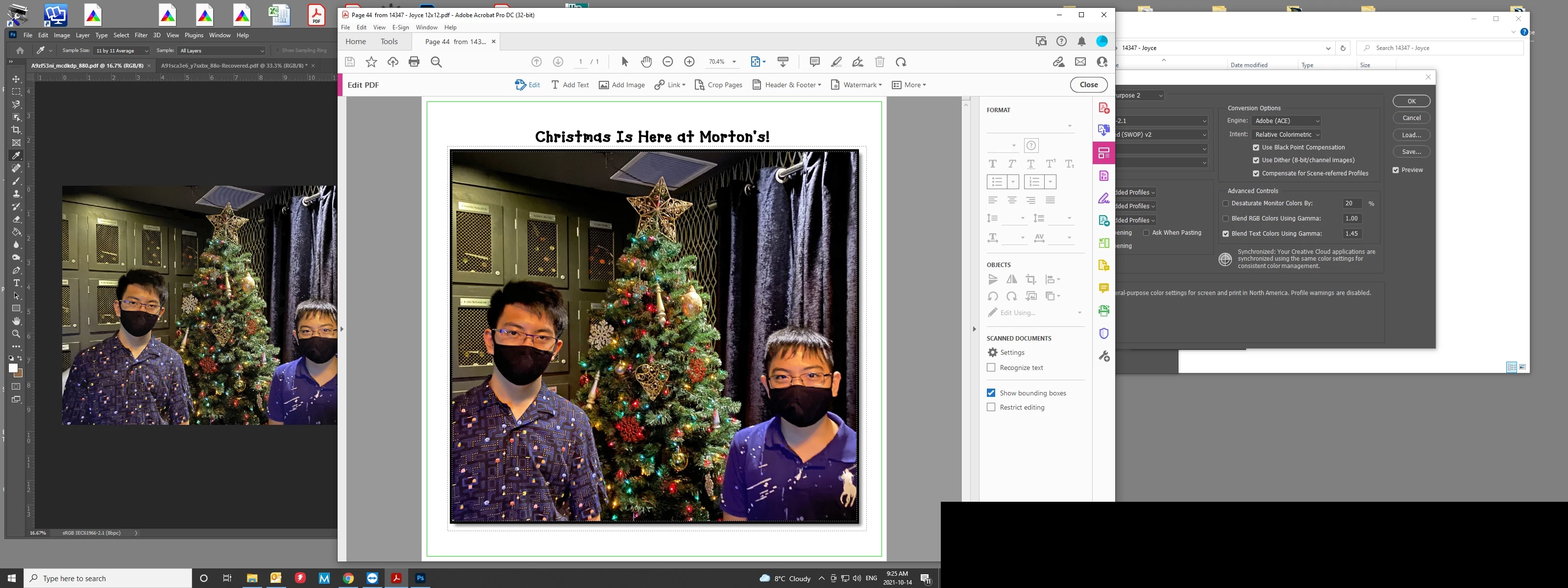
    This topic has been closed for replies.

    5 replies

    TheDigitalDog
    Inspiring
    October 31, 2021

    @V4 is the only format that supports Matrix based monitor proviles Neal.


    I don't believe that is true but I'm open to find an outside reference confirming that.


    Author “Color Management for Photographers" & "Photoshop CC Color Management/pluralsight"
    davescm
    Community Expert
    Community Expert
    October 31, 2021

    Thanks for the input and ideas.

    Color navigator allows the creation of matrix and LUT in both v2.2 and v4.2 


    In an extended test, I produced and  tried all combinations and none affected the results. InDesign and Photoshop used the monitor profile, Acrobat DC Pro did not.


    Dave


    NB, colourmanagement
    Community Expert
    Community Expert
    November 1, 2021

    Hi Dave

    thanks for testing that.

    I was pretty sure ICC V2 supported LUT and MATRIX type display profiles, good to have your confirmation on that.


    As an aside, I understand it, OSX, since 10.12 [Sierra], doesn't like LUT profiles. I know basICColor have disabled LUT profiles in V6 on OSX versions from 10.12 because of these issues.

    https://www.basiccolor.de/caution-monitor-profiles-in-macos/

    Plainly an LUT display profile would be superior in most cases so that’s a shame. . Have you looked inside a Colornavigator 'LUT' profile to check it really is one? 


    Personally, I can see no point in V4 ICC at the current time, it seems almost entirely unadopted, the only 'feature' being that it causes issues with some software. 


    thx

    neilB

    colourmanagement

    davescm
    Community Expert
    Community Expert
    October 30, 2021

    Hi

    This appears to be an issue in the current version of Acrobat DC Pro - which I have raised in the forum discussion linked below

    https://community.adobe.com/t5/acrobat-discussions/colour-management-incorrect-in-acrobat-dc-pro/m-p/12482496#M335777


    and on uservoice for Acrobat.

    https://acrobat.uservoice.com/forums/590923-acrobat-for-windows-and-mac/suggestions/44373573-bug-colour-management-in-acrobat-pro-dc


    The bottom line is I tested by setting a deliberately broken monitor profile (with a linear gamma instead of the correct gamma) in Windows 10. As expected, Photoshop and InDesign then displayed images with the wrong gamma. However, the change of monitor profile had no effect at all on Acrobat DC Pro which continued to display the same oversaturated images, as raised in the issue by the @Urban5E0C  here, on my Eizo monitors. My conclusion after testing is that Acrobat Pro DC is ignoring the installed monitor profile (v2 profiles) and instead displaying with an assumption of sRGB as the monitor color space.


    Dave

    NB, colourmanagement
    Community Expert
    Community Expert
    October 31, 2021

    Hi Dave, you mention that it's a V2 profile you're testing with, I agree that’s the right plan as V2 is more widely compatible. Is it a Matrix (basic) or LUT based display profile? Some apps seem to not lik Matrix type display profiles, I've found?

    AFAIK recent versions of OSX don't like LUT profiles at all, so I guess we are talking Windows here? 


    I hope this helps
    neil barstow, colourmanagement net :: adobe forum volunteer


    Bob_Hallam
    Legend
    October 31, 2021

    V4 is the only format that supports Matrix based monitor proviles Neal.   V2 only supports Lut based monitor profiles.  That is why v4 is best.  Adone does not try and convert those to v2.  

    ICC programmer and developer, Photographer, artist and color management expert, Print standards and process expert.
    NB, colourmanagement
    Community Expert
    Community Expert
    October 18, 2021

    Hi, as others have suggested there's a good chance this is a display profile issue.


    Display profile issues on Windows


    Here's something to try

    It'll only take a few minutes and is good troubleshooting.


    At least once a week on this forum we read about this, or very similar issues of appearance differing between colour managed applications.

    Of course you must not expect accurate colour with programs such as Windows "Photos", because colour management is not implemented there so such programs are incapable of providing accurate image display.


    Unfortunately, with Microsoft hardware: Windows updates, Graphics Card updates and Display manufacturers have a frustratingly growing reputation for installing useless (corrupted) monitor display profiles.

    I CAN happen with Macs but with far less likelihood, it seems.


    The issue can affect different applications in different ways, some not at all, some very badly.


    The poor monitor display profile issue is hidden by some applications, specifically those that do not use colour management, such as Microsoft Windows "Photos".


    Photoshop is correct, it’s the industry standard for viewing images, in my experience it's revealing an issue with the Monitor Display profile rather that causing it. Whatever you do, don't ignore it. As the issue isn’t caused by Photoshop, don’t change your Photoshop ‘color settings’ to try fix it.


    To find out if the monitor display profile is the issue, I recommend you to try setting the monitor profile for your own monitor display under “Device” in your Windows ‘color management’ control panel to sRGB temporarily.


    (ALTERNATIVELY, if you have a wide gamut monitor display (check the spec online) it’s better to try Adobe RGB here instead as its better suits the display characteristics).


    Quit and relaunch Photoshop after the control panel change, to ensure the new settings are applied.

    You can click ADD to add sRGB if it’s not already listed there.


    Once it’s selected, be sure to check “Use my settings for this device” up top.

    And click on “set as Default Profile - bottom right


    Screenshot of Color Management Control Panel


    Depending on the characteristics of your monitor display and your requirements, using sRGB or Adobe RGB here may be good enough - but custom calibration is a superior approach.


    If this change fixes the issue, it is recommended that you should now calibrate and profile the monitor properly using a calibration sensor like i1display pro, which will create and install its own custom monitor profile. The software should install its profile correctly so there should be no need to manually set the control panel once you are doing this right.


    Still got problems?

    If you want to try a method that’s proved successful to rule out many an issue we see with Photoshop, you can reset preferences:


    To reset the preferences in Photoshop: 

    https://helpx.adobe.com/photoshop/using/preferences.html


    Note: Make sure that you back up all your custom presets, brushes & actions before restoring Photoshop's preferences. Migrate presets, actions, and settings


    I hope this helps

    neil barstow, colourmanagement net :: adobe forum volunteer

    google me "neil barstow colourmanagement" for lots of free articles on colour management

    [please only use the blue reply button at the top of the page, this maintains the original thread title and chronological order of posts]


    TheDigitalDog
    Inspiring
    October 15, 2021

    First, try disabling GPU in the Photoshop preferences (Preformance tab). Any better?
    If not, recalibrate and build a new ICC display profile, the old one might be corrupted.
    If you are using software/hardware for this task, be sure the software is set to build a matrix not LUT profile, Version 2 not Version 4 profile.
    Otherwise, you really need to consider uploading the PDF and the associated TIFF so we can look them over.

    Author “Color Management for Photographers" & "Photoshop CC Color Management/pluralsight"
    Bob_Hallam
    Legend
    October 14, 2021

    Check the document profile in the PDF using preflight in Acrobat Pro.  Just go to the Print Production Tab, then click PreFlight and run a Verify Compliance check to PDF X1A (or whatever standard the PDF was created ) that will tell you if the embedded profile is the same as the Photoshop's sRGB profile.  If it is not, then you have the root cause of the visual differences.    

    ICC programmer and developer, Photographer, artist and color management expert, Print standards and process expert.
    Urban5E0CAuthor
    Inspiring
    October 15, 2021

    Thank you Bob


    Look at your recommendations and everything is the same 😞 


    UGH !


    I am at a loss.


    Bob_Hallam
    Legend
    October 15, 2021

    I agree that the next logical step is to remake the display profile, but I would make a version 4 profile.  Adobe interprets those without problem and the display profile is on the OS side of the equation.   How was this PDF created, and to what standard?

    ICC programmer and developer, Photographer, artist and color management expert, Print standards and process expert.