


Inspiring
February 24, 2022
Answered

Wrong Colors Across All programs after update
  • February 24, 2022
  • 2 replies
  • 2136 views


I use multiple adobe programs on a dialy basis for work. Last week I decided to update all programs (Illustrator, Photoshop, Lightroom and a few others). I had updated windows 11 not long before that. At first things seemed fine but a few days later, I suddenly opened up a file in illustrator to find that the colors were completely off. 


I didn't know why and couldn't figure out how to fix it after searching online for a bit so I just made the changes I needed to make to the file anyways and it was fine when exported. Then I found that the issue was happening with another file but in photoshop, then again with another file in Lightroom. All CC programs save for Premiere seem to be having this color issue. 


Brightness is low and colors are completely off. Yellows are orange, grays are black and so forth. 


The only forums I've found are quite old and unhelpful. I've tried multiple monitor profiles but there is no change. A few have attributed it to Window's previewer being inacurate in color however this doesn't pertain to my issue. 


Firstly the files have shifted in color from one day to the next without me changing any settings. 

Secondly, the exported files look the same across all my devices as well as on the web so it's not only a case of Windows photo viewer vs adobe programs. 


Any suggestions to resolving/troubleshooting this issue would be appreciated, I've been forced to edit all photos on my phone instead for the last week. 
 

    This topic has been closed for replies.
    Correct answer Samijune

    Actually, I believe it was a bad Nvidia update. I also update my graphics driver while waiting for responses but after opening lightroom. 


    The update finished, I opened illustrator and photoshop with no issue. 


    I decided to see what would happen if i restarted lightroom after the driver update and now it is showing accurately again. How frustrating that was. 


    Thanks for your timely responses. 

    2 replies

    TheDigitalDog
    Inspiring
    February 24, 2022

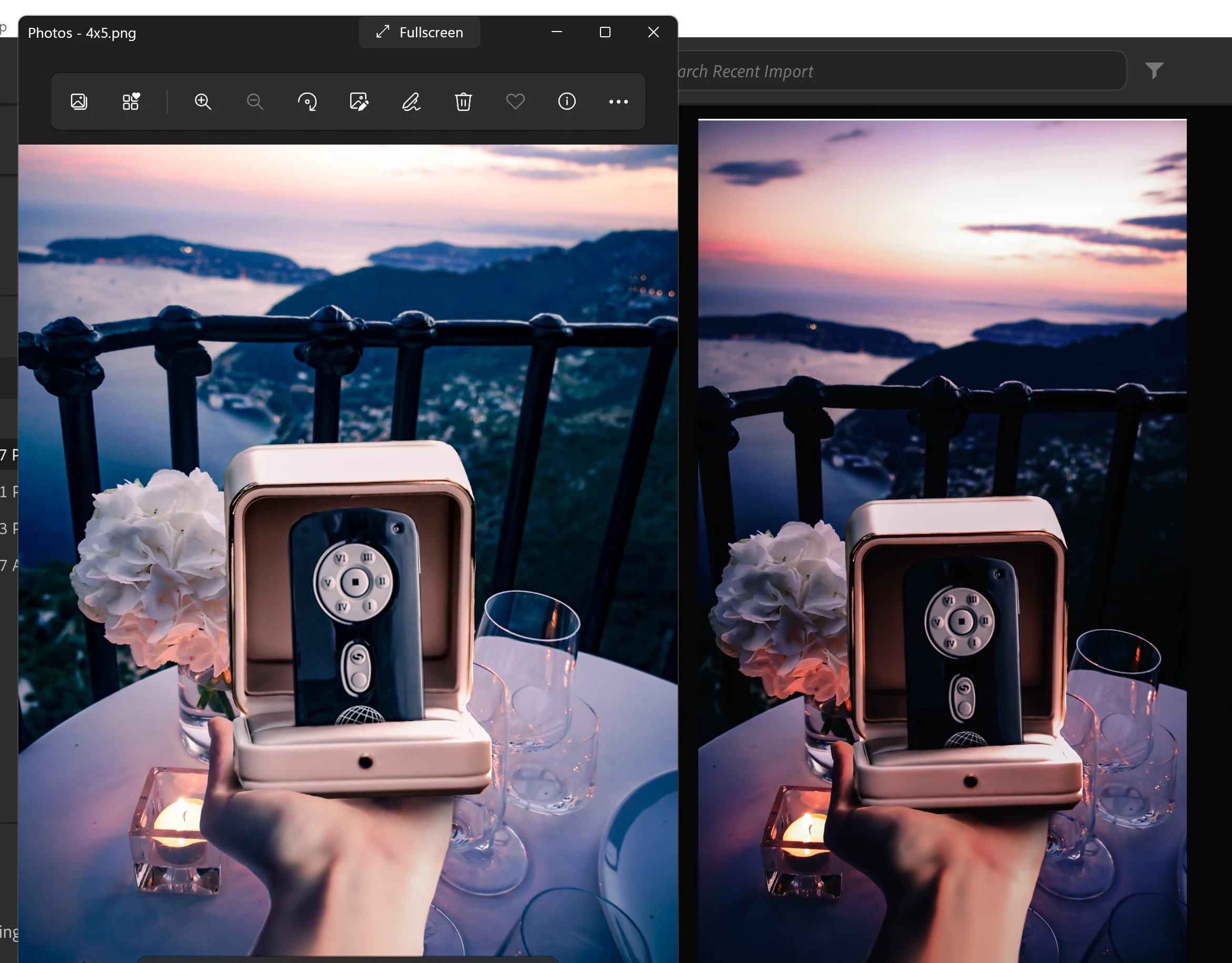
    So you have two images from screen captures, what application is being used on the left?

    Can you provide a screen capture of your Photoshop color settings dialog.

    How  does this image preview in Photoshop?

    http://www.digitaldog.net/files/2014PrinterTestFileFlat.tif.zip

    Tell us more about how the display is calibrated and if using a 3rd party software product, are you possibly using a V4 (version 4) profile?

    See:

    https://community.adobe.com/t5/photoshop-ecosystem-discussions/wrong-colours-only-in-adobe-programs/td-p/9879253

    Author “Color Management for Photographers" & "Photoshop CC Color Management/pluralsight"
    SamijuneAuthor
    Inspiring
    February 24, 2022

    This image was created in photoshop and finalized in lightroom. The left is the windows photo preview which is still displaying as I had originally created it. Lightroom is on the right and used to look the same but now is different as you can see. 


    Photoshop was the same scenario and as I said, I've expereinced this with all other working files I've reopened in Illustrator as well. However, as I wrote the original post, I updated again to photoshop v23.2.1 and now the file is looking accurate again.


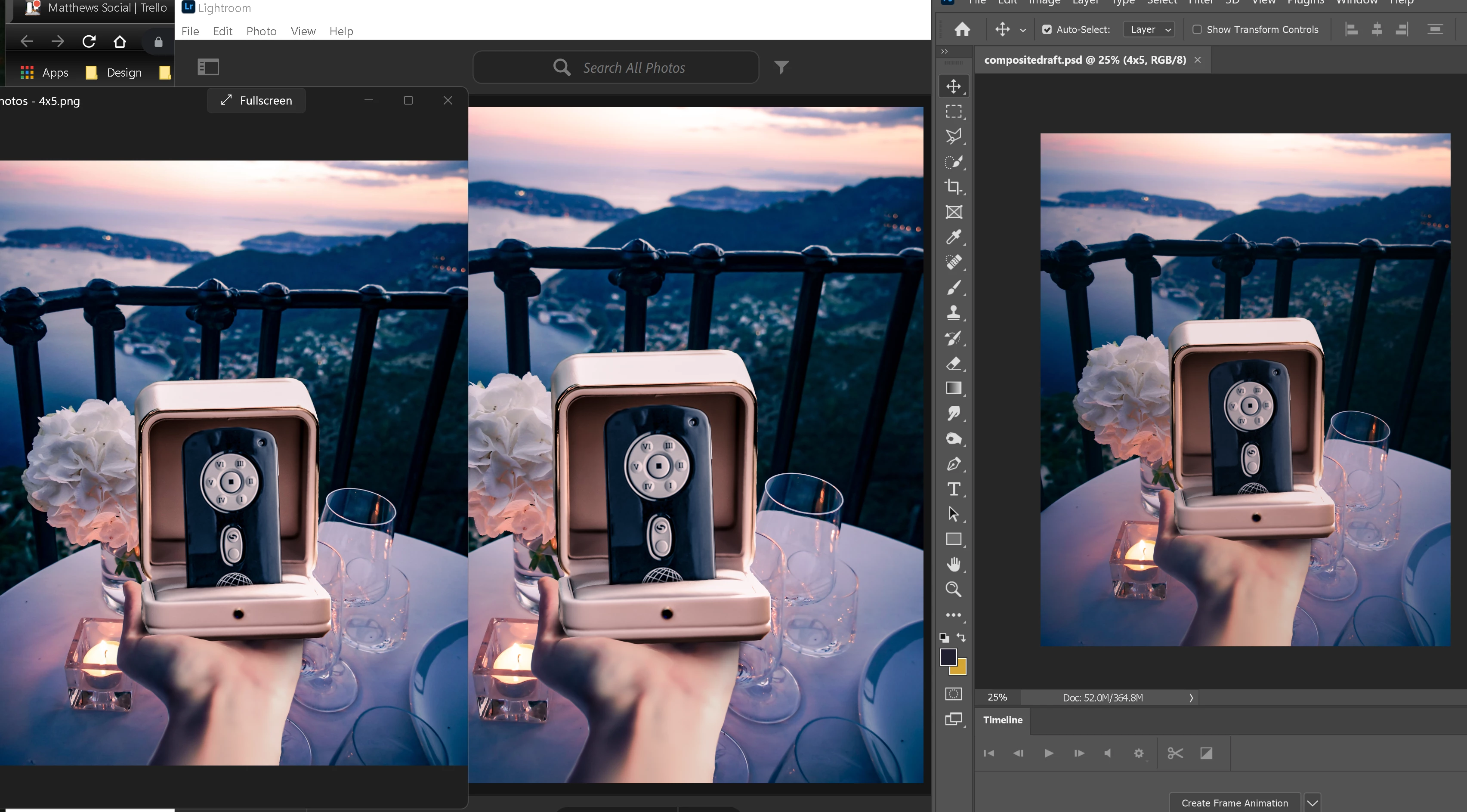
    This screen grab shows: windows viewer > lightroom > photoshop 


    In fact, I opened illustrator for the first time today to compare it as well but even though I didn't update it myself, it is now displaying correctly. 


    This file is the first one I noticed was off. It displayed this orange color that is still showing in the preview when I open the program. 


    However, now when I open the file, it displays correctly as I had originally created it. 


    Maybe it was just a bug with the recent update. Either way I'm glad photoshop and Illustrator are working again. Of course, it didn't happen until I finally snapped and posted to the forum. Hopefully Lighroom will correct its self as well shortly. 


    SamijuneAuthorCorrect answer
    Inspiring
    February 24, 2022

    Actually, I believe it was a bad Nvidia update. I also update my graphics driver while waiting for responses but after opening lightroom. 


    The update finished, I opened illustrator and photoshop with no issue. 


    I decided to see what would happen if i restarted lightroom after the driver update and now it is showing accurately again. How frustrating that was. 


    Thanks for your timely responses. 

    Bob_Hallam
    Legend
    February 24, 2022

    If you have saved Color Settings, go into Bridge and load those settings.  Bridge will show you they are synchronized across all applications.  Then check the files again.  

    If there is still a problem, respond back and include your OS and computer info 


    ICC programmer and developer, Photographer, artist and color management expert, Print standards and process expert.
    SamijuneAuthor
    Inspiring
    February 24, 2022

    Thanks for the quick response. 

    Ive not previously used bridge or saved any specific color settings but if I download it will I still be able to restore?


    Bob_Hallam
    Legend
    February 24, 2022

    If you download and use Bridge it can synchronize any saved settings.   Given that you have not specified any it's also possible that after you decide what you want to use these files may still not match.   In which case you can check that by opening the images in Photoshop and looking at the document profile.  If the profiles are different in these different documents then that is the root cause.   To solve that just make sure you standardize on one set of color settings and use them everywhere.  

    ICC programmer and developer, Photographer, artist and color management expert, Print standards and process expert.