Participant
December 19, 2012
Answered

Adobe Connect Desktop local Folder???

  • December 19, 2012
  • 1 reply
  • 2238 views

Hi,

I'm running Adobe Connect Desktop on Mac, and I've already one recordings in Zip.

I would like to see this recording using the Adobe Connect Desktop offline function, the problem is that I can't find/define the folder where to put the Zip file.

Can anyone help.

Regards

This topic has been closed for replies.
Correct answer Jorma_at_Knox

Enabling this feature takes a couple steps, but once it is done, you should be able to download the recordings for offline viewing.

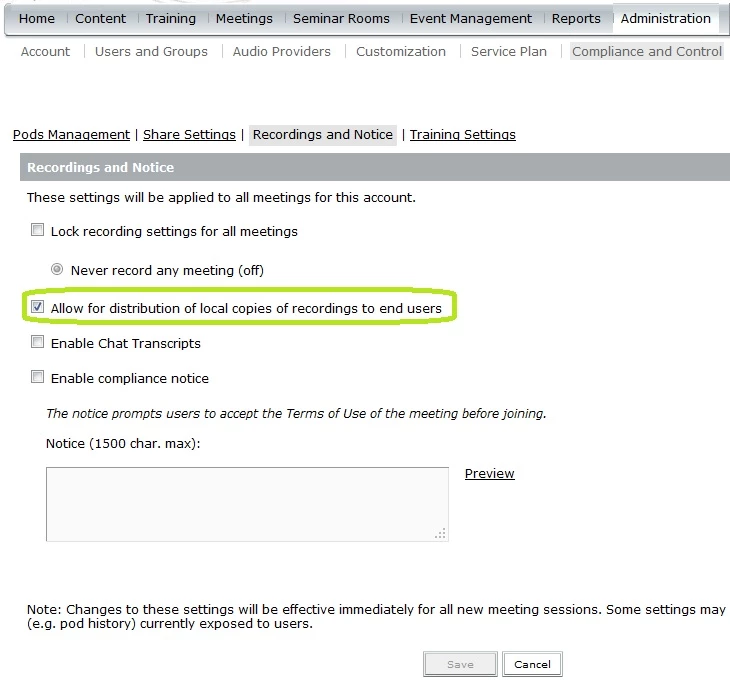
First, go to Administration > Compliance and Control > Recordings and Notice and check the box to Allow for distribution of local copies of recordings to end users
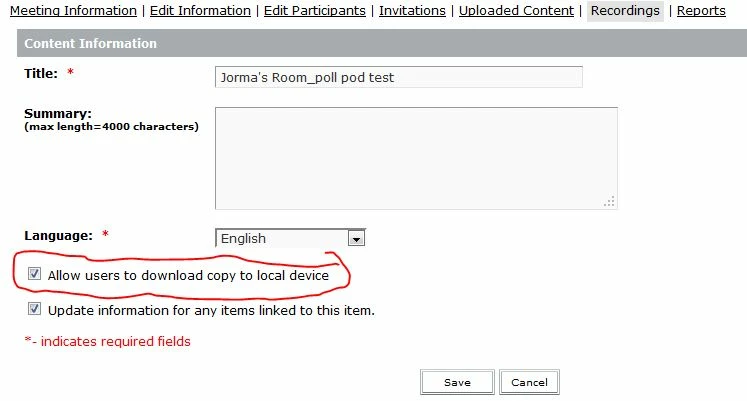
Next browse to the desired recording(s) and go to the Edit Information page. This is done through the Edit Information if the recording is in the Content library, or by selecting the recording name and then the Edit link in the Recording Information header (not the Edit Recording button). Check the box for Allow Users to download copy to local device
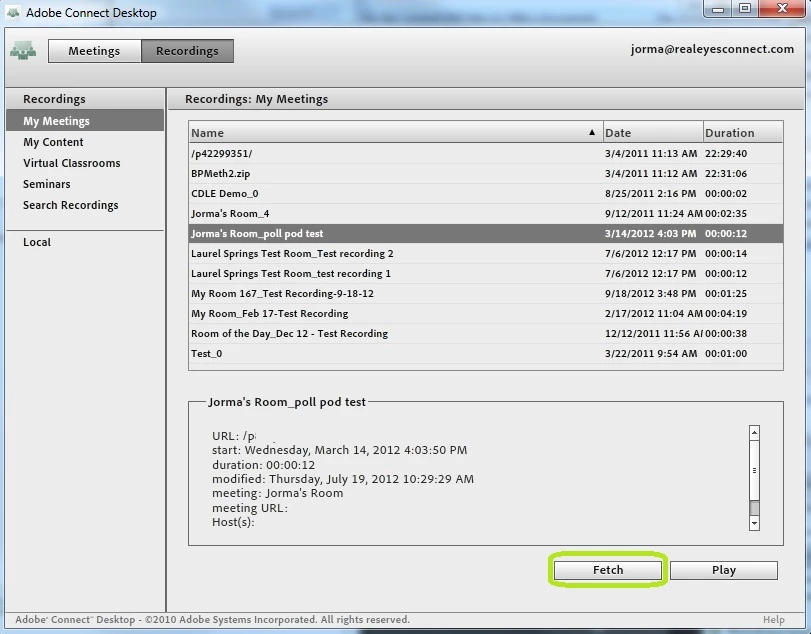
Now in Connect Desktop, you will see the Fetch button for recordings that are set up to allow local downloads.

1 reply

Jorma_at_Knox
Legend
December 19, 2012

To use the Connect Desktop tool to view recordings off-line, you need to Fetch the recordings through the Desktop app. I don't believe there is (at least, I haven't found it) a folder where you can put the source Zip file and view them through the desktop app.

Also, keep in mind that the source zip that you pull down doesn't have any of the content loaded into the share pod or files pod.

nmrsAuthor
Participant
December 20, 2012

Thanks for the reply.

And how do I fetch the recordings through the Desktop app?

Jorma_at_Knox
Jorma_at_KnoxCorrect answer
Legend
December 20, 2012

Enabling this feature takes a couple steps, but once it is done, you should be able to download the recordings for offline viewing.

First, go to Administration > Compliance and Control > Recordings and Notice and check the box to Allow for distribution of local copies of recordings to end users

Next browse to the desired recording(s) and go to the Edit Information page. This is done through the Edit Information if the recording is in the Content library, or by selecting the recording name and then the Edit link in the Recording Information header (not the Edit Recording button). Check the box for Allow Users to download copy to local device

Now in Connect Desktop, you will see the Fetch button for recordings that are set up to allow local downloads.