
July 20, 2010
Answered

How do I fill the unused space?

  • July 20, 2010
  • 1 reply
  • 1256 views

Hi there,

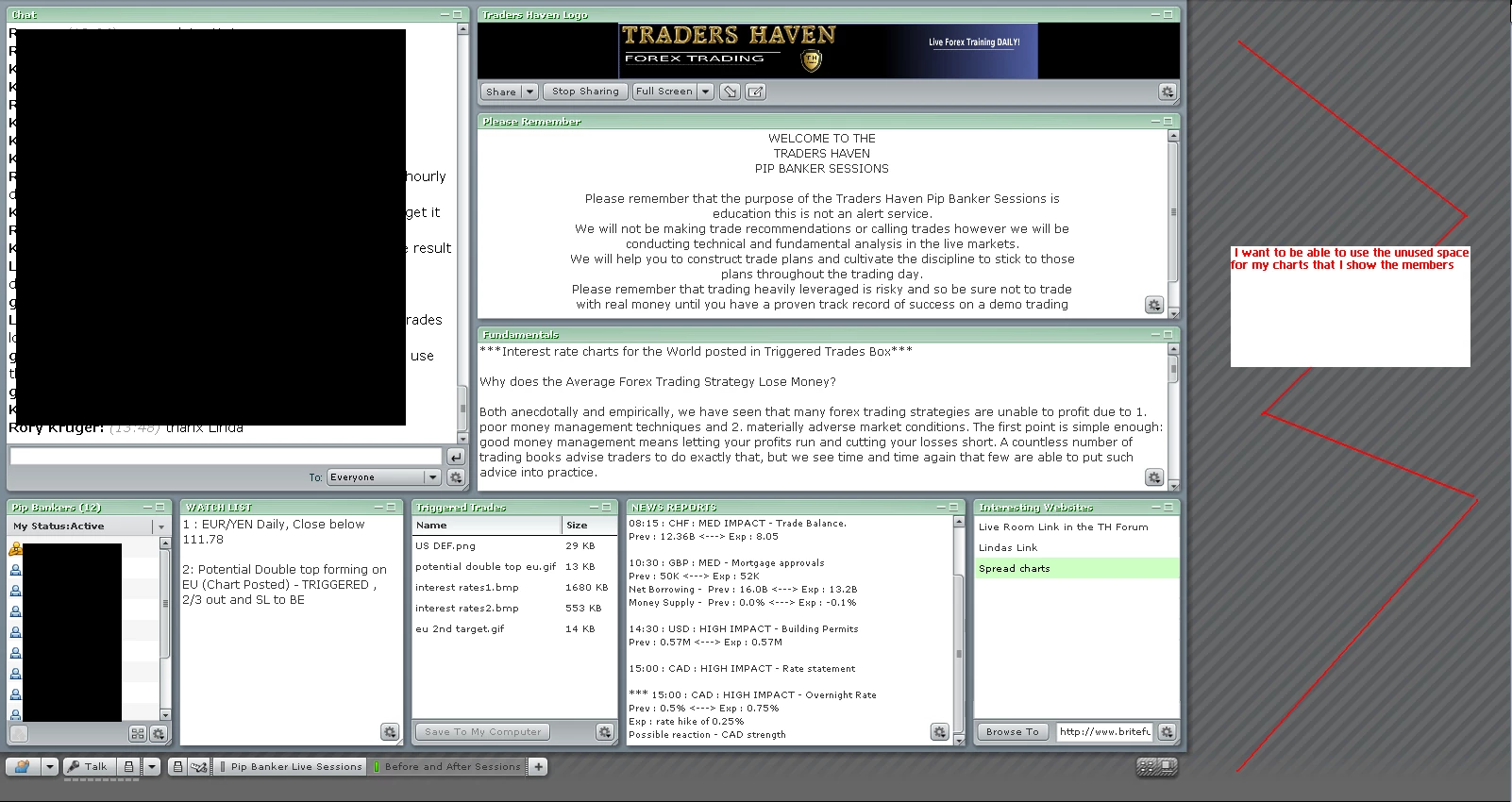
            I have an issue whereby I can not get the screen to use the unused space on the side of my presenter area.

I have a big gray empty section on the right hand side and this makes my charts too small in the middle.

Can any one tell me how to use the entire space available?

I have tried to resize the screen resolution , tried using presenter area only tried clicking and dragging it wider but cant seem to get it to fill the gray area on the right hand side.

I have attached a chart to show you what I mean.

Thanx
    This topic has been closed for replies.
    Correct answer

    Rory, if you compare the 2 screen caps, I quickly notice those are 2 different resolutions.  Meaning that one user must be viewing from a laptop or 17" non-wide screen and the other user must be using a 19"+ widescreen monitor. so if you set it for the 1st user the 2nd user would see a truncated view if viewing the same broadcast.

    the only thing you can do is adjust the Room Size, From the Meeting menu at the top, Room Performance & Appearance -> Room Screen Resolution.  This can only be done by the host.

    1 reply

    July 20, 2010

    Rory, I like to call that area the off stage area, Participants can not see that area of the broadcast, only other host or presenters.  also you can size the connectAddin so that can not see this area, it based on your monitor's resolution.  

    July 20, 2010

    Hi there,

                Thanx for the answer...the problem is my members do see this area...that screen shot was sent to me from a member.

    They all can see that gray area which is why I am trying to fix it.

    I am a complete newbie to this software and so am still trying to make head or tail of the multitudious manuals and tutorials...

    would it be possible for you to post a step for step how to maximize the area seen by the members? I have attached a chart here sent to me from the same member of another connect pro room that uses all the space, have a look at their space usage...its fills the box and their off stage area on the right is very much smaller than mine.

    thanx

    Correct answer
    July 20, 2010

    Rory, if you compare the 2 screen caps, I quickly notice those are 2 different resolutions.  Meaning that one user must be viewing from a laptop or 17" non-wide screen and the other user must be using a 19"+ widescreen monitor. so if you set it for the 1st user the 2nd user would see a truncated view if viewing the same broadcast.

    the only thing you can do is adjust the Room Size, From the Meeting menu at the top, Room Performance & Appearance -> Room Screen Resolution.  This can only be done by the host.