
March 28, 2013
Answered

Looping ppt for use as lobby layout

  • March 28, 2013
  • 6 replies
  • 9423 views

Hello - How can I take a continuous looping powerpoint presentation and have it continuously loop when I upload and use it for Share Document in Share pod?  And, can this be accomplished without have to buy any additional Adobe products, other than Adobe Connect? My intention is to use it in my Lobby Layout.  

Thank you.
This topic has been closed for replies.
Correct answer Astro The Goat

Instead of trying to correct the XML files and using a ZIP file


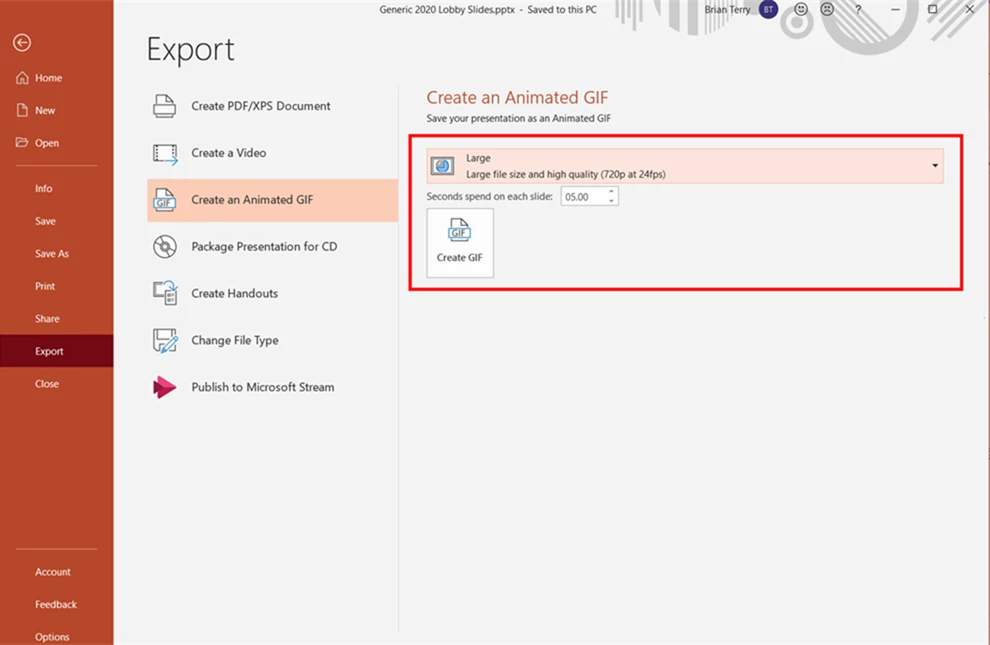
Why don't you Export the PowerPoint presentation as an animated GIF i.e.


Then you can drag and drop it into the Share Pod and this will loop for you!


6 replies

Participant
November 5, 2020

Hi! I was able to get mine to loop, but it pauses after 1 second on each slide. Any ideas on how to fix this?

Astro The Goat
Astro The GoatCorrect answer
Inspiring
November 25, 2020

Instead of trying to correct the XML files and using a ZIP file


Why don't you Export the PowerPoint presentation as an animated GIF i.e.


Then you can drag and drop it into the Share Pod and this will loop for you!


Participant
November 25, 2020

I love this idea! Thank you. I will give it a shot!

Jorma_at_CoSo
Legend
October 30, 2020

You didn't miss anything. The shift from Flash to HTML means that the files behind the scenes are different. The old xml file that we could modify previously doesn't apply to an HTML presentation. We've not yet found the method of changing the presentation to loop without the use of Adobe Presenter.

Lars Ehrlich
Participant
October 22, 2020

Hey there, first of all: Thanks for this great tutorial. It helped me a lot.

After the update to version 11 it seems that it doesn't working anymore. My old looped presentation - which worked fine until the update - isn't looping. I already uploaded an other presentation and did exactly the same as before but without a satisfying result. I'm using the new overlay/ ui in adobe connect (I have to say that I have'nt tried it in the old ui and to be honest I'd like to work with the new ui). When I upload the presentation often it wont even change the slide after pressing play. And at the end it stops instead of looping it.

Did I miss something? Is there anyone with the same problem?

Participant
November 15, 2017

Hello,

I have a similar issue - I followed the steps provided to modify the code but even with the correct code in viewer.xml (in Data folder; uploaded in Content library) the slides do not loop (I also adjusted the speed of the slide show to 7 seconds instead of 5 and this does not reflect in the meeting room either). The strangest thing is that it worked once but after adjusting the slides content it doesn't anymore. Any suggestions? Here is the code:

<?xml version="1.0" encoding="UTF-8"?>

<presentation viewerPatch="11.0.2.156" buildNum="11.0.2.155" start="play" loop="true" defaultSlideDuration="7" enableAccessibility="NaN" preview="0" isRTL="0" height="540" width="720"><search url="srchdata.xml"/>

<presentationBg url="bg.swf"/>

April 1, 2013

Strangely, I had a user with an older version of PPT presentation that would loop in the Connect meeting. I now use that PPT and change the info for every Lobby slideshow I need.

Jorma_at_CoSo
Legend
March 28, 2013

This can be accomplished without purchasing Presenter, but it is a multi-step process. Here is how you would do it:

  1. Upload your PPT to the Connect server (preferably the Content Library)
  2. Download the output files that the server generates to create the Flash version of your presentation. Should be pulled down as a zip.
  3. Un-zip the output files.
  4. Go into the data folder.
  5. Locate the viewer.xml file
  6. Open in Notepad or some other program that will let you modify an XML file.
  7. On line two, add loop="true". I placed this after start="play" (see image below).
  8. Save the viewer.xml file.
  9. Re-zip the output files.
  10. Upload the zip to the Connect server or your Share pod, and when you press play the file should loop.

If you did get Presenter, you could check the box to loop the presentation and it does this work for you.

March 28, 2013

Thank you!

Bill