Inspiring
August 24, 2022
Answered

Anisotropic materials not exported correctly

  • August 24, 2022
  • 2 replies
  • 2138 views

Hi forum.


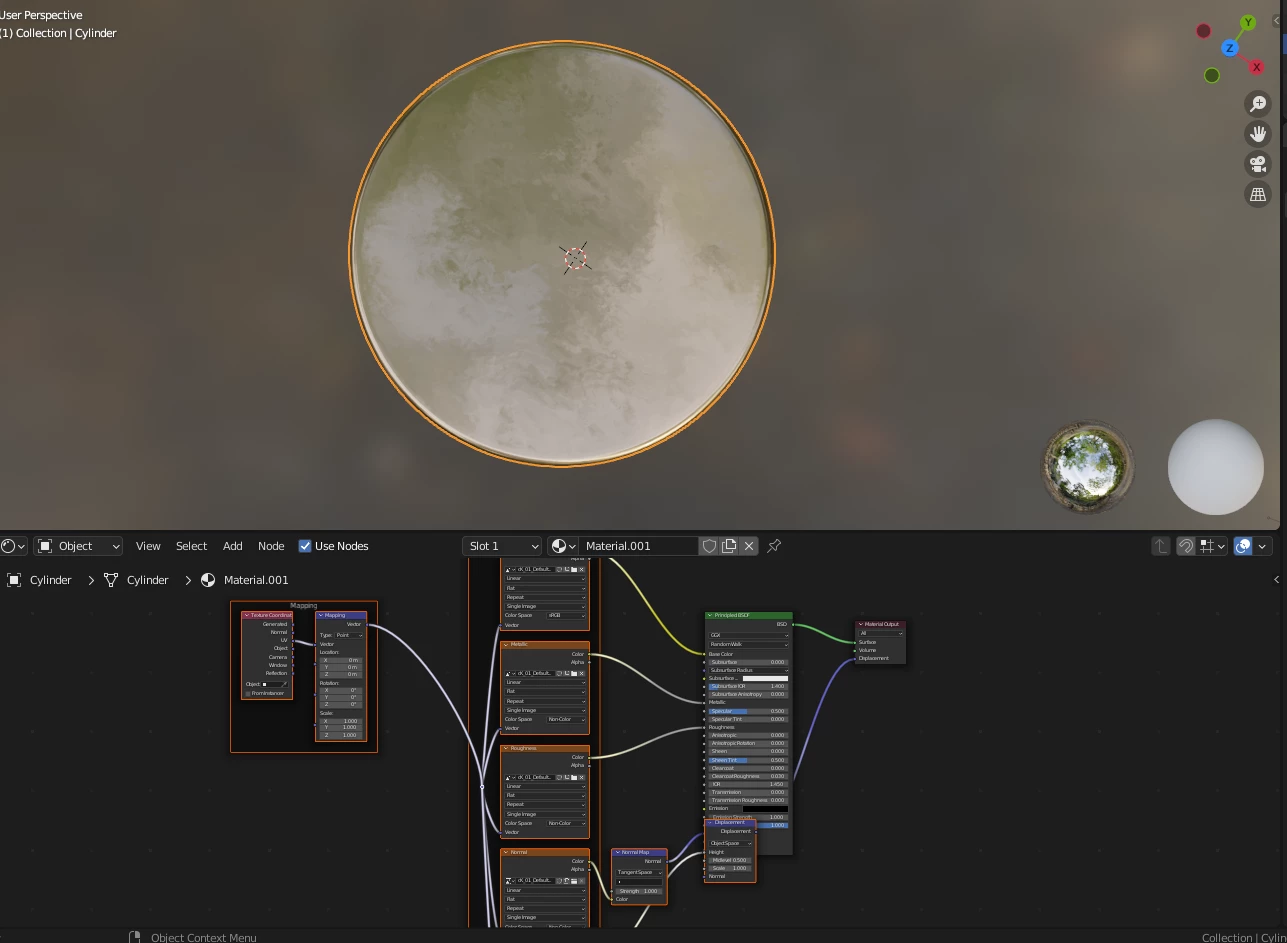
Im trying to export anisotropic materials. Seems all fine until I load them into Blender and I cannot see the anisotropic texture on my object.


Thank you. 
 

This topic has been closed for replies.
Correct answer davescm

Hi Dave, again nothing is happening. 


Im adding a new  PBR with the textures i need. I do add anisotropy, not sure which channel to use since i dont know and Im going in circles, and I cannot find on YT or google how its done. Can you please just show me with a screen shot what needs to be done so I can avoid this ordeal?


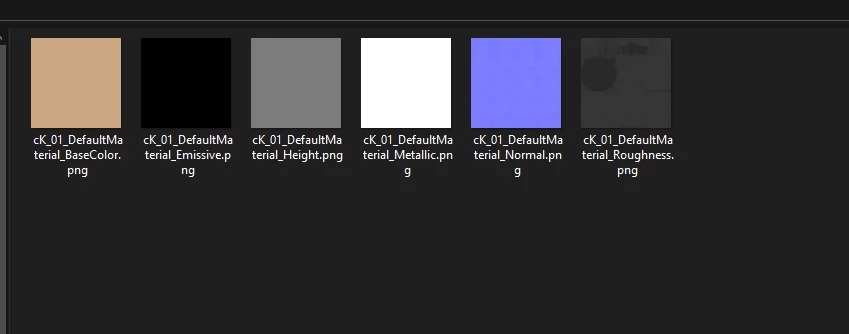
Again 7 selected, and only 6 get exported.


Thank you.


Hi

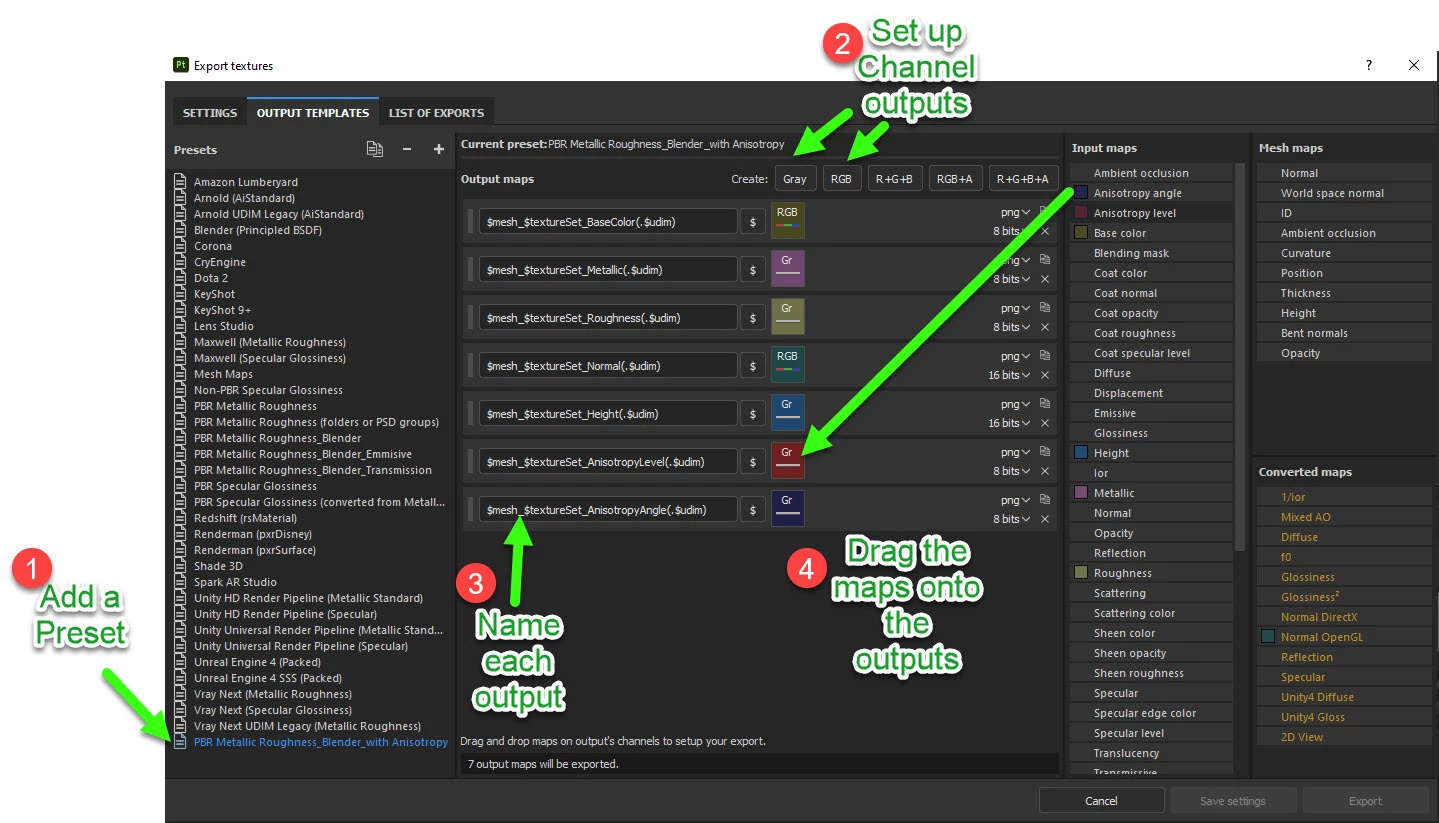
Set up a preset using the steps below, all outputs are greyscale except BaseColor and Normal:


When you come to export, use the newly set up preset


Dave

2 replies

davescm
Community Expert
Community Expert
August 25, 2022

Hi

There are a couple of stages here.

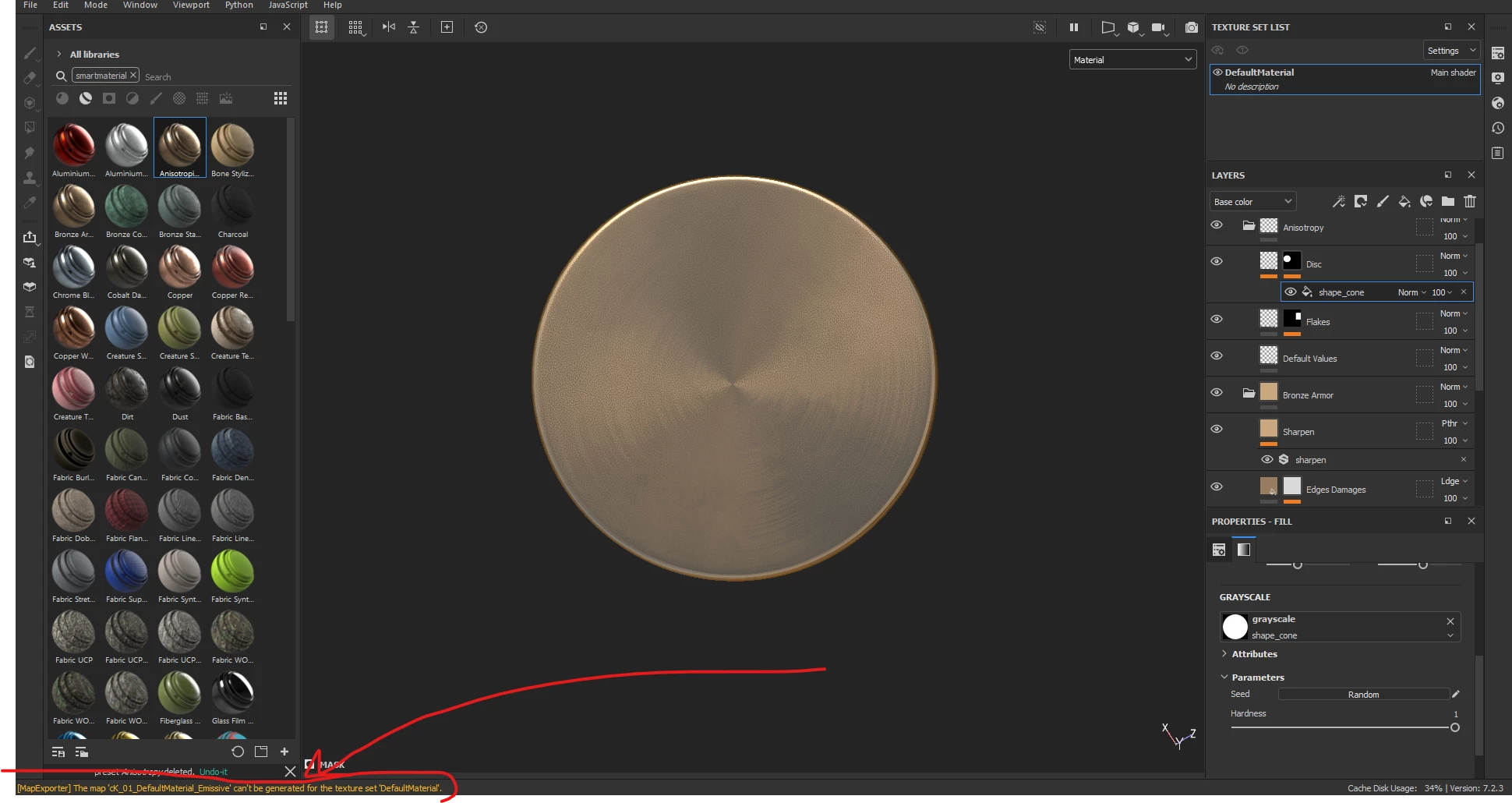
I can see you have added anistotropy channels and an emmisive channel to your material.

What I cannot see is have you added those same channels to your export template so that they will be exported along with the Base Color, Metal, Roughness, Height and Normal channels? Once you have done that the texture maps should export.


In Blender you will need to add those additional texture maps manually to the node set up, as Node Wrangler does not automatically plug in the Emmisive, or Ansitropy channels


Dave

Inspiring
August 26, 2022

Hi there Dave, thank you for coming to help my inquiry. 


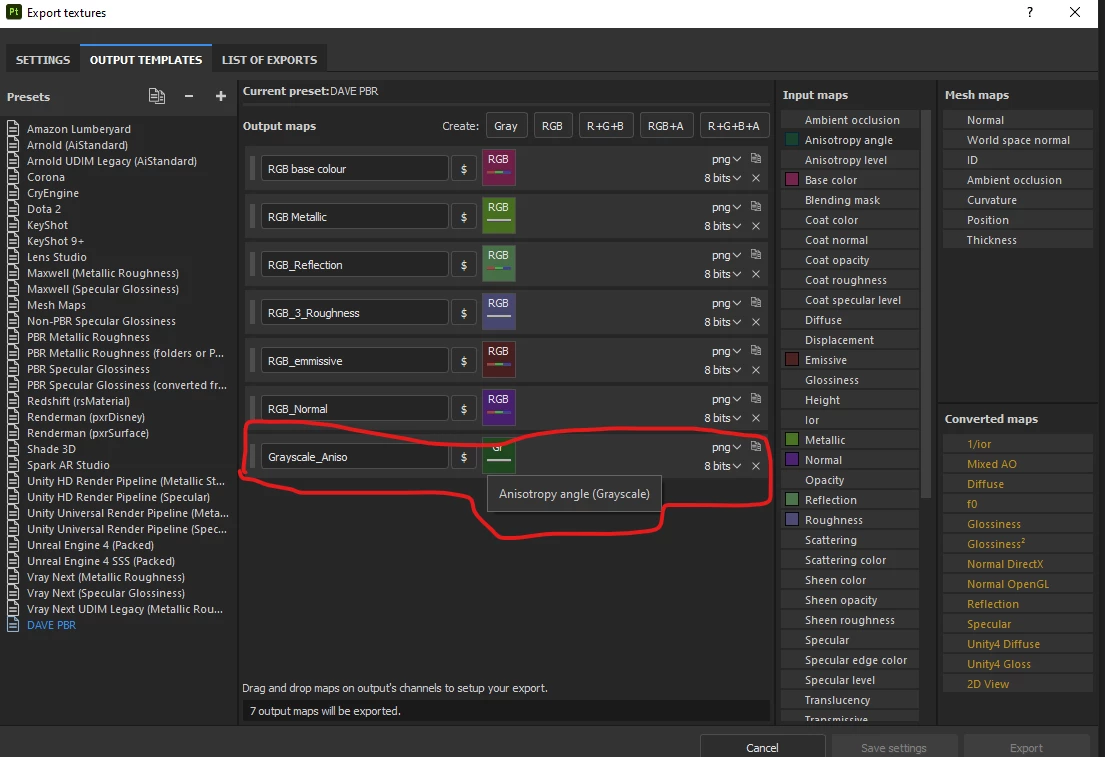
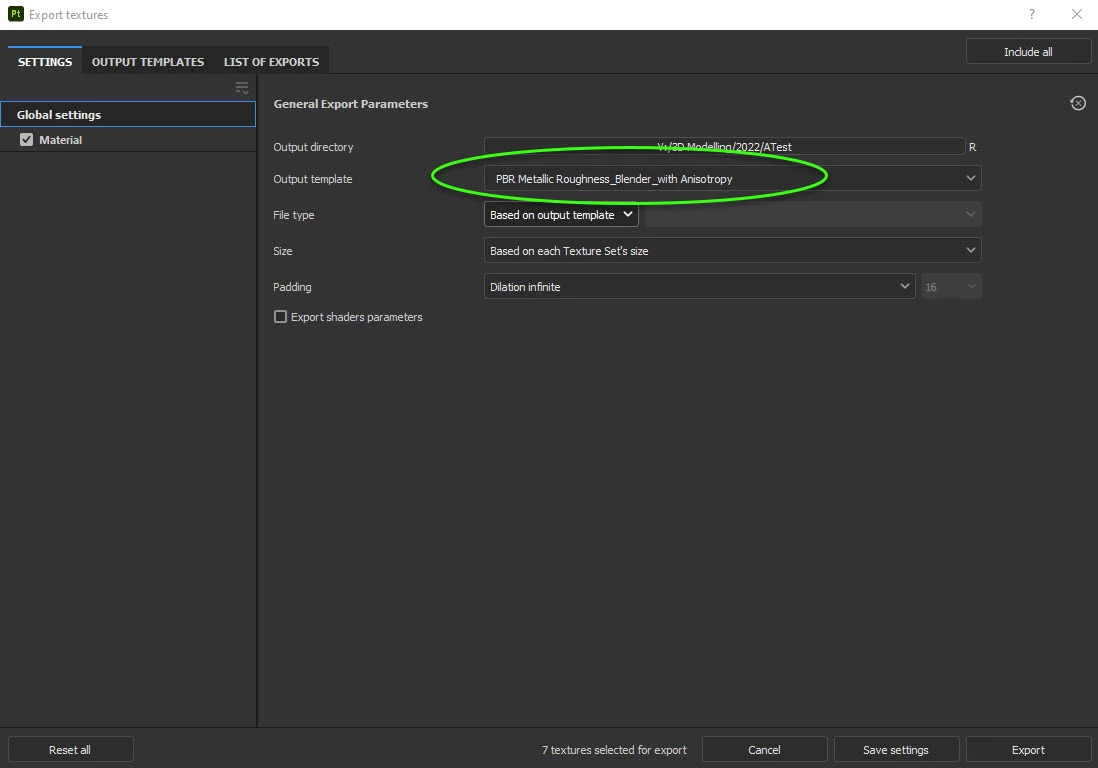
Is this the export panel you're referring to? If so, I have included the emission, indicated with the red border.

So therefor would it be a matter of node set up in Blender? I do have the node wrangler added, which automatically 

adds the textures to the object.


davescm
Community Expert
Community Expert
August 26, 2022

Hi

Yes that export includes your emmisive map (but not anisotropy).


Node Wrangler only adds Basecolor, Metal, Roughness, Height and Normal when Ctrl+T is pressed. You will need to add the emmisive map manually by adding an image texture node setting it to the appropriate image and changing the color space to non-color. Then plug that in to the mapping node output and the principled BSDF Emission input


Dave

Inspiring
August 25, 2022

With Emissive channel added, and cannot see it in blender.