


Participant
April 11, 2025
Answered

can to path tool NOT to snap to the mesh surface???
  • April 11, 2025
  • 1 reply
  • 269 views

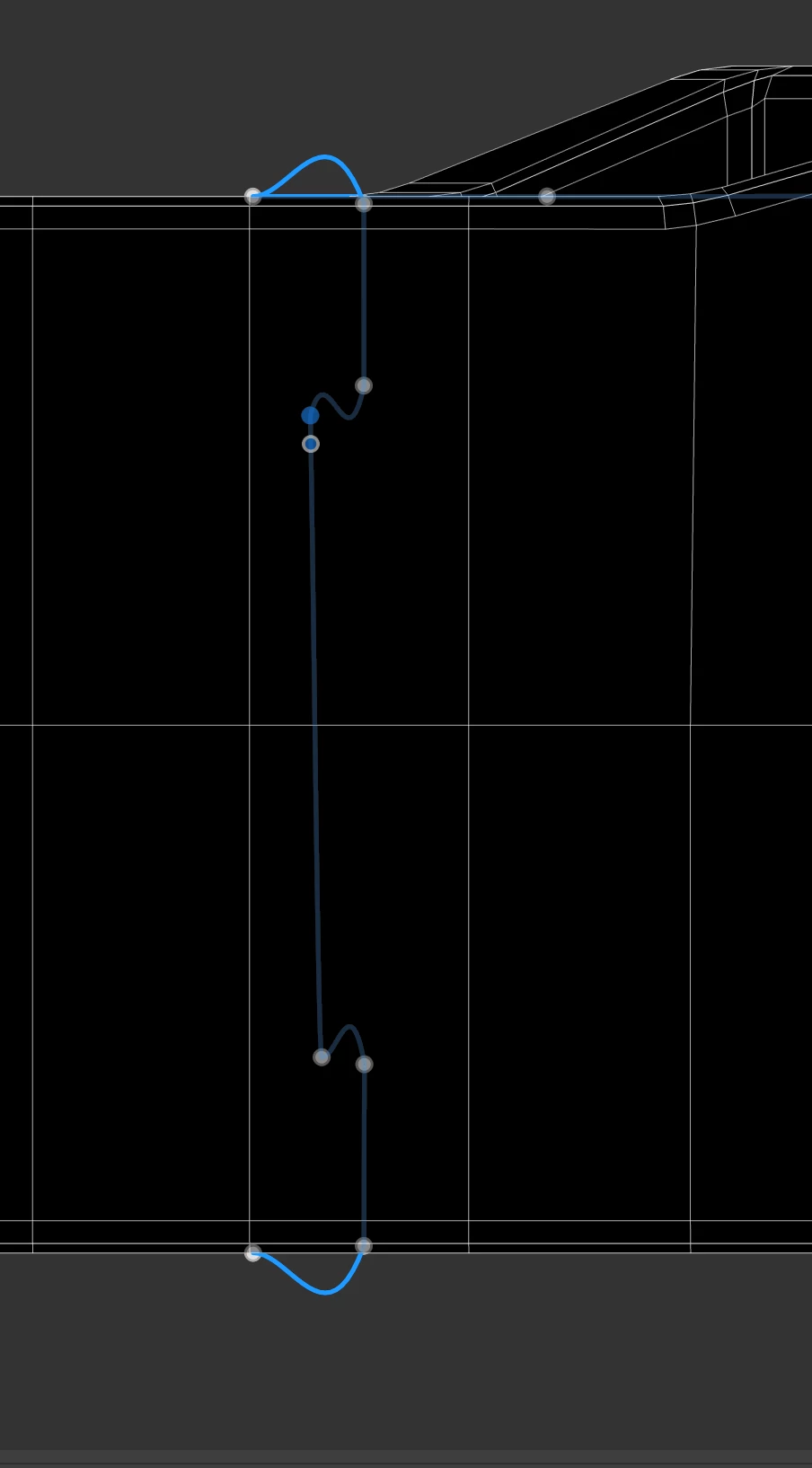
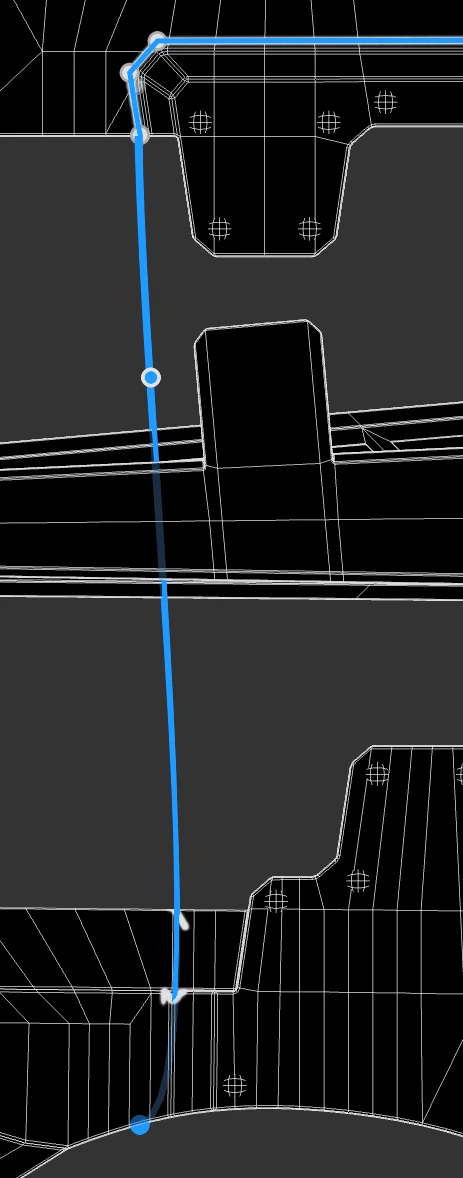
i am a newbie of substance painter and i've trying to use the path tool but i found that this tool is extreme hard to use because it will always snap to the surface but i just want to edit its plane coordinates not snap it to the front.
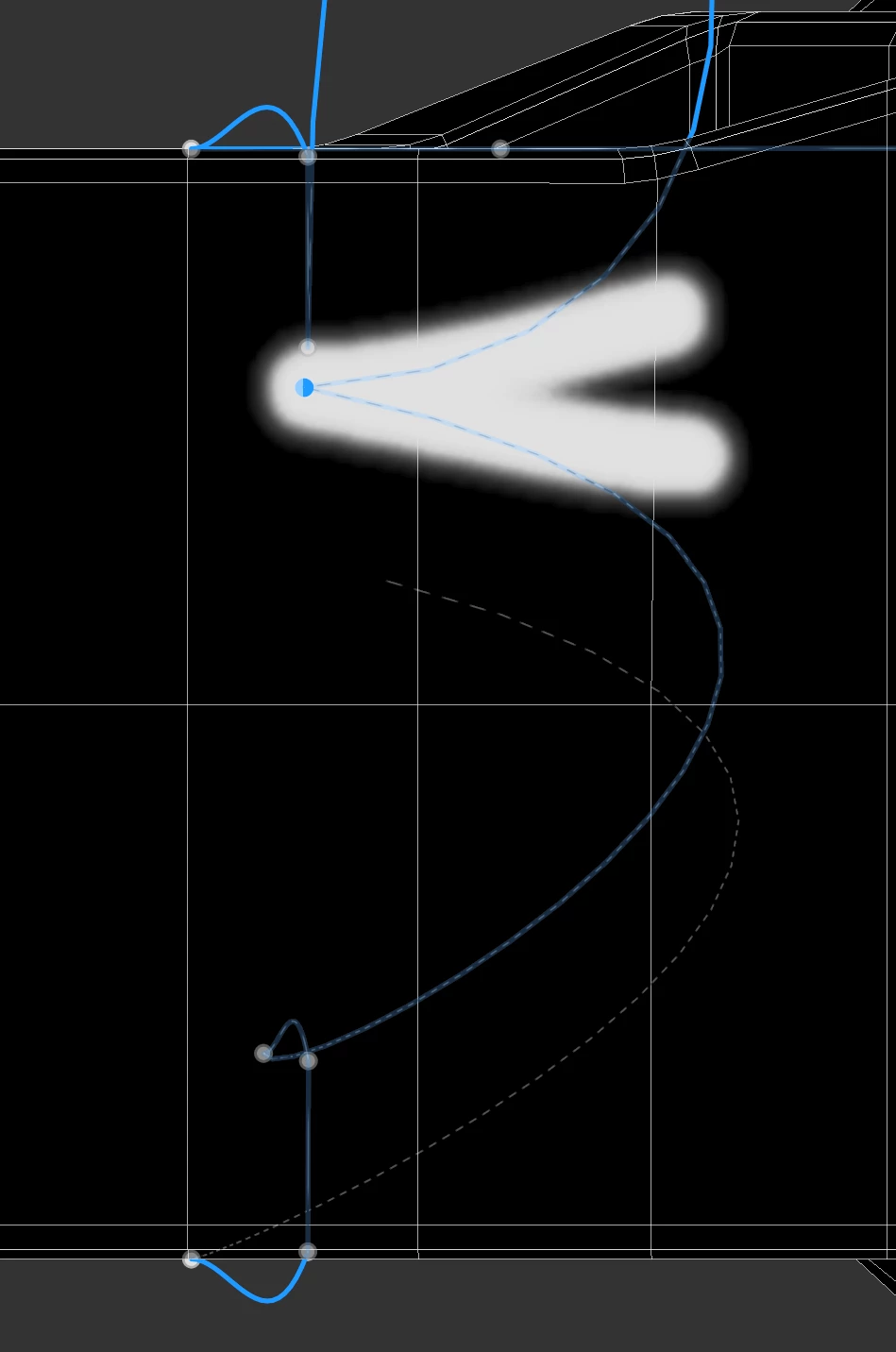
this is what happened after moving it a bit, as the photo see, the point moves to the other mesh which make the whole path become a mess. I want to know is there a way to disable this feature cause it is annoying all the time.

 

Correct answer Cyril Dellenbach

Hi @shun_0604,


Thank you for the message.


Yes, path's vertices are automaticaly snapped to the surface of the mesh because this is the most common use case of the tool.


That being said, you can select a single vertex and hit "W" to enable the Transform Manipulator which allows you to move the vertex in all axis without snapping. Hit "Shift + W" if you want to go back to snapping.


Best regards,


1 reply

Cyril Dellenbach
Community Manager
Cyril DellenbachCommunity ManagerCorrect answer
Community Manager
April 11, 2025

Hi @shun_0604,


Thank you for the message.


Yes, path's vertices are automaticaly snapped to the surface of the mesh because this is the most common use case of the tool.


That being said, you can select a single vertex and hit "W" to enable the Transform Manipulator which allows you to move the vertex in all axis without snapping. Hit "Shift + W" if you want to go back to snapping.


Best regards,


Cyril Dellenbach (Micro) | QA Support Artist | Adobe
shun_0604Author
Participant
April 11, 2025

ok thanks