


Participant
May 11, 2024
Answered

Clone stamp tool only partially working?

  • May 11, 2024
  • 2 replies
  • 1042 views
Hi Everyone, Substance noobie here. Looking for help with seams. Basically, I am struggling to get the clone stamp tool to behave as I think it should.
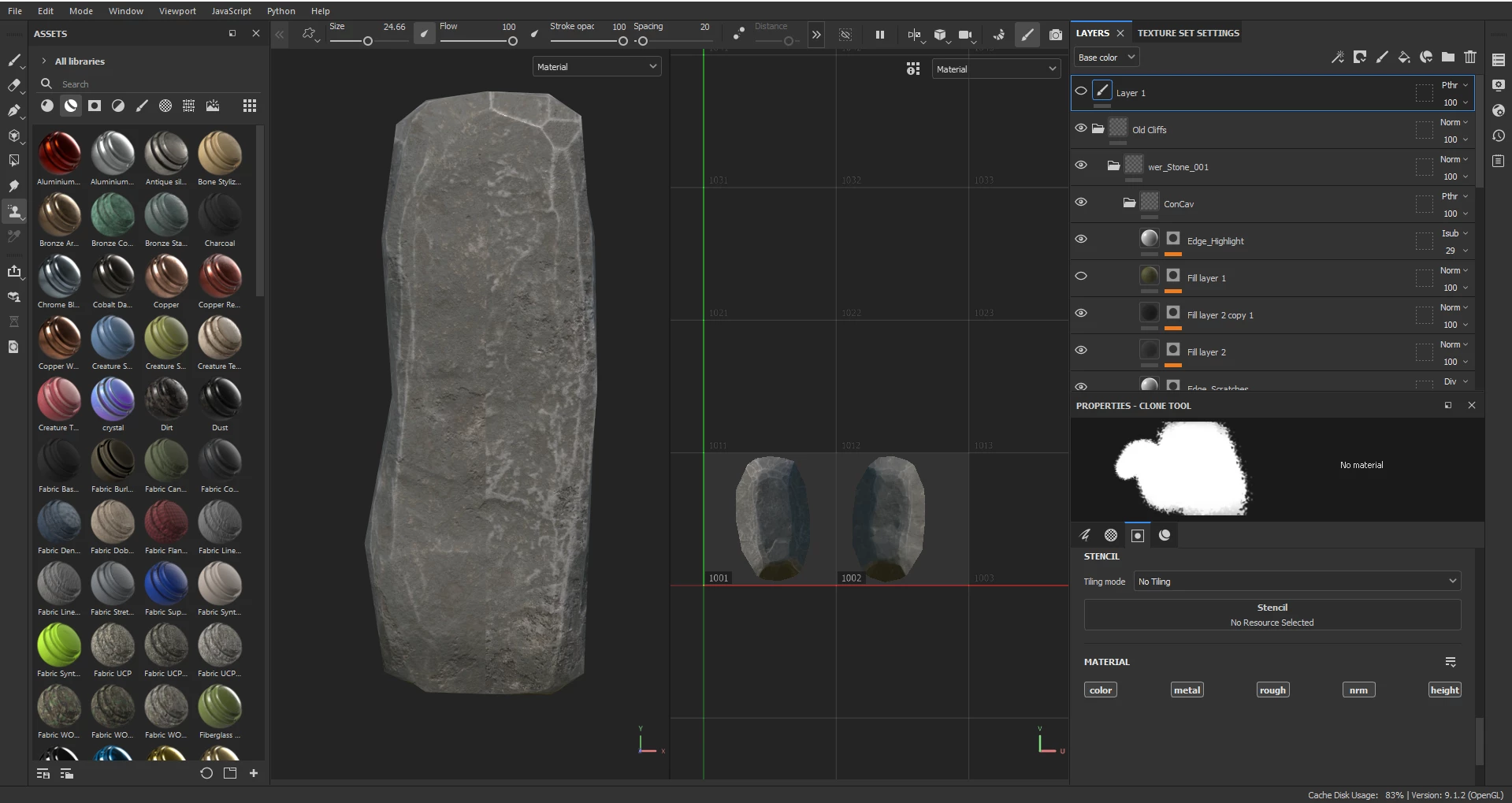
 
 
So this rock is divided into 2 sections. As you can see, we have a seam running right through the middle.
 
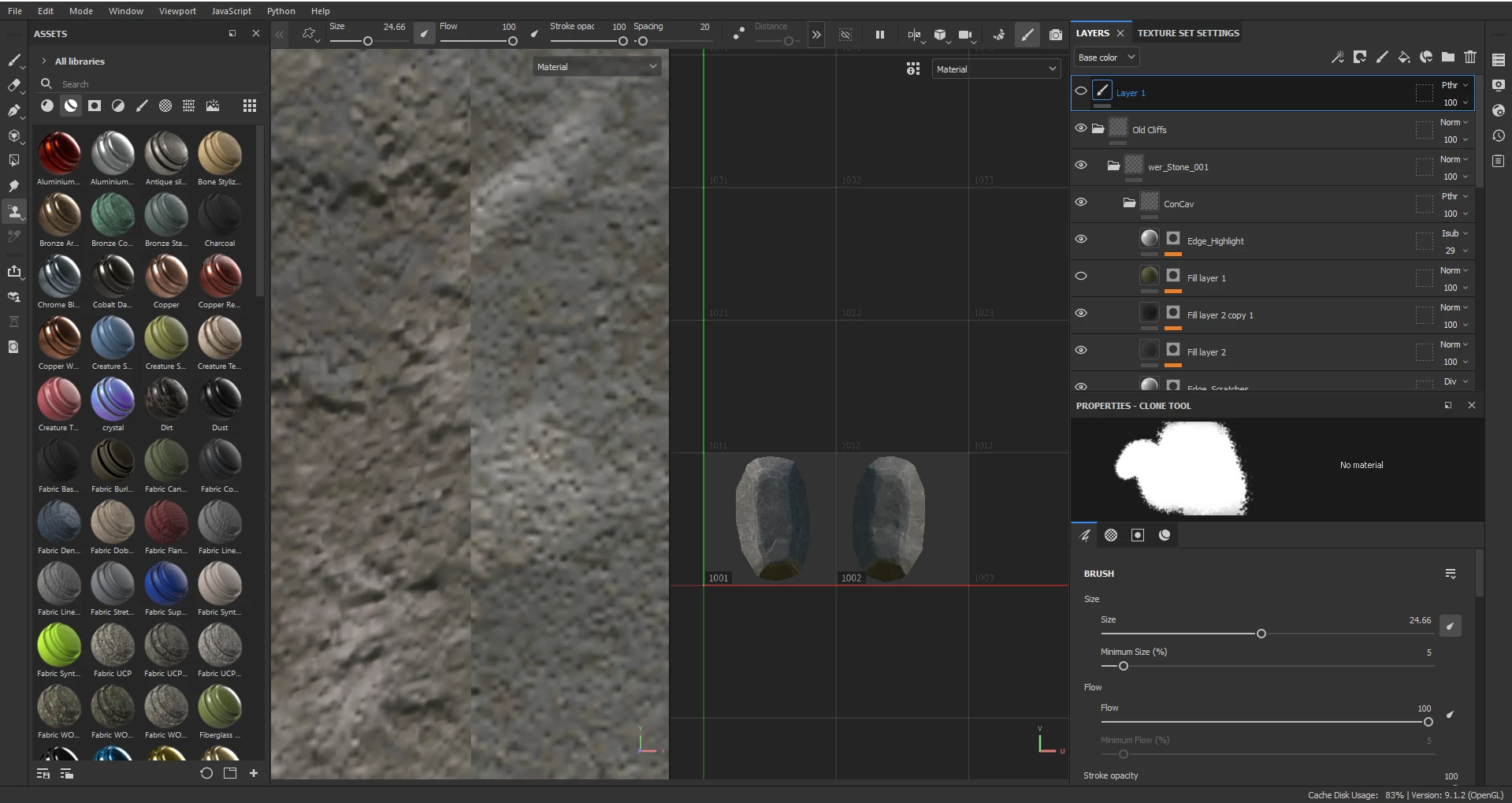
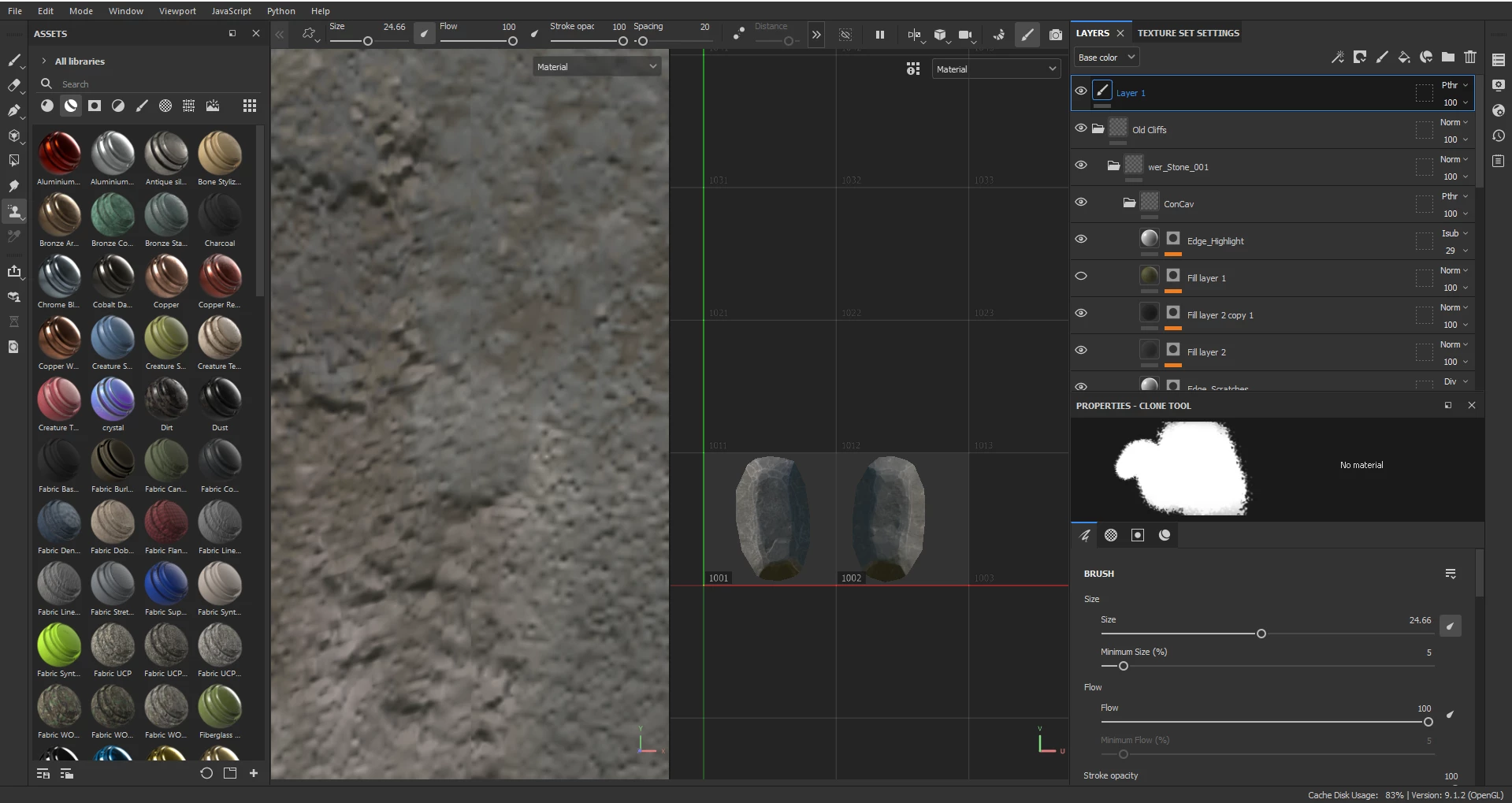
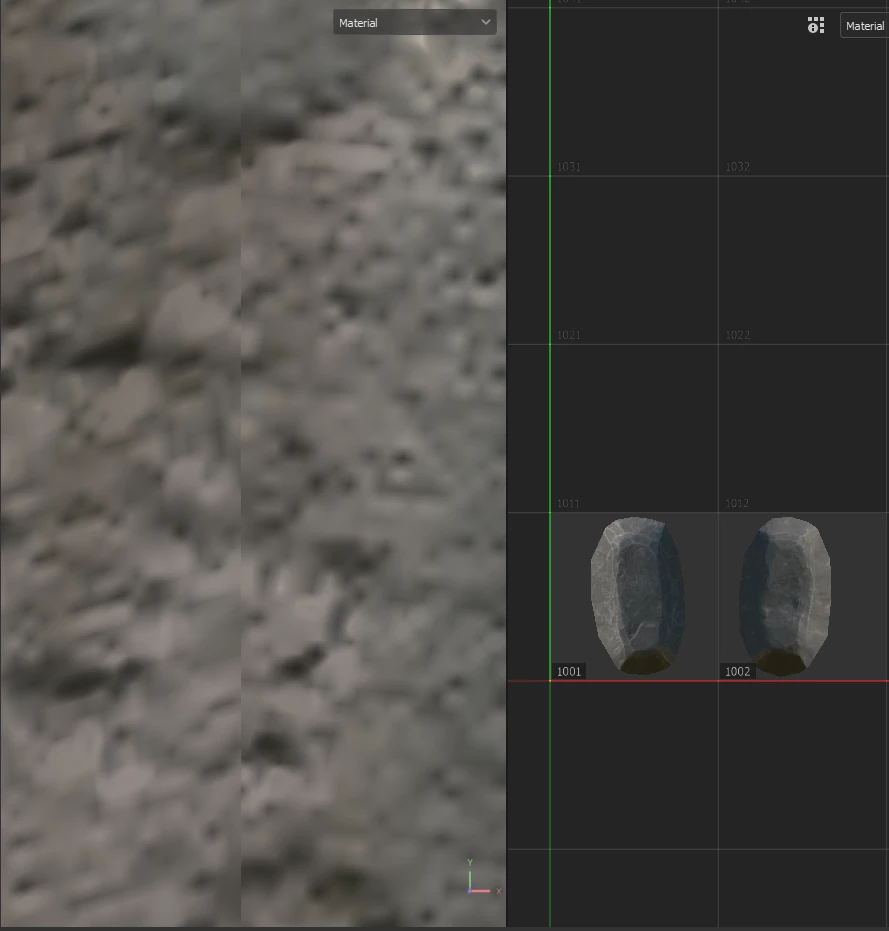
When I clone-stamp it sort of works. From a distance, it does not look too bad. But up close and under certain high-contrast lighting conditions, the seam is still very apparent to me. My worry is when making assets that are intended to be large/walked upon, these seams would be noticeable as the player/user will potentially be in close proximity to (or standing directly on top of) them. I make stuff for second life, VR chat and so forth and people can be very fussy about visible seams because you can basically walk up to objects and face-hug them. So I try to get thigs as perfect as possible.
 
Am I being too much of a perfectionist? Is this expected behaviour? I realize I am close enough to the object to lick it. I have tried this with multiple objects and smart materials to the same outcome. Im just using a rock for now to clearly illustrate the issue.
 
Before
 
After
 
Closeup
I have been through many tutorials and forum posts but everything I tried so far has not solved the issue. 
 
Things I have done/tried in various combinations:
Changed normal mixing modes.
Changing the clone mode from relative to absolute.
keeping all faces on 1 single texture map group -  and also splitting the mesh into two separate parts (ie two separate map groups) - and the UDIM tiles workflow. Same result no matter the config.
Changed brush alignment.
Tried multiple brush techniques (one long stroke directly along the seam, short cross-hatching, etc).
Changed my UV mapping several times with various seam configurations.
Triplanar mapping (moves the textures around a bit but does not fix the seam at all)
Creating a duplicate fill layer and using the UV seam generator.
 
I use OpenGL normals because Secondlife uses them. I work in 2048 resolution usually. 
 
And I am stumped what to try next. Any advice would be appreciated.
 
I am using the 2023 Steam edition. Thank you!
Correct answer GeoffroySC

Hi,

This is an expected behavior. Unfortunately, seams will always be somewhat visible depending on your UV layout. 
You have to think of your texture as a grid of pixels. A pixel is a unit, but UVs are floating coordinates between 0.0 and 1.0.

Your UV "lines" will cross and split pixels in half. This is what causes seams. 
Either you perfectly align the UVs to the pixel grid, or you are okay with some visual artifacts. 
For a game scenario as you describe you have several options to minimize the visual impact:

1- you place the seam on an edge or crevice where it will be harder to spot

2- You use tiling texture on a mesh and blend several materials on top of one another. The high tiling amount reduces the seam visibility (more pixels, less seam visibility)

3- You hide the seam by placing an object on top of it. 
Kind Regards,

Geoffroy SC

2 replies

Participant
May 20, 2025

Even though this thread is a year old I wanted to add in my potential solution here in case anyone is having this issue. I was running into this problem and it was because I had the blend mode on the paint layer set to "pass through" for the base color channel only. This was leaving a very visible seam because the clone stamp was not cloning the normal, roughness, ao, etc because the blend mode for those channels was still technically set to "normal".  Solution was to right click the blend mode drop down on the paint layer and hit "apply to all channels.

GeoffroySC
Community Manager
GeoffroySCCommunity ManagerCorrect answer
Community Manager
May 13, 2024

Hi,

This is an expected behavior. Unfortunately, seams will always be somewhat visible depending on your UV layout. 
You have to think of your texture as a grid of pixels. A pixel is a unit, but UVs are floating coordinates between 0.0 and 1.0.

Your UV "lines" will cross and split pixels in half. This is what causes seams. 
Either you perfectly align the UVs to the pixel grid, or you are okay with some visual artifacts. 
For a game scenario as you describe you have several options to minimize the visual impact:

1- you place the seam on an edge or crevice where it will be harder to spot

2- You use tiling texture on a mesh and blend several materials on top of one another. The high tiling amount reduces the seam visibility (more pixels, less seam visibility)

3- You hide the seam by placing an object on top of it. 
Kind Regards,

Geoffroy SC

Participant
May 14, 2024

Hi Geoffory,


Thank you. I had a feeling this might be the case, but when learning something new I always reserve the possibility that I am being an idiot and there is a solution that I am just not seeing. 


Thanks for the exlpanation/confirmation. All the best!

GeoffroySC
Community Manager
Community Manager
May 16, 2024

No problem, I hope you find a solution for your project, if you have any questions feel free to ask here and I'll try my best to help you!

Kind Regards,

Geoffroy