


Participant
March 4, 2023
Answered

How do I export Ambient Occlusion Maps?

  • March 4, 2023
  • 1 reply
  • 17659 views

Hello all,


I wanted to ask if it is still possible to export ambient occlussion maps from substance painter, as after the recent update I can't seem to find a way to manually expost it anymore, and I am unsure which setting I have to change to bring back the ability to expoert the baked ambient occlussion map from the program to be used in other software like blender.


Does anyone have an advice on where this setting can be found if it is still there?


(I am using a PBR workflow in substance with openGL normals, andattempting to export with blender BSDF at the selected export setting currently)

Correct answer Cyril Dellenbach

Hello Nicholas,


Thanks for the question and yes, it is still possible to export the ambient occclusion as simply as the other maps.


When you export with the Blender BSDF template, the ambient occlusion isn't saved as an output map of the preset. Therefore, you can edit the template (or even create a new one), in order to add the Ambient Occlusion map.


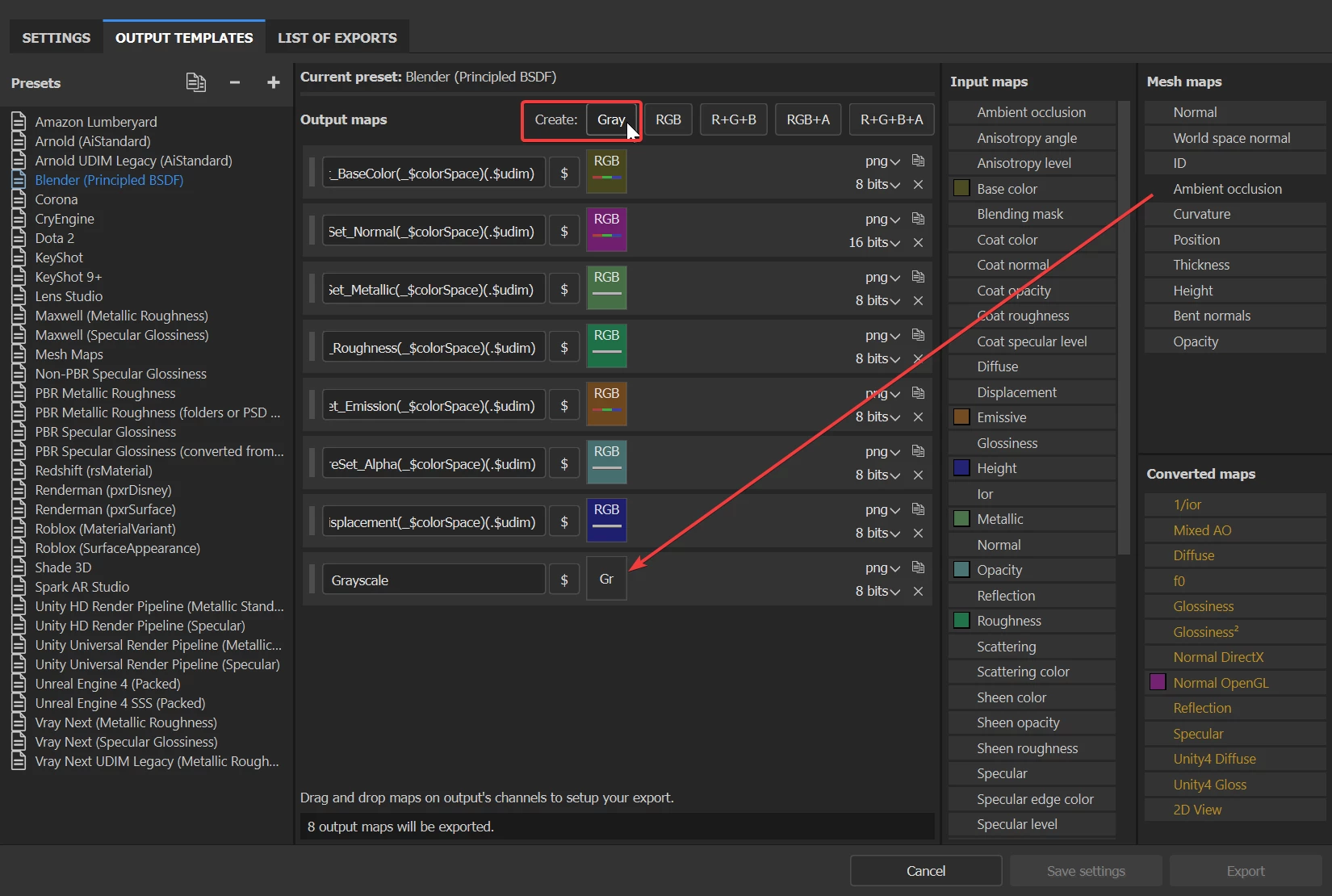
In your export settings (Ctrl+Shift+E), go to the Output Templates window, select the Blender (principled BSDF) preset, create a Gray output and drag and drop the Ambient occlusion in the corresponding slot.


Keep me posted and have a nice day.


1 reply

Cyril Dellenbach
Community Manager
Cyril DellenbachCommunity ManagerCorrect answer
Community Manager
March 6, 2023

Hello Nicholas,


Thanks for the question and yes, it is still possible to export the ambient occclusion as simply as the other maps.


When you export with the Blender BSDF template, the ambient occlusion isn't saved as an output map of the preset. Therefore, you can edit the template (or even create a new one), in order to add the Ambient Occlusion map.


In your export settings (Ctrl+Shift+E), go to the Output Templates window, select the Blender (principled BSDF) preset, create a Gray output and drag and drop the Ambient occlusion in the corresponding slot.


Keep me posted and have a nice day.


Cyril Dellenbach (Micro) | QA Support Artist | Adobe
Participant
September 30, 2024

does not work

[abuse removed by moderator]

Inspiring
June 4, 2025

When dragging the map for Ambient Occlusion over onto the grayscale box, there are three options that come up - "from ambient occlusion", "grey channel", and "A channel". The A channel looks like it stands for alpha. Does anyone know the difference in outcome for these? I'd assume "from ambient occlusion" is the right one to use?