


Newbie question: How do I project a 2D stripe pattern onto a 3D model without it stretching/bleeding
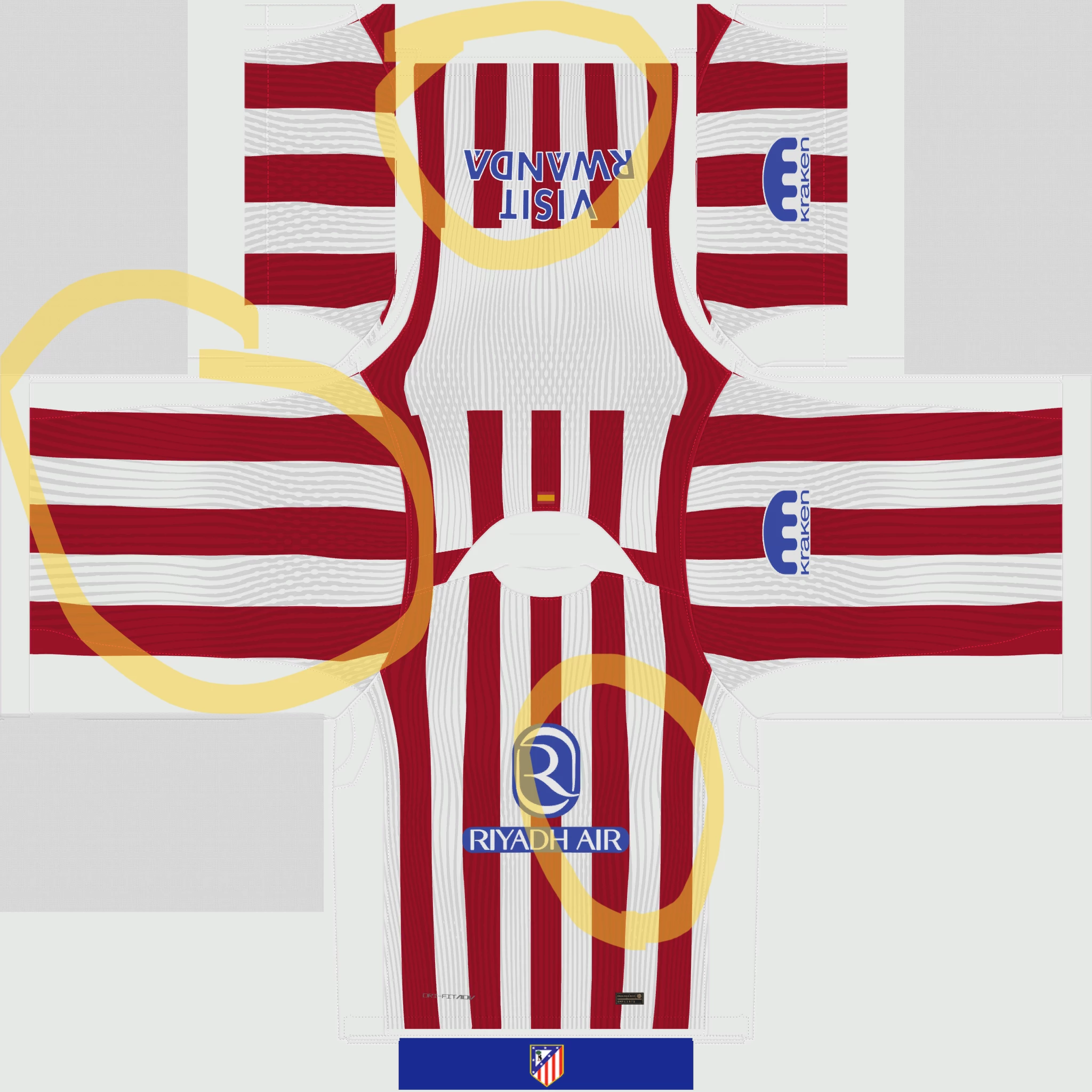
Hello! I've been trying to get these vertical lines on the jersey, but they're always stretching out or bleeding to the sides. I want the lines to follow the 3D model nicely (not 2D UV), so they curve along the rig cage, torso area, etc. (like an example of the original texture from the game below).
Goal/Example:
Problem:
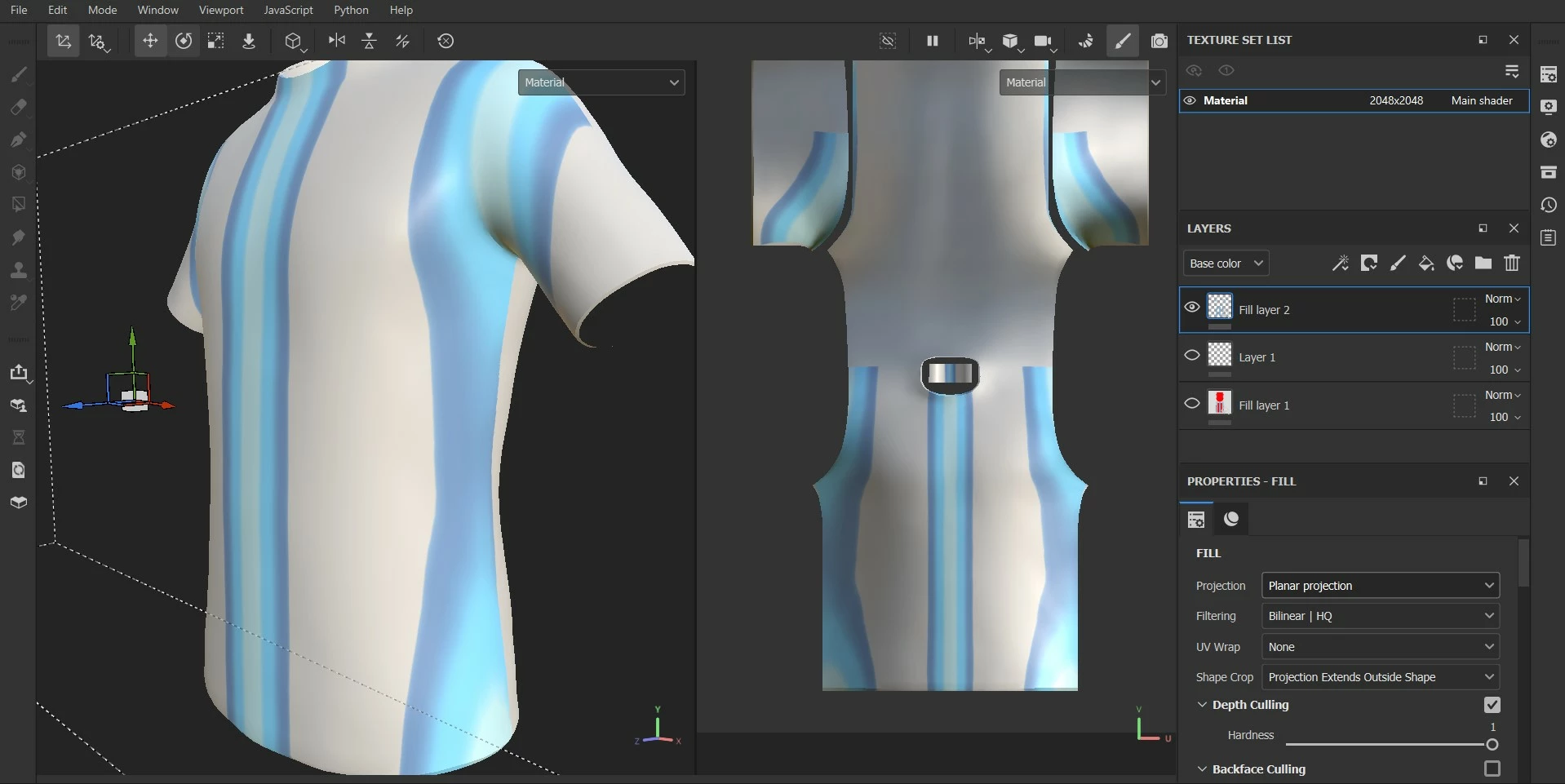
I've tried using tri-planar and planar projection, and they don't seem to work well with my model.
A couple of things I'm trying to figure out are:
- Which method should I use to get the best result? Should I use planar, tri-planar, or something else?
- I'm not quite sure if the problem is with the UV map, but I believe it's already working fine.
- Do you guys have any suggestions or ideas on how I can make this work? I've been trying to find a solution and tutorials online, but none of them were very helpful.
Thanks in advance!
 AdChoices