


Normal map decal on certain axis look weird?
Whilst working on a personal project I had bought a pack of normal map decals for hard surface modeling when I noticed they looked weird on my model!
At first I figured it was maybe a topology or UV issue on my end but after extensive research, and even noticing UV seams in normal view, found out that wasn't the issue nor an issue to begin with.
So I decided to test it on the simplest thing. Blender's Default Cube.
And here's what I found.
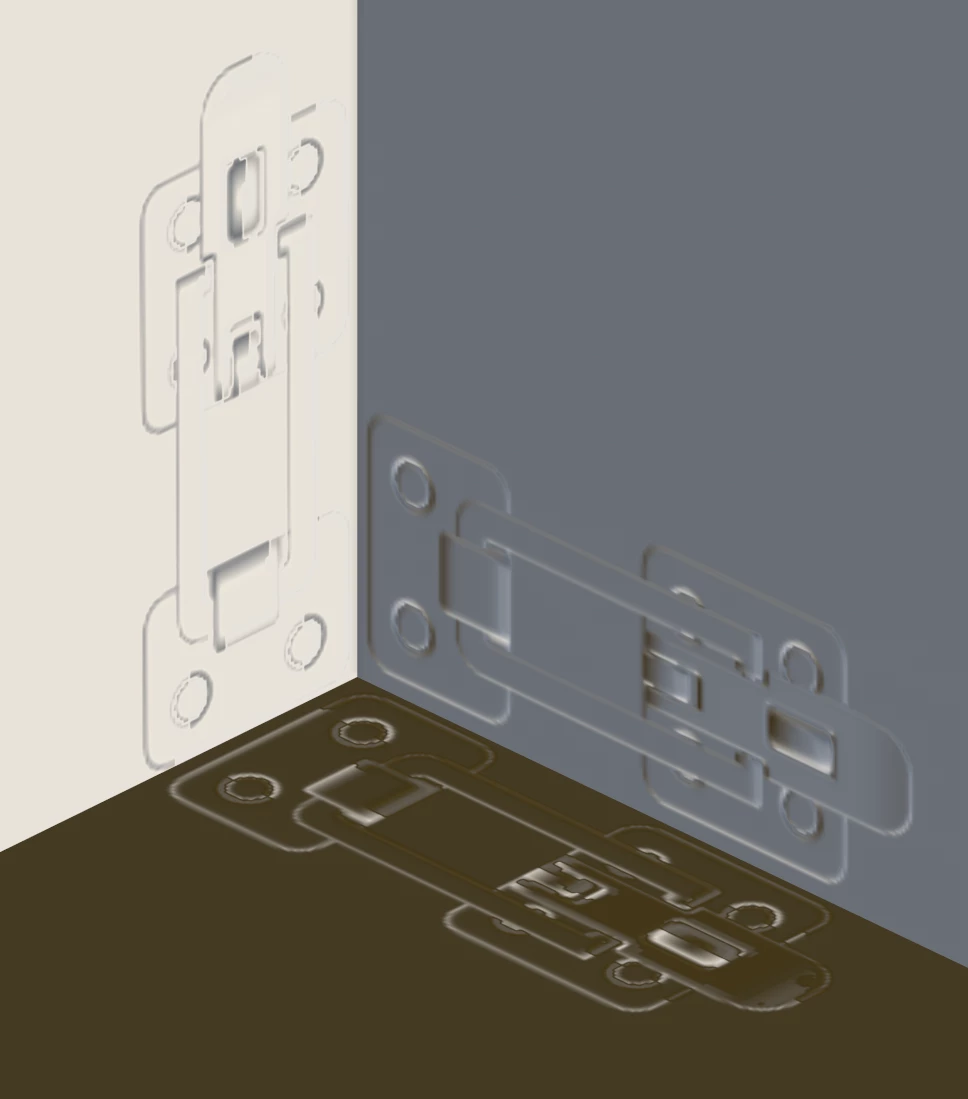

On the image you can see 3 faces in the corner of a cube in ortographic view. The one on the left is the Y axis, one on the right is the X axis, and the one on the bottom the Z axis (This view is from the back of the cube)
Normal maps seem to only work/look as intended on the X axis facing surfaces, whilst the other two axis they look weird and have those visible seams, it is especially noticeable in material view with added complexity.
Now this doesn't seem to be consistent, as on my personal project files, normal map decals on X axis facing surfaces still had these very same issues.
Is there something I'm missing? Is it a shader issue, or project file issue?
For context the file is set to OpenGL normals, and the shader setting itself is "PBR - Metallic Roughness Alpha-blend (starter-assets)"
 AdChoices