


Participant
September 11, 2024
Answered

Want to create skin details, but normals go crazy

  • September 11, 2024
  • 1 reply
  • 756 views

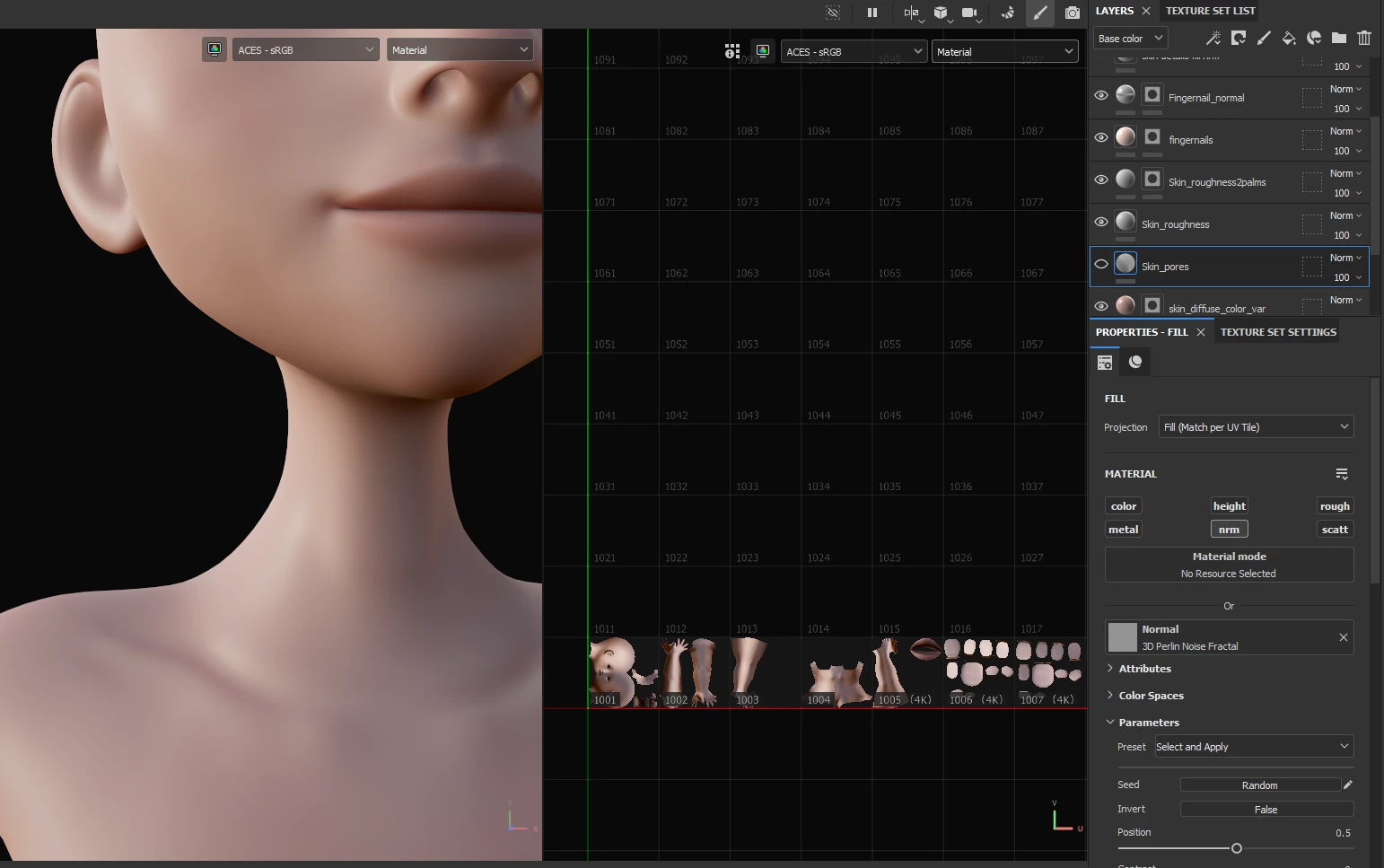
I have a human model that UV unwrapped and uses a UDIM system. Nomal painting works absolutely fine. The issue arises when I tried (perhaps in a less than ideal workflow) to add skin details like pores usng perlin noise. 
The steps I took:
1. Created a fill layer with only the normal channel activated.
2. Added a white mask and added a 3D perlin noise fractal to the normal slot.

3. Model now suddenly has weird coloration and lighting that is different between UV islands.

I baked mesh maps within substance before starting the paint process, and I'm working in DirectX for Unreal engine support. I've attached a short clip that shows everything. (If embed isn't showing, here's the link -https://youtu.be/QlelVoUfdxY)
Maybe I'm doing something wrong. All I really want to do is add skin details. I'd appreaciate any feedback on this matter. Thanks!

This topic has been closed for replies.
Correct answer Cyril Dellenbach

Hi @Sam062,


Thank you for the message.


This is in fact the expected behavior. The Normal slot expects a Normal map, and a Perlin Noise is a Greyscale map, so not made for this kind of purpose.


Instead, I suggest you to :


  • Add a Fill layer
  • Turn off all channels except for the Height
  • Increase a little bit the Height value
  • Add a Black mask to the layer
  • Add a Fill effect in the Black mask
  • Drag & Drop the Perlin noise inside the Fill Layer effect


Considering Substance 3D Painter natively turns the Height into normal, the result will be what you're looking for.


Best regards,

1 reply

Cyril Dellenbach
Community Manager
Cyril DellenbachCommunity ManagerCorrect answer
Community Manager
September 12, 2024

Hi @Sam062,


Thank you for the message.


This is in fact the expected behavior. The Normal slot expects a Normal map, and a Perlin Noise is a Greyscale map, so not made for this kind of purpose.


Instead, I suggest you to :


  • Add a Fill layer
  • Turn off all channels except for the Height
  • Increase a little bit the Height value
  • Add a Black mask to the layer
  • Add a Fill effect in the Black mask
  • Drag & Drop the Perlin noise inside the Fill Layer effect


Considering Substance 3D Painter natively turns the Height into normal, the result will be what you're looking for.


Best regards,

Cyril Dellenbach (Micro) | QA Support Artist | Adobe
Sam062Author
Participant
September 12, 2024

Thank you so much! That worked like a charm!