Inspiring
March 3, 2023
Answered

Working With Decals - Any Way To Auto Sync Material Fill Layer and Mask Fill?

  • March 3, 2023
  • 1 reply
  • 1765 views

Hi 


Im importing decals from Quixel Bridge - so the usual material files - normal, diffuse, height, roughness and combining these into a fill layer in Substance Painter. They also use an opacity map, so I created a black mask with it's own fill layer and place the opacity in there. 


All good, but when I want to move the decal, the material size/pos is not sync-ed to the mask fill layer's size/pos, so I have to manually transfer over values between the two. 


Is there a way to sync them, so I can just move my decal easily? Thanks!

This topic has been closed for replies.
Correct answer Cyril Dellenbach

Hello @pppeepo,


If you don't already know this feature, you're gonna love this.


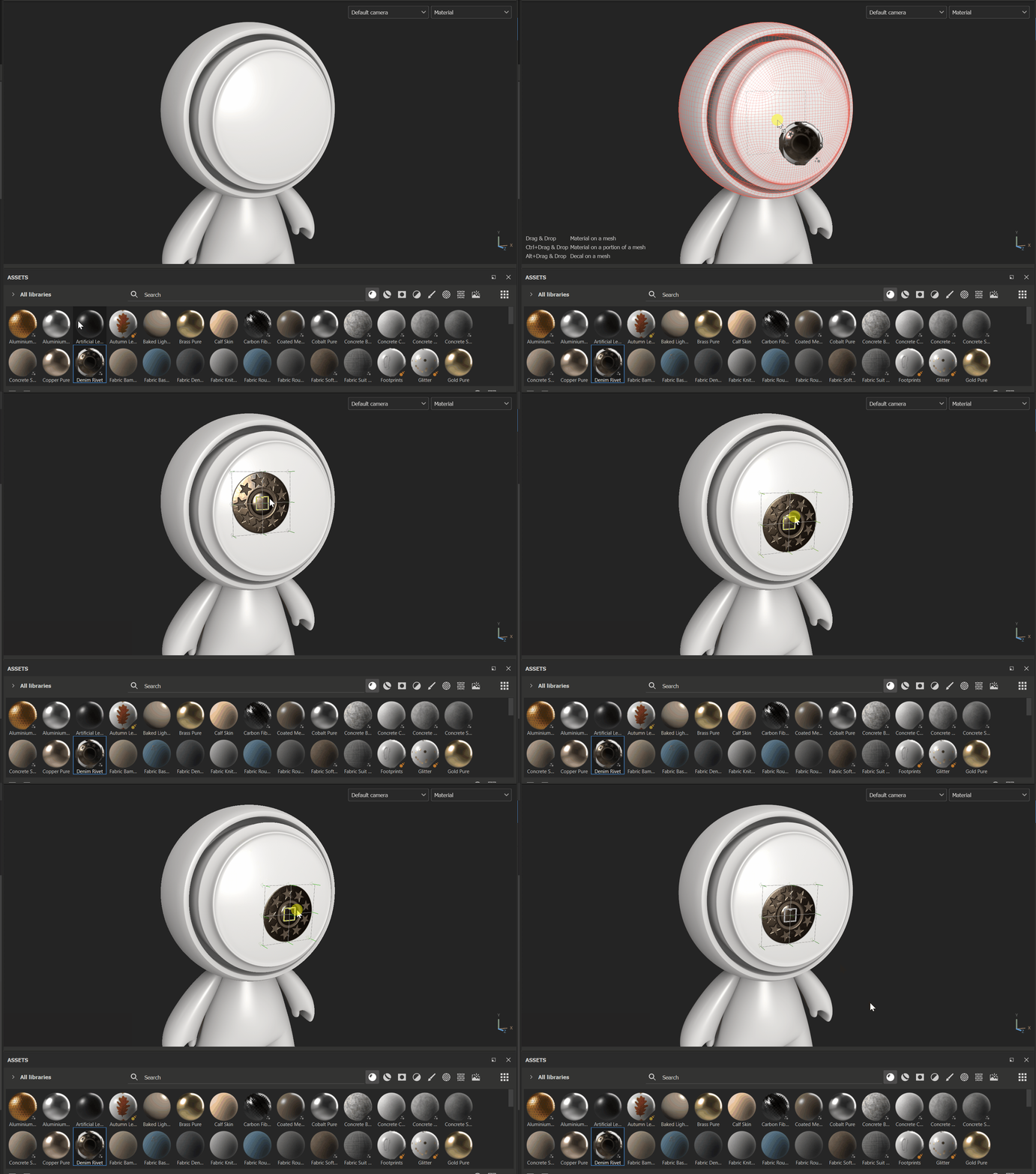
The easiest way to settle and edit your decal map is simply by using our Decal system instead of a fill layer. You simply have to Alt+drag and drop any material from your shelf.


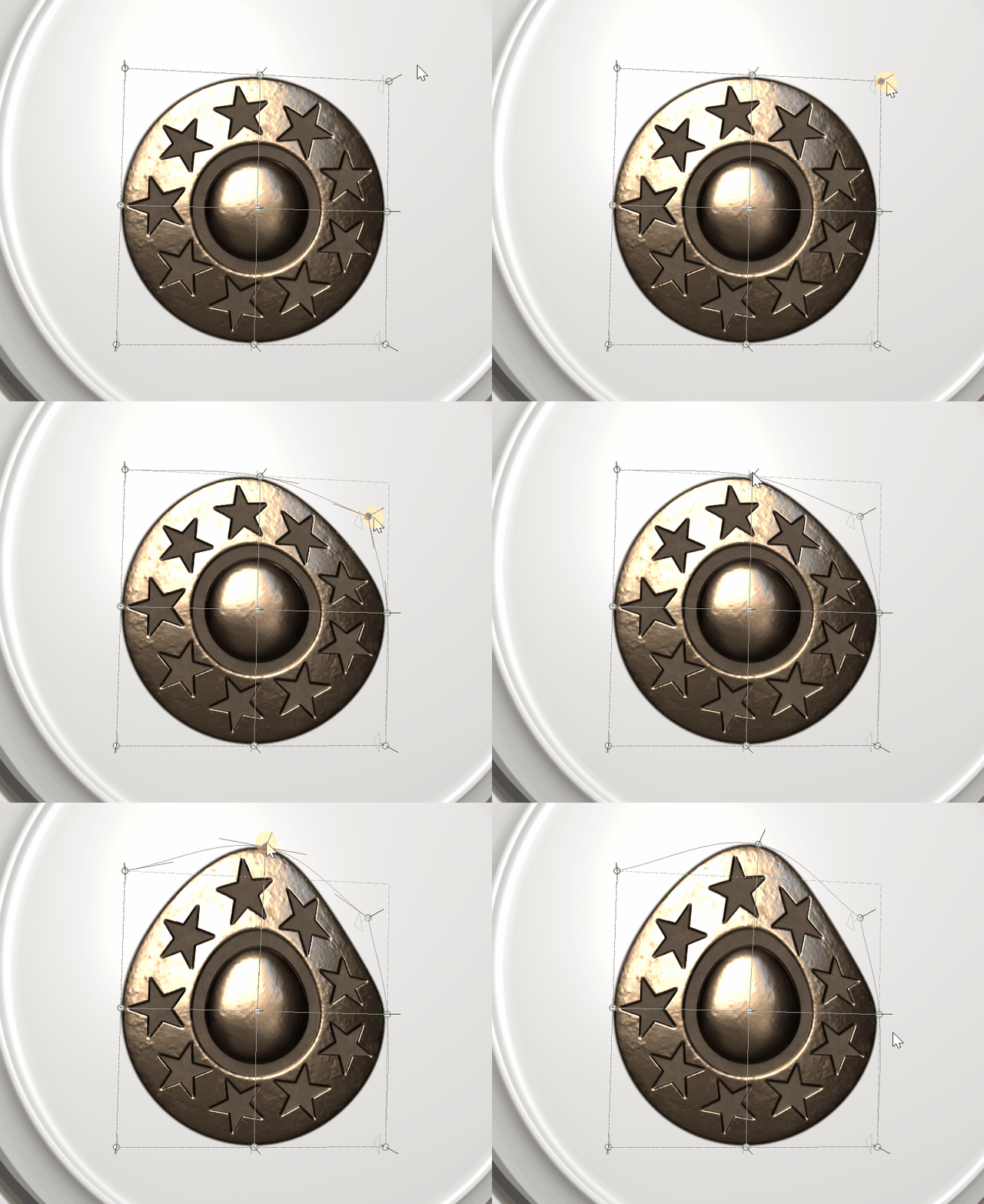
This way, you can later quickly move/scale/rotate the decal, or even edit the grid of the projection!


Because your Megascan material is divided by multiple bitmap, you can create a fill layer, add all of your textures in the dedicated slots (even the alpha) and right click anywhere in your Properties window > create material preset


Just like that, your Megascans material is inside your Substance 3D Painter library and you can now drag and drop it as a decal !


Hope this will help and have a nice day !


1 reply

Cyril Dellenbach
Community Manager
Cyril DellenbachCommunity ManagerCorrect answer
Community Manager
March 3, 2023

Hello @pppeepo,


If you don't already know this feature, you're gonna love this.


The easiest way to settle and edit your decal map is simply by using our Decal system instead of a fill layer. You simply have to Alt+drag and drop any material from your shelf.


This way, you can later quickly move/scale/rotate the decal, or even edit the grid of the projection!


Because your Megascan material is divided by multiple bitmap, you can create a fill layer, add all of your textures in the dedicated slots (even the alpha) and right click anywhere in your Properties window > create material preset


Just like that, your Megascans material is inside your Substance 3D Painter library and you can now drag and drop it as a decal !


Hope this will help and have a nice day !


Cyril Dellenbach (Micro) | QA Support Artist | Adobe
pppeepoAuthor
Inspiring
March 3, 2023

Fantastic!! Thank you so much for the quick and helpful answer - I'll defintely do that next time!