Participating Frequently
November 20, 2020
Answered

artwork multiply with background

  • November 20, 2020
  • 4 replies
  • 1103 views

Hi

I am rather new to Dn … When placing artwork on a paper background (from Illustrator) white areas will be also white but should appear transparent like a real print… same for other colors not really mixing with background. Usually blend mode multiply will do the job… how is this working in Dimension?


Thanks for your support!

This topic has been closed for replies.
Correct answer Ussnorway7605025

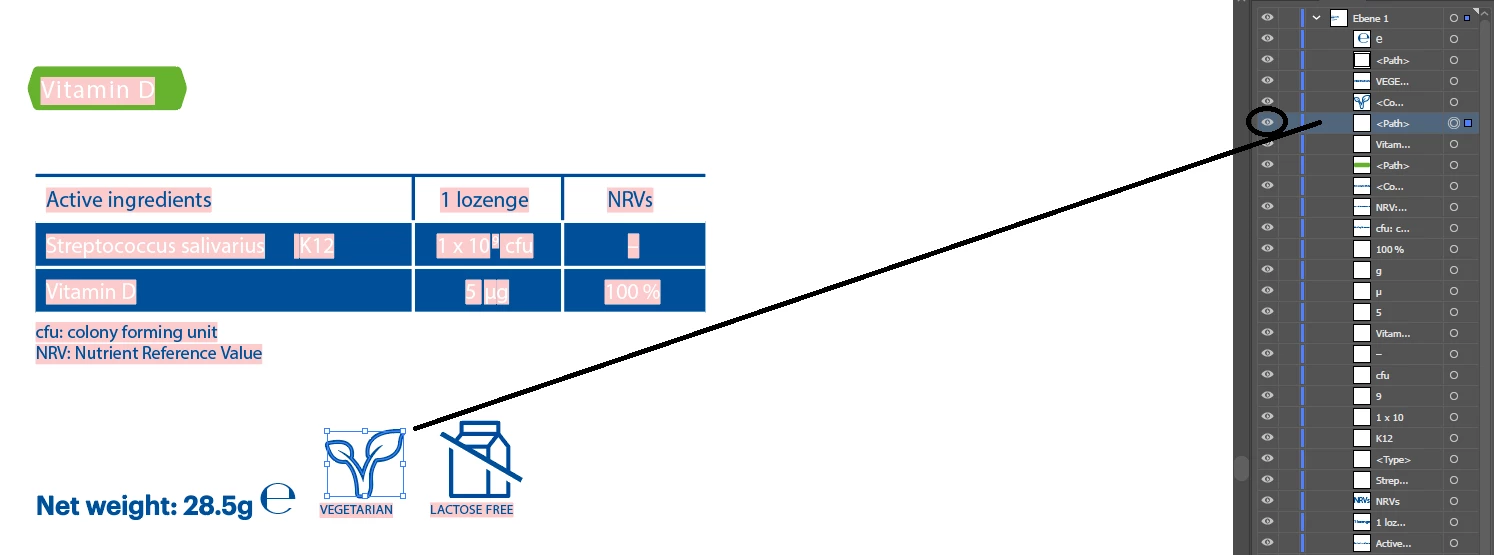
there is a white fill under the icons in your design yes... if you don't want the white background (its really a fill but I think that is what you are asking) then open the file in AI and press the eyeball icon next to the layers you don't want to show


p.s, i would also fix up the fonts but thats a different can of worms mate

4 replies

Ussnorway7605025
Ussnorway7605025Correct answer
Legend
November 27, 2020

there is a white fill under the icons in your design yes... if you don't want the white background (its really a fill but I think that is what you are asking) then open the file in AI and press the eyeball icon next to the layers you don't want to show


p.s, i would also fix up the fonts but thats a different can of worms mate

stixerAuthor
Participating Frequently
November 28, 2020

Thanks so much for clarifying! So i will need to work more precise creating icons, that is no problem. The whole workflow in DN is pretty nice and the results in general are good (even with the fonts i do not need to convert if activated in the system). I was just wondering where DN sets white as transparent and where not. It´s a bit more clear now. So thaks guys!

Ussnorway7605025
Legend
November 27, 2020

the Ai file will be a place to start yes


question this Ai file is on a white background or done against transparency i.e, treat it as if you are using a Jpg and make your decal image against a white background will give best results in Adobe Dimension

stixerAuthor
Participating Frequently
November 27, 2020
Ares Hovhannesyan
Community Expert
Community Expert
November 27, 2020

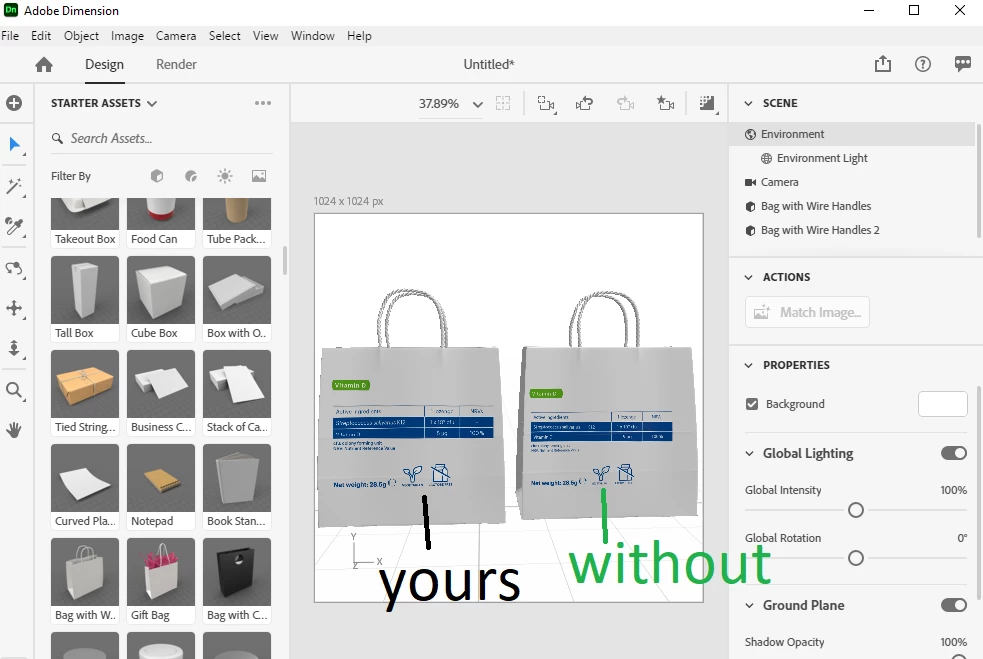
I have created two artboards in Ai and place them on the bags. On left you can see Artboard 1 and on right Artboard 2 that I have select in graphics window in Dn. The second artboard includes blue rectangle on the back of your layers and it allows to keep your artwork background blue on the bag. In you export artbord1 from Ai you will get transparent backround as Ai saved white as transparent in Ai file. You can choose Export in Ai to export jpeg from your artboard with white color. But you can also use "add  white rectangle" insted blue as I do to keep white background in Dn.


Also in your Ai file you have one garbage anchor point in the center that do not allows to place your whole main decign in the center of artboard. Please delete it.

Hope this willl help


Ussnorway7605025
Legend
November 21, 2020

sounds like the auto correct got around to loading your driver... its a common Mac issue and you can expect it to happen again when you update mate

stixerAuthor
Participating Frequently
November 22, 2020

ah, ok… thanks for the info!

stixerAuthor
Participating Frequently
November 26, 2020

So, here is the thing again, see attachement. Could it be it i caused by combined paths?

Ares Hovhannesyan
Community Expert
Community Expert
November 20, 2020

Adobe Dn show transparency as white background. Can you share a file to test?

stixerAuthor
Participating Frequently
November 20, 2020

Actually i was fiddeling around with artworks and i don´t know what happend, now i don´t have that problem anymore… so it is working now. Thanks for your reply!


If i run into the problem again i will come back…