Participating Frequently
December 13, 2017
Answered

Decal's text looks pixelated when rendered

  • December 13, 2017
  • 13 replies
  • 22158 views

Hi All,

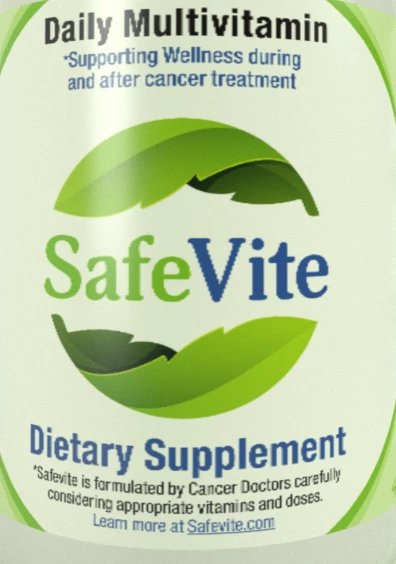
I have this issue with Dimensions where the text that appears in the decal pixelates pretty badly. I have tried using very high resolution (up to 1200 dpi) for the decal file. The original file is all vector made in Illustrator. I've tried using JPG's, PNG's, and PSD's but no luck. I also used CC Libraries and used the Illustrator file as an asset and pulled it into Dimensions. Every single render still looks the same. I am rendering it at 2300 pix x 2300 pix and at high quality (tried medium and low too but the same happens).

Here's an example of how it looks. Looks at the "V" in "Vite".
This topic has been closed for replies.
Correct answer JeanetteMathews

Hi Jenz!  There are a few things at the moment:

  • When using an .AI or .SVG file from Libraries Dimension needs to rasterize it to non-vector pixels.  This process does not actually make it "low-res" as ussnorway suggested.  By default they are rendered at 8,000 x 8,000 pixels.  Dimension doesn't yet have a mechanism in place to call for specific dimensions so we're loading a rather large image right now.  Resolution of the file itself is not actually the issue.
  • The second thing is that when a decal is added (through any mechanism) that decal's resolution is currently capped to 2,000 x 2,000 pixels.  This is irregardless of the size or resolution of the original image.  This is another Dimension limitation, not any issue with the art itself.

We hope to address both of these issues early next year.  Please note a lot of the pixelation is worse in the canvas and will be significantly improved when you render the file.

13 replies

Known Participant
November 11, 2022

I'm late to the party but whether I used 300dpi jpgs, png or vector at 100% results were completely blurred. Rather than use a Dm object, in this case a cube modified to my dimensions, I created the same thing in Illustrator, extruded and exported as .obj. Fixed the problem immediately. Pin sharp decals.

Ussnorway7605025
Legend
August 17, 2021

this will be fixed [i.e, able to be fixed by the user when it pops up] when the software allows some way to take back control over the Uv map... as it stands now, the best you can do is hope a auto-remaping of the Uv allows a clean rendor


as always, fix the model 1st is the best workflow

Participating Frequently
September 26, 2019

What I learned. As a really new user of Dimensions I learned that if Dimensions does not like a particular object (don't know the whys) it will render the decal pixelated.

This image I'm including is of a 5 gallon paid from 2 different sources with some minor tinkering from me. The pixelated one I worked on for days with different format, color spaces, resolutions and file types. I went so far as to upgrade my OS to get the latest version of Dimensions. When that failed I found another pail and this is the different results:

Participant
January 22, 2020

Why does everyone keep calling it Dimensions? Mine is called Dimension. Is it like Home Depot where everyone just calls is that even though the actual name is The Home Depot?

Participating Frequently
July 15, 2021

I guess for some of us life isn't so easy that we would be bothered by an extra "s".

bryanf67223956
Participating Frequently
May 22, 2019

We solve this problem by changing the base color on the object's material to a solid color image sized 4096x4096.

bryanf67223956
Participating Frequently
May 22, 2019

Since we have to have pics, or it didn't happen...

Base Color using solid color image—render finished in 16:52:

Base Color using Dimension Default—render finished in 17:01:

We render at 2000x2000px on High-Quality, but we turn off the ground plane & background, since we just want the product image.

Also, we do not use a dedicated machine for rendering, so I'm working on stuff while Dimension renders in the background. That's the most likely explanation for the difference in render times.

Participant
June 21, 2019

Can confirm this worked for me too; 4096px square black PNG instead of base colour, formerly horrifically blocky decal applied on top, crisp as!

Participant
April 1, 2019

This topic should not be marked as answered. Had so much hope for this app but it's a great disappointment that to date after so much time has passed (since 2017) that a fix was promised the problem still remains. Still keeping an eye out and hoping. In the meantime I'm not using Dimension to avoid wasting my time.

Esscentsory
Participant
May 11, 2019

I use Dimension to render my product images (I'm not the best photographer) and for me the issues began with the most recent update in April!  Now, my product labels (decals) appear pixelated and the image as a whole does not translate well in various applications.  Incredibly disappointed, to say the least.  Like many others here, I spend a considerable amount of $$$ on this App, et al.  I would suggest Adobe focus solely on remedying the pixelation issue rather than adding a bunch 'bells and whistles' to areas of the App that do not need improvement.

PS  Images are rendered on 'High' quality to no avail.

Cledi
Participant
May 11, 2019

I didn't use Dimension for some time due to the pixalation problematic. But now it produces really printable files! (When you use local rendering).

Maybe you take a look at installation / settings.

Clemens Dillmann

andrewl84241848
Participant
March 19, 2019

Not that this is likely to be of any help, but I would like to add my disappointment as well. Adobe really flogged this program as an easy way for graphic designers to produce presentation-quality 3D images. Nowhere in their promotions did I see the caveat: "oh, but your design better not have a label because it will look like garbage." Now I have wasted hours producing a design that cannot even be imported into other programs that actually work. Maybe if enough people express their frustration on these boards the news will climb sufficiently in the search rankings to actually have an effect.

taylorh31775435
Participant
March 2, 2019

This product should be marked as beta. I just wasted an entire night of work with an end result I can't show the client. Err that's not true, I did show the client and explained the whole issue with pixelated graphics in the render. While Scripturient1899 's reply was helpful it still isn't a render I can expect to be paid for.

More than a little upset Adobe!

Scripturient1899
Inspiring
January 23, 2019

I've been doing some renders for a client and discovered accidentally that if I keep my decals under 1000 pixels in their widest dimension (whether that's height or width) it actually produces SIGNIFICANTLY better results. The decal still isn't super crisp because the render engine has to blow the image back up to high resolution, but at least it eliminates the appalling degree of jaggies. Now I can just export at a bit higher res, run a quick Smart Sharpen in Photoshop, and shrink them to the size I need. Still more steps than ideal, but at least it's producing client-worthy results!

Ussnorway7605025
Legend
January 23, 2019

thats actually helpful to know... thanks

justinp81985218
Participant
December 19, 2018

Hi Jenz, It's December now and my decals are still looking blurry. When is this change going into effect?

Justin

JayArrUu
Participant
April 25, 2018

same here - load of old tosh, i've just wasted an entire afternoon exporting, re-exporting, increasing quality, checking source images, over and over - the render looks great, but the decal looks S**T. 

I'm now trying to layer my decal in PS via smart object , but am getting problems as the PSD seems to behave differently with the rendered layers, and my smart object is invisible unless i mute the render.

what's the point of releasing "enterprise grade" rendering software, with it's main USP being decal application, when in reality you can't possibly use something like this in the real world - there's no way I'm placing these images on to a website as people will call me out immediately as amateur.

JayArrUu
Participant
April 25, 2018

OK - my workaround has been successful - by exporting the render and then applying my decal as a distorted smart object.

This works fine for me as the surface is flat, but for cylindrical objects like the one above, it will obviously be much harder to distort your smart object to make it fit.

as below, decal is crisp I just need to play with quality of original render to achieve the required standard!