Participant
May 14, 2018
Answered

Dimensions no shadow showing on rendered image?

  • May 14, 2018
  • 4 replies
  • 6357 views

Hi there,

I have uploaded an OBJ file and used my own photo of a background that is indoors with no windows. I have matched the objects to the background. I have turned off the sunlight effect to create the shadows I want from the image. The shadow opacity is at 100% and shows in the design window. However, the shadows are not showing in the render preview. I have also tried rendering to see if this appears and sadly it does not.

Does anyone have any idea on how to fix this? I am unable to post pictures on here due to confidentiality.

thanks,

This topic has been closed for replies.
Correct answer JeanetteMathews

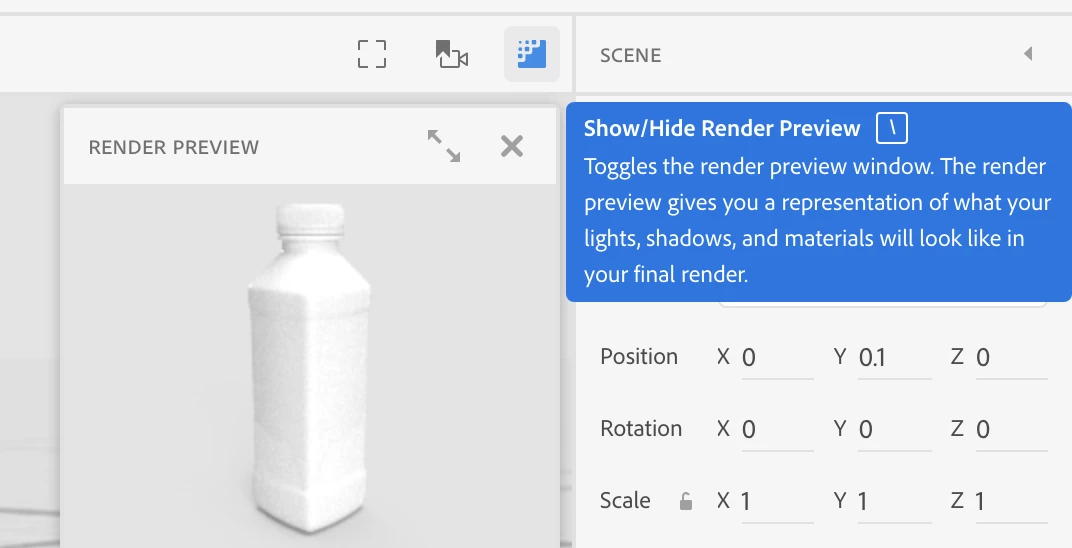
Use the Render Preview as the source of truth when changing your lighting settings.  The canvas in design mode is not accurate.  To turn on the render preview you can click the button above the canvas or use the default shortcut key "\"

4 replies

Imaginerie
Community Expert
Community Expert
December 3, 2022

Not sure if it will help, but I ran out into similar problems with renders for a client, using their photos as backgrounds with matching lights and camera angle.
(I would really appreciate if the angle was in fact expressed as a focal lengh as it seems to be the case in the substance suite)

If your background image is not straightforward, then I found it doesn't work. I had to untick the match background light and angle and do it myself with some elbow grease. It works well enough for simple light set ups and images with a pretty obvious perspective (I have done tests on many situations and this is what I found)...
Admitedly, I tried to do something that seems to be a bit over the top for Dimension (creating sofas in illustrator and exporting as .obj, creating my own materials, and "covering" the original sofas with a new fabric (my material).
I hope I'll be able to learn Substance at some point to get this done with a better outcome and fewer fist waving at the computer 🙂

Eliyah Gevalt
Participating Frequently
June 15, 2021

had the issue it was driving me nets. but it was the shadow opacity...

Participant
December 1, 2022

My shadow opacity is set to 100%, still no shadow..  Could be the multiple lights that I'm using.

mceledon
Participant
December 16, 2019

Hi, I think I might be experiencing a bug. When I open my old file that rendered correctly last week, the shadows are perfect but if I click on anything, absolutely anything, the render preview changes in the canvas and my shadows disappear. I've even rendered a few times with different shadow opacity's and they all come out the same so I know there is something going on. Please help!

sonofmrsnak
Inspiring
October 22, 2020

I had to post a new question for the same issue. Hope we get a solution. What I'm doing is adding the shadows in Photoshop. 
I use the Dimension design preview for reference to match opacity, angle, etc. Pretty easy.

sonofmrsnak
Inspiring
October 23, 2020

I now see the problem for me. On a darker background, the shadow can appear extremely faint even though the design preview is quite dark. The solution is to beef up the shadow darkness/contrast in the rendered PSD file layer. 

JeanetteMathews
Adobe Employee
JeanetteMathewsCorrect answer
Adobe Employee
May 14, 2018

Use the Render Preview as the source of truth when changing your lighting settings.  The canvas in design mode is not accurate.  To turn on the render preview you can click the button above the canvas or use the default shortcut key "\"

Participant
May 15, 2018

Hi there,

thanks for your help.

I am using the preview and the shadow are not showing here either. Though on the design it is very prominent. Not sure if there is something else I can do as the images look flat on the background at the moment? Even with the shadow showing at 100% there is still nothing on the preview?

JeanetteMathews
Adobe Employee
Adobe Employee
May 15, 2018

That's what I mean though.  The render preview is correct.  The canvas preview is incorrect.  Ignore anything you see in the design mode canvas, it's designed to be very fast so you can interact in real time, but generating realistic lighting and shadows can't be done instantly, so it's just a very quick preview.  The render preview takes a little longer to update but gives you a realistic preview.  You should have the render preview window open while making changes to your lighting and design for the render preview results, not for the canvas.

I'd have to see your scene and settings to be able to make specific recommendations about lighting.  You can share a link to your .dn file via Google Drive, Dropbox, CC Assets, etc. and I can take a look if you'd like.