Hi Michael! As mentioned below there are a few issues here:
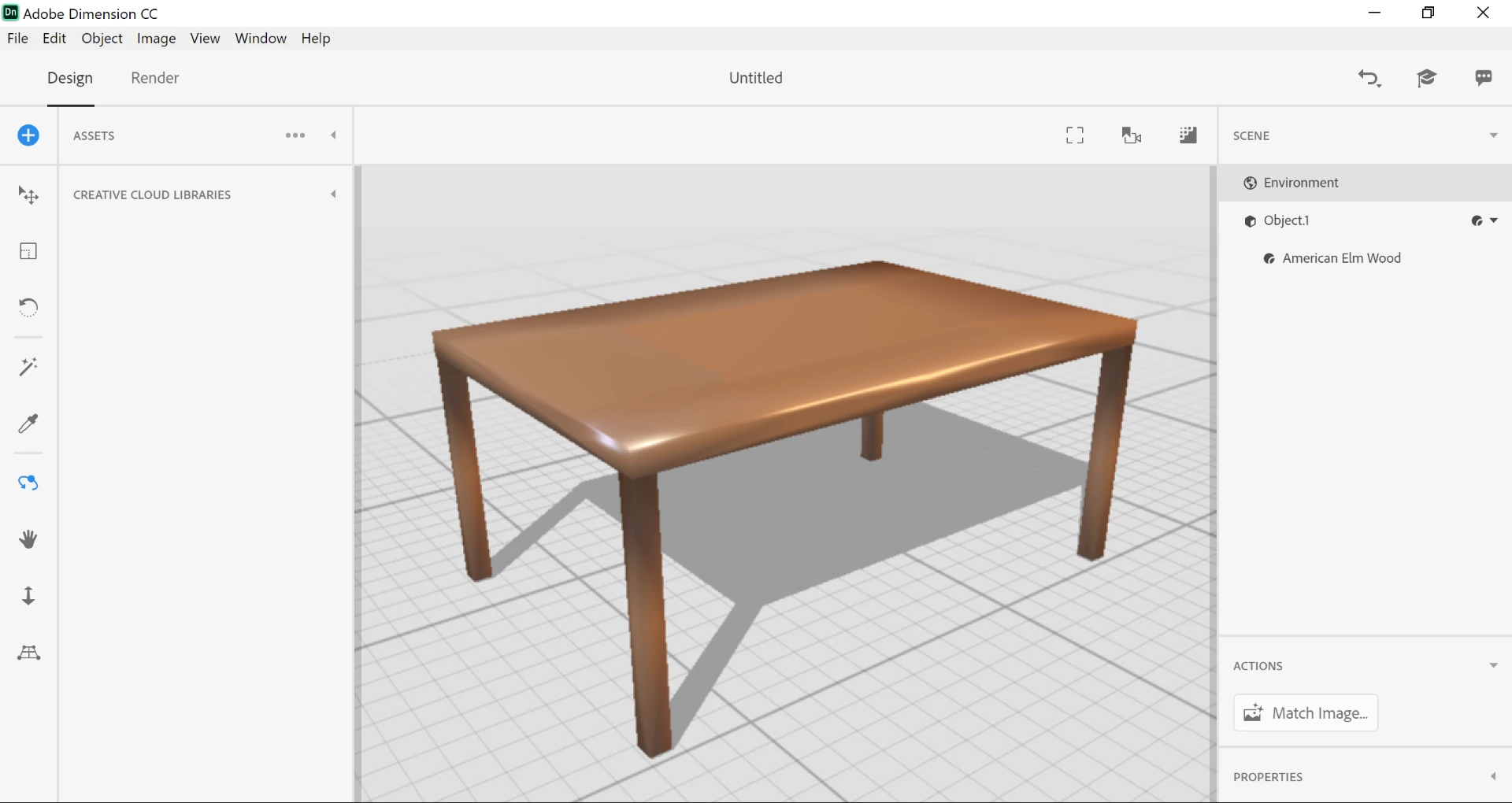
1. The table has what are called some bad normals. Normals tell the program which direction the surface is facing and that's what causes the weird blackish gradient on the surface. There's no way to fix this in Dimension at the moment, these are issues with the model itself and needs to be fixed before importing.
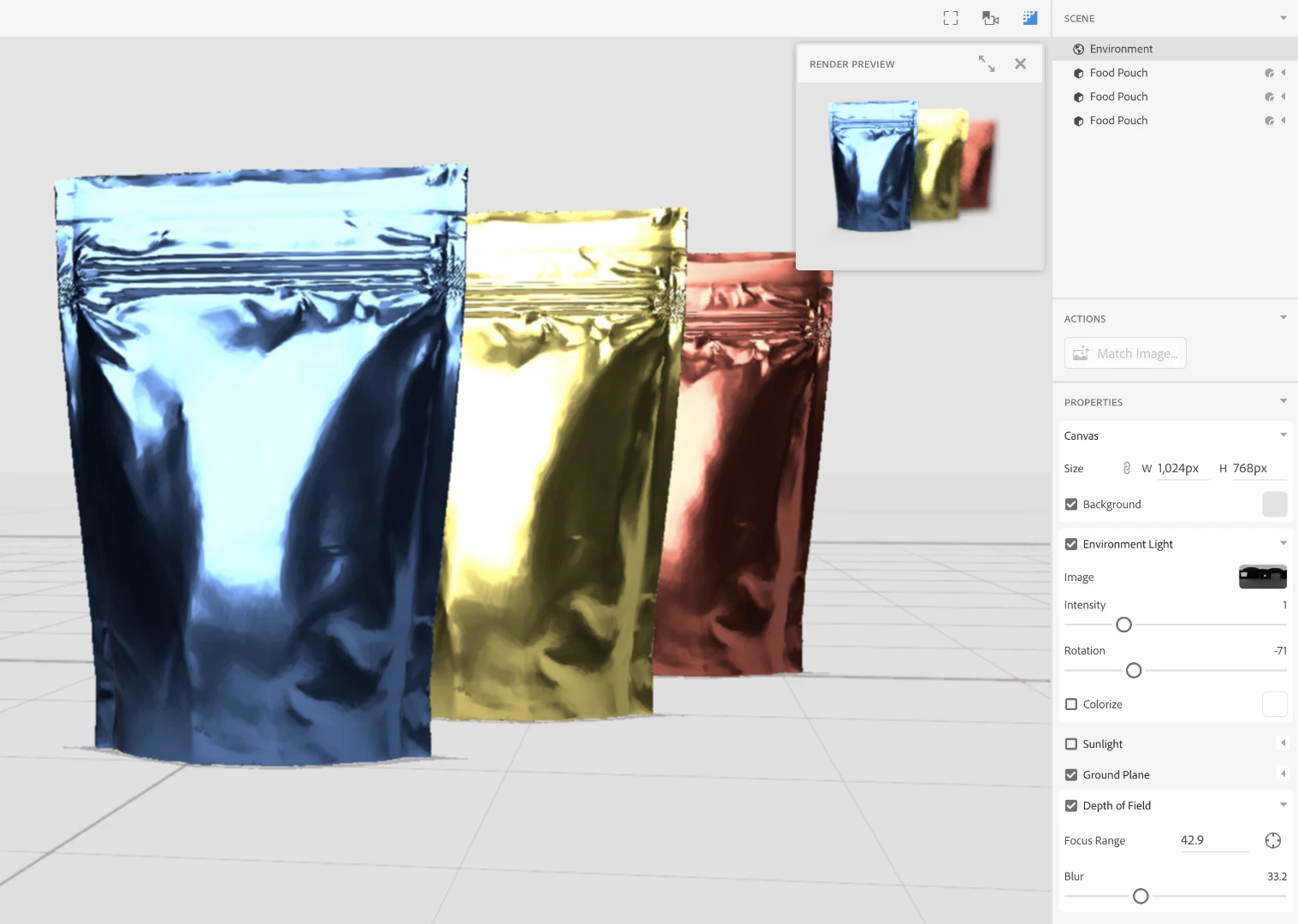
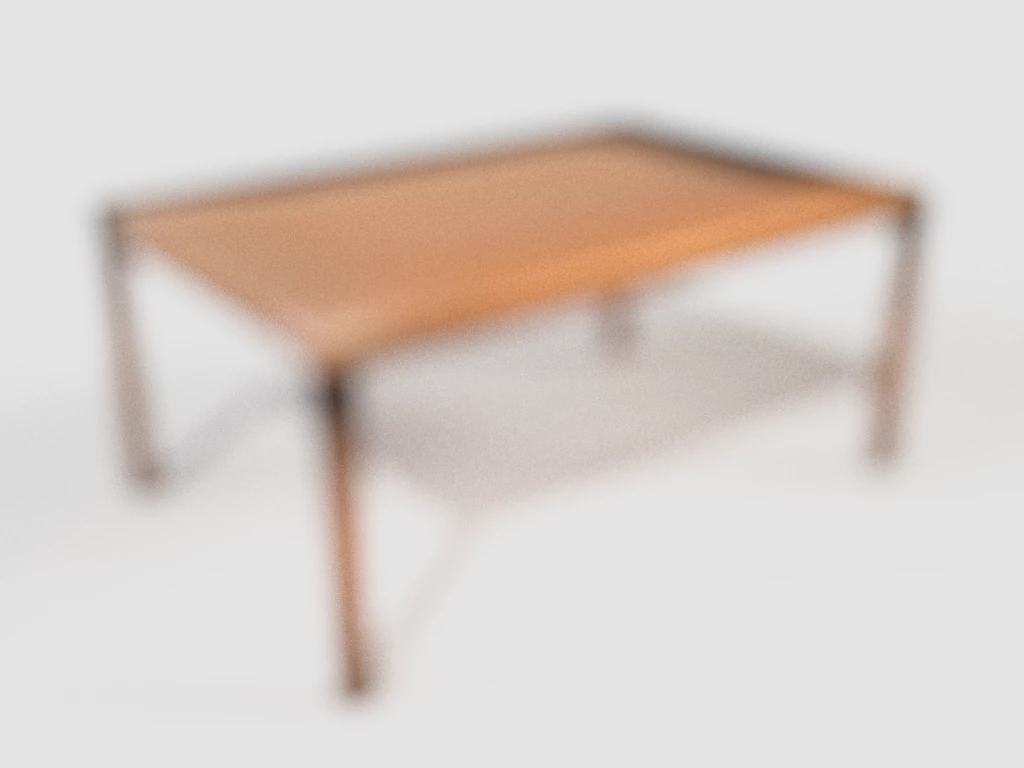
2. You have Camera Depth of Field turned on. DoF adds blur to images in the fore/back-ground of a focus point. To change this go back to Design Mode, select the Environment in the scene panel, then look in the properties panel for the Depth of Field options. You can turn this off or adjust the settings to focus an object.
Be sure to turn on the Render Preview (top right of the canvas has controls for this). Depth of Field can't be previewed in the canvas, so it's important to look at Render Preview for lighting, reflections, and other effects before rendering.






 AdChoices