


Participant
March 19, 2021
Question

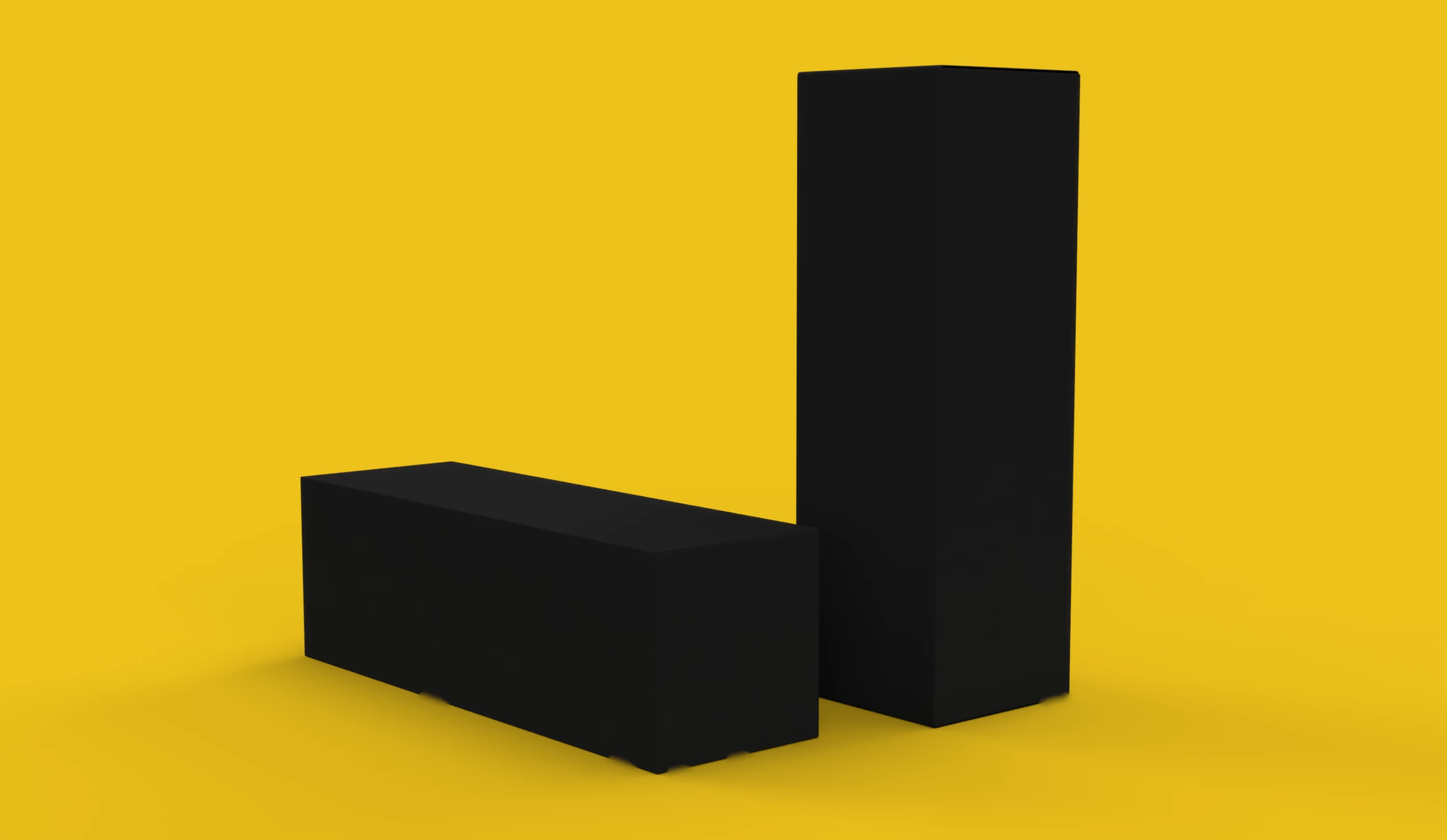
Weird Blur spots where object meets ground plane

  • March 19, 2021
  • 4 replies
  • 1545 views

I have a basic box laying on the ground and as you can see by my photo there are a few blur spots on render output, but not when I preview the interactive render. Does anyone have any idea how to fix this? I can just photoshop it but I would like to figure it out in AD.
This topic has been closed for replies.

4 replies

Participant
December 15, 2023

in my case, its normally a problem in the Noise Reduction process..
If I do a PSD file, there I can compair the one with the Noise Reuction, and the one with out it.
And there it shows...
But cant pinpoint the problem really yet.

Known Participant
March 26, 2021

I've been able to reproduce the issue with a simple sequence of steps. I'm using Dimension 3.4.1 on a 2017 iMac running Big Sur 11.2. It seems to be depending on a certain combination of scene elements, materials, colors and render quality.

Here are the steps:

- open app

- add a cone

- assign material 'plastic' 

- assign color 'black'

- turn off horizontal plane


On my machine, this sequence will produce this render (PNG, High quality):

With render quality set to medium the problem is still there, seemingly in the same spot, but less pronounced. With low quality it seems to disappear completely.

Turning on the ground plane makes the error disappear - but OP had ground plane activated so that might not be the issue.

In my case I could also not reproduce the issue with a cube, but the cone had it - again, OP had cubes so the shape should not be the issue (although I originally noticed the issue on a truncated cone shape).

I then played with the materials: it looks like black plastic makes the issue become more visible. I've tried red plastic and there were no problems, as there were no apparent problems with the stock 'metal' material.

I also tried other dark gray materials like 'lined shiny paper' (sorry if this is not the correct english name, my interface is in another language) and 'ceramic tiles', and both materials presented the issue, but somewhat less pronounced than the black plastic. 

Also, while keeping an eye on the rendering itself, the problem does not appear until the very end: when the render finishes the still frame of the finished work presents the problem, but there are no traces of it during the progress.

Finally, I tried to change the camera position and the problem popped up again, roughly of the same size and intensity,  , always at the contact between the shape and the invisible plane, but seemingly in a different spot.


So, if we cross OP's and my project it seems like the only common point is the black color. 


spedeflous
Participant
March 26, 2021

when i rednered the PSD file, i noticed the weird blur spots only when i have the reduced noise version turned OFF. It looked fine with that off in abother layer.


Here is a link to the file is you would like to try: https://drive.google.com/file/d/1QHywthrRq58WrkB1-F8rV-yWAhbLlWLg/view?usp=sharing 

Ares Hovhannesyan
Community Expert
Community Expert
March 27, 2021

I get this  after reducing Reflection Opacity, Shadow Opacity and Reflection Roughtness to "0" value and rendering with high quality.(with Render Noise Reducing ON) Did you try with these parametrs?


Known Participant
March 24, 2021

I too have the same issue, and it's most visible when I render 'pseudo' ortho views. For example this is a render of a front view of an object: 

In this render the blur shows up in a couple of points where the object touches the horizontal plane, but the plane is turned off in the settings, so the shadows are surely nothing to do with it, as some of you suggested. 

Ussnorway7605025
Legend
March 24, 2021

yes that is camera blur i.e, focus point set to make blur and is a different thing to what the op has showed

Known Participant
March 24, 2021

in my project I have the camera depth of field turned off. I also think mines and OP's issue are the same: if you zoom in on his image there are severeal similar artefacts on the edges touching the plane, for example:

Ussnorway7605025
Legend
March 19, 2021

It's shadow not bur and fixing it requires material (ground/ box) or light adjustment with the simplest fix of additional sunlight aimed at the front box face

Participant
March 23, 2021

Thanks. I tried applying a directional light at the front of the box and the shadow/blurs still appear!

Ares Hovhannesyan
Community Expert
Community Expert
March 23, 2021

Set shadows color to background color or set light color to background color