stevef30209121
Known Participant
June 9, 2019
Answered

Sync not working in Dreamweaver

  • June 9, 2019
  • 1 reply
  • 1592 views

Hello All,

I've built a site in DW on a device I inherited. The site is uploaded and hosted and is all ok. When I test with the remote server (i.e. email link) is OK, but the email link will not on the web will not link out due it not syncing, I now want to make small changes, email links, text etc, but I find can't as it won't sync. also the get and put files make no sense.

There is no other option to make changes.

I've read the other discussions on this sync topic and it looks like this version I have will not let me sign in to it. I think I will have to delete this DW app and get the current CC 'live' version.

Thanks

Steve

This topic has been closed for replies.
Correct answer Nancy OShea

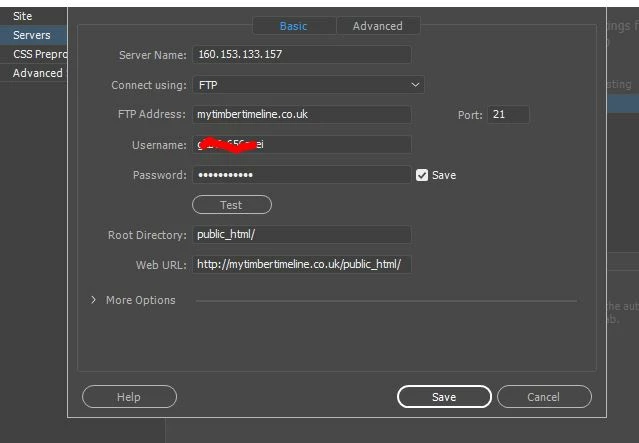
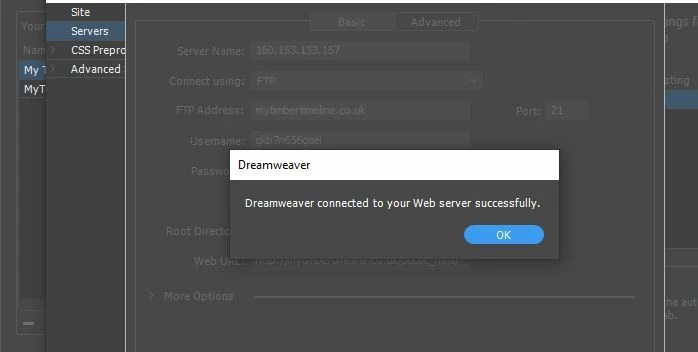
I've sorted the servers box out in DW, I was a little lost with my UN and PW with have so many, so my host talked my through it.

After clicking Test...…...

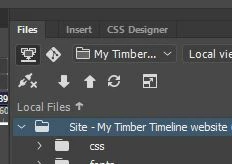
After the 'Test' my Sync settings re-appeared at the top RH corner

The website version I want now tests out in DW 'Real-time Preview'

So it looks like I'm go to go with synchronising now

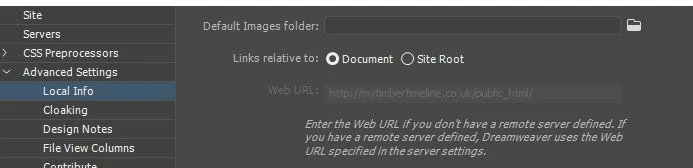
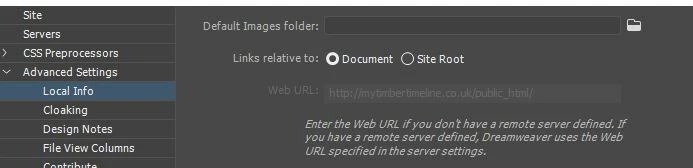
Do need to assign this images folder ?


stevef30209121  wrote

Do need to assign this images folder ?

If you want all images to go into a default images folder, sure.  But it's not required.

I'm not sure having public_html / stated  in 2 places is necessary.  The last thing you want is to upload files to a duplicate folder on your server ie:  yourdomain . com / public_html / public_html /

1 reply

Nancy OShea
Community Expert
Community Expert
June 9, 2019

Let's start at the beginning.  Did you define your site correctly before you began creating your site files in DW? This is a critical 1st step otherwise DW cannot manage assets & links for you or connect to your remote server.

Go to Site > New Site > and tell DW where your local site folder should be on your primary hard drive.  For example, C:\MyTestSite\  (see screenshots).

Click on Servers tab and enter the FTP log-in credentials supplied by your web hosting provider.  Also enter your server's root directory.  This varies by web hosting plan.  If unsure what to use, ask your hosting provider.

Click on the TEST button to confirm you are able to connect to your remote server.   If that doesn't work, click on More Options.

Once your site is defined properrly, you can upload files directly from your Files Panel by first clicking the Connect icon (plug) and then selecting your local site folder and hitting the PUT icon (up arrow).  You may also use the keyboard shortcut Ctrl + Shift + U to upload an open document.

Post back if you have any questions.

Nancy O'Shea— Product User & Community Expert
joanH
Inspiring
June 9, 2019

Hi Nancy, I am contacting you because I can not log into Adobe forum and my

ACP site. Is something wrong?

I was asked about being a test site but declined. Do you know how to get

back to Adobe Forum ACP things?

Thank you,

Joan Hibbs

On Sun, Jun 9, 2019 at 12:35 PM Nancy OShea <forums_noreply@adobe.com>

Nancy OShea
Community Expert
Community Expert
June 9, 2019

Joan,

I'm not having any problems logging in to the forums.  Sometimes clearing cookies will help.  Or try using a different browser.

I don't know what being a tester would have to do with anything.  Pre-release is conducted on different servers from the forum.

Nancy O'Shea— Product User & Community Expert