Inspiring
June 21, 2018
Answered

Adjusting Spacing in TOC

  • June 21, 2018
  • 2 replies
  • 910 views

Hello,

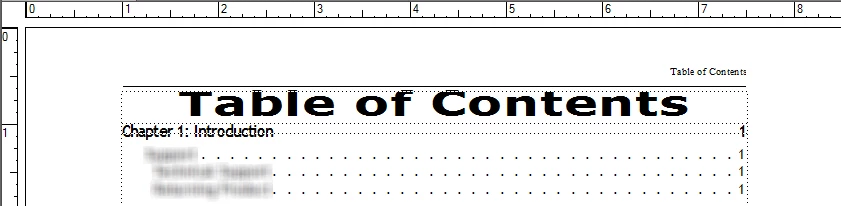
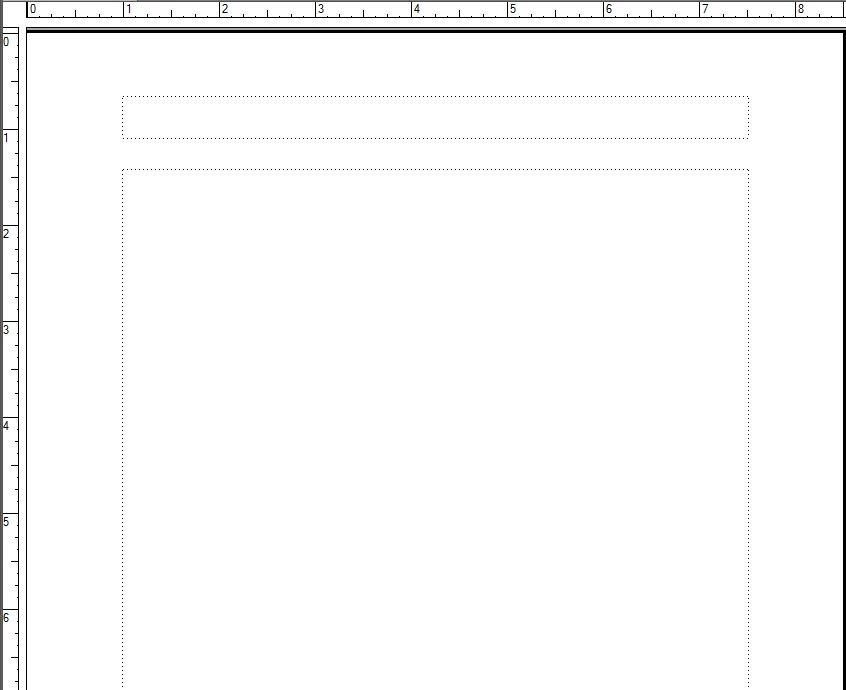
Above is a screenshot of my TOC file. I'd like the "Chapter 1" line to be a little farther away from the "Table of Contents" line above it. However, when I click in front of "Chapter 1" and hit Enter, it breaks the hyperlink. Is there another way to do this? Below is a screenshot of one of the master pages, in case it helps.

    This topic has been closed for replies.
    Correct answer cameol8779899

    Good morning, Cameo:

    The marker panel and hyperlinks panel are for managing manual hyperlinks (see chapter 14 in your workbook). You do not need to use those panels for generated files. And if you edit a generated file contents manually, Fm will restore the default settings after your book update.

    Generated files like a TOC and Index use automatic hyperlinks that you can turn off/on by right-clicking the generated file in the book window > Set up [Generated File Type], then updating the book. They add a few lines of instructions to the reference page for that generated file—and we don't want to touch those lines. If you do it by accident, updating the book with the generated file type checked in the Update Book window will restore it. It also restores the position of the automatic hyperlinks if you move them or edit them via a panel.

    If that doesn't clear things up, I'm happy to look at the file to provide specifics.

    ~Barb


    Thanks for taking a look at my files, Barb!

    I'm posting the steps that we outlined in messages here so that others can see the answer.

    1. Copy "Table of Contents" text in the 1st frame on the page.

    2. Delete the 1st frame on the page.

    3. Pull the other (now only) frame up the page so that it begins where your now deleted frame began.

    4. Put cursor in front of line 1 and tap the left arrow key a few times to move in front of the marker.

    5. Paste "Table of Contents" and press enter.

    6. Show text symbols. The marker should be on line 2.

    7. Center align "Table of Contents"

    8. Tag line 1 as ContentsTitle and update the book.

    2 replies

    Barb Binder
    Community Expert
    Community Expert
    June 22, 2018

    Hi Cameo:

    Here's the trick with generated files like a TOC and Index—you don't want to type in the generated file because when you update your book, Fm will remove your edits.

    You may be able to add space below the contents title tag via the Paragraph Designer as per Jeff's comment, but it looks like maybe there are two frames on the body page? One for the title and one for the TOC contents? I bet you'd be better off adding space above the chapter title tag instead—you'll likely want it above the the other chapter titles as well—but, first you want to get back to a single frame.

    Remember that rule about not typing on a generated page I just mentioned^^? There are exceptions to every rule, and Fm makes one for the generated page title. If you make it the first item in the flow and if it doesn't end with the suffix for the generated file (i.e., ContentsTitle is ok, ContentsTitleTOC is not) then it is allowed to stay after the book updates.

    BTW, this is all in lesson 11 in your workbook.

    ~Barb

    ~Barb at Rocky Mountain Training
    Inspiring
    June 26, 2018

    Hi Barb!

    To add space above the chapter title tag, should I edit the "Above Pgf" number in the Basic properties of the Paragraph Designer? I tried changing "Above Pgf" to "1 Line," "2 Lines," 20.0 pt, etc., but the Chapter title does not move.

    To get the look that I'm after, I copied the text of the Contents Title, deleted the frame that it was in, pulled the other frame on the page up, put my cursor in front of "Chapter 1: Introduction," hit Enter, moved my cursor back to the top of the frame, and then pasted the Contents Title text. It looked great, but then the Contents Title text was hyperlinked to Chapter 1, and "Chapter 1: Introduction" wasn't hyperlinked to anything.

    I then opened the Markers pod, clicked around to find the Contents Title tag's marker, clicked Edit, copied the marker text, deleted that marked by clicking on the trash can, highlighted the "Chapter 1: Introduction" line, and then created a new marker by pasting the marker text from the Contents Title.

    After I updated the book, the Contents Title disappeared, and the first thing to appear on the page was "Chapter 1: Introduction." Then I decided to move the text frame back down to where it started, place a new text frame at the top of the page, and insert the Contents Title again. It seems like everything is working now!

    Would you please let me know if this approach will cause any issues? If so, I'll keep working to make the other approach work for me.

    Best wishes,

    Cameo

    Barb Binder
    Community Expert
    Community Expert
    June 26, 2018

    Hi Cameo:

    If it is working, and you like it, you can leave it as is (and stop reading here)!

    Or, if you want to understand what I said earlier, continue on!

    To get the look that I'm after, I copied the text of the Contents Title, deleted the frame that it was in, pulled the other frame on the page up, put my cursor in front of "Chapter 1: Introduction," hit Enter, moved my cursor back to the top of the frame, and then pasted the Contents Title text

    That's a great start^^.

    From there, create a new paragraph tag for "Table of Contents". Call it anything you like, but it can not end in the letters TOC. For example, ContentsTitle works, ContentsTitleTOC does not. FrameMaker will remove and replace anything that ends in TOC—that's why the title disappeared.

    Format it to look the way you want, then update your book. This will update the hyperlinks for you—you don't need to/want to mess around with the marker panel.

    Now, click on "Chapter 1: Introduction" and use Paragraph Designer > Basic Properties to add Space Above Pfg and update all. This will add spacing above all of the ChapterTitles, including the first one.

    ~Barb

    ~Barb at Rocky Mountain Training
    Jeff_Coatsworth
    Community Expert
    Community Expert
    June 21, 2018

    I think all you need to do is play with the paragraph tag definition for the "TABLE OF CONTENTS" tag.