
Participating Frequently
August 3, 2017
Question

Adobe Display Scalling off the Chart

  • August 3, 2017
  • 1 reply
  • 202 views

I have a 42" screen That lost its scaling so that now I have insect size menus Icons etc. but huge menu lists, dialogs etc. The whole thing was working perfectly until

something fell on my keyboard and reversed the desktop.
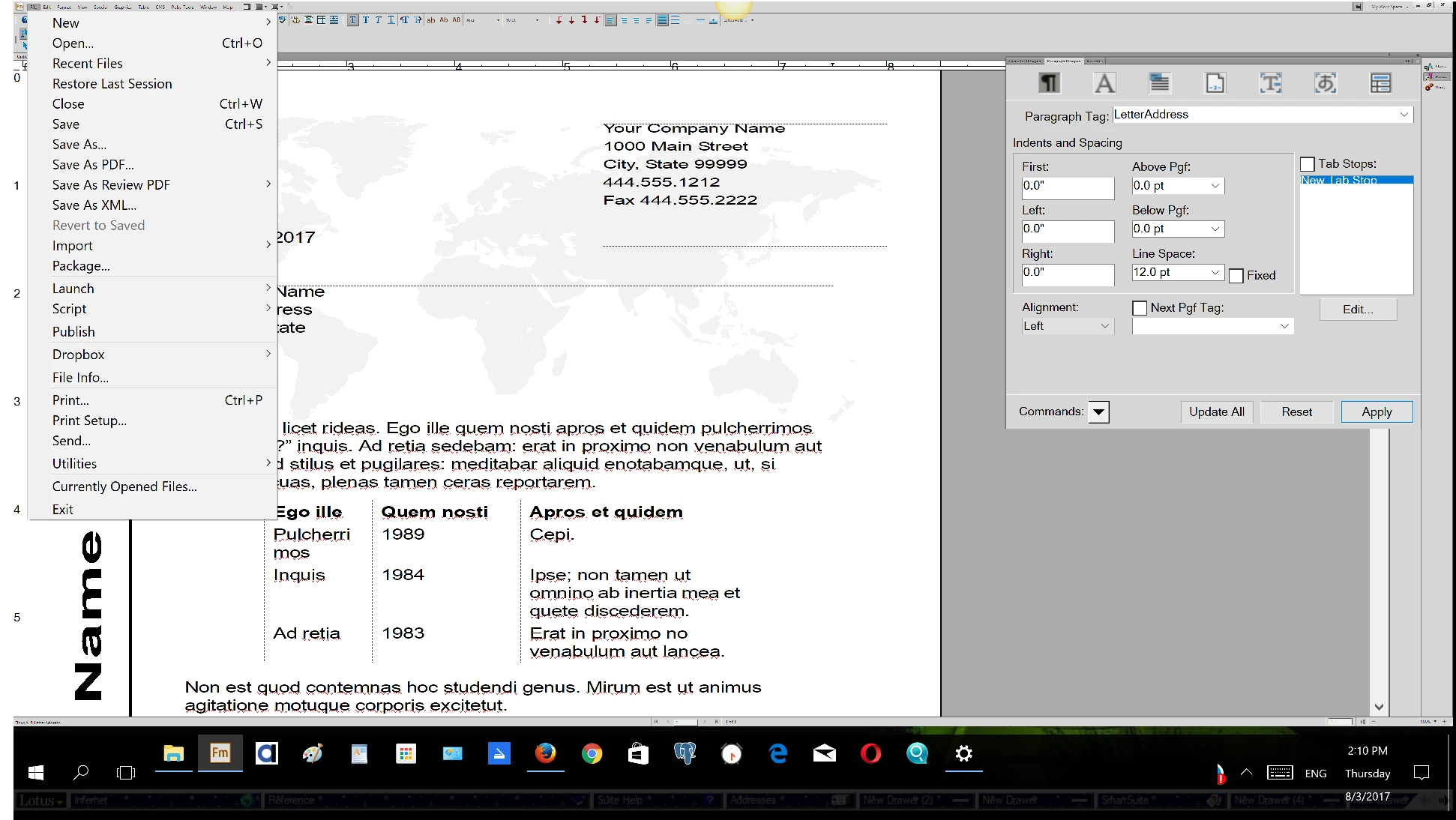
We had a similar problem with my sisters 40 inch monitor but this was fixed by an adobe support person.  They basically went in and changed some display settings in windows registry.  Now, Adobe simply stopped offering technical support.  I have tried turning off things in windows and changing things there but those solutions don't work for a large screen.  The trick is in the scaling in the registry.  I remember an article that detailed the steps for this fix but I can't locate it on the internet anymore.

Does anyone have that information? I am running windows 10 with FrameMaker 12.  When I first opened up FrameMaker 12 on the new huge monitor I was afraid of the scalling problem but it opened up perfectly, weird.

    This topic has been closed for replies.

    1 reply

    Barb Binder
    Community Expert
    Community Expert
    August 3, 2017

    It may be worth noting that when FrameMaker 12 was released, HiPDI displays weren't as prevalent as they are today. Fm 2017 supports high resolution displays, while earlier versions do not.

    From Adobe:

    Now work with the full clarity of high definition displays (up to 4K - 3840 x 2160), as FrameMaker automatically scales to fit the system resolution. Enjoy the new interface with crisp icons and a richer contrast ratio.

    FrameMaker 2017: Support for Hi-Resolution

    That said, it looks like you are on Windows 10? I can't help with the registry edits, so until someone comes along with that specific knowledge, have you played with Win 10 scaling and resolution? (I'm unclear what "I have tried turning off things in windows and changing things" means, but i would start with these two settings.)

    ~Barb at Rocky Mountain Training