Participating Frequently
October 2, 2017
Answered

Attaching text to change bars

  • October 2, 2017
  • 2 replies
  • 801 views

Hi--I want to attach text to change bars to show when a change was made to my document; i.e. I want to add the text "17" next to the change bar to show the change was made in 2017. There are already change bars in the document with "14" next to them to show the change was made in 2014 edition (shown in image below).

Thanks! --Andy

This topic has been closed for replies.
Correct answer Barb Binder

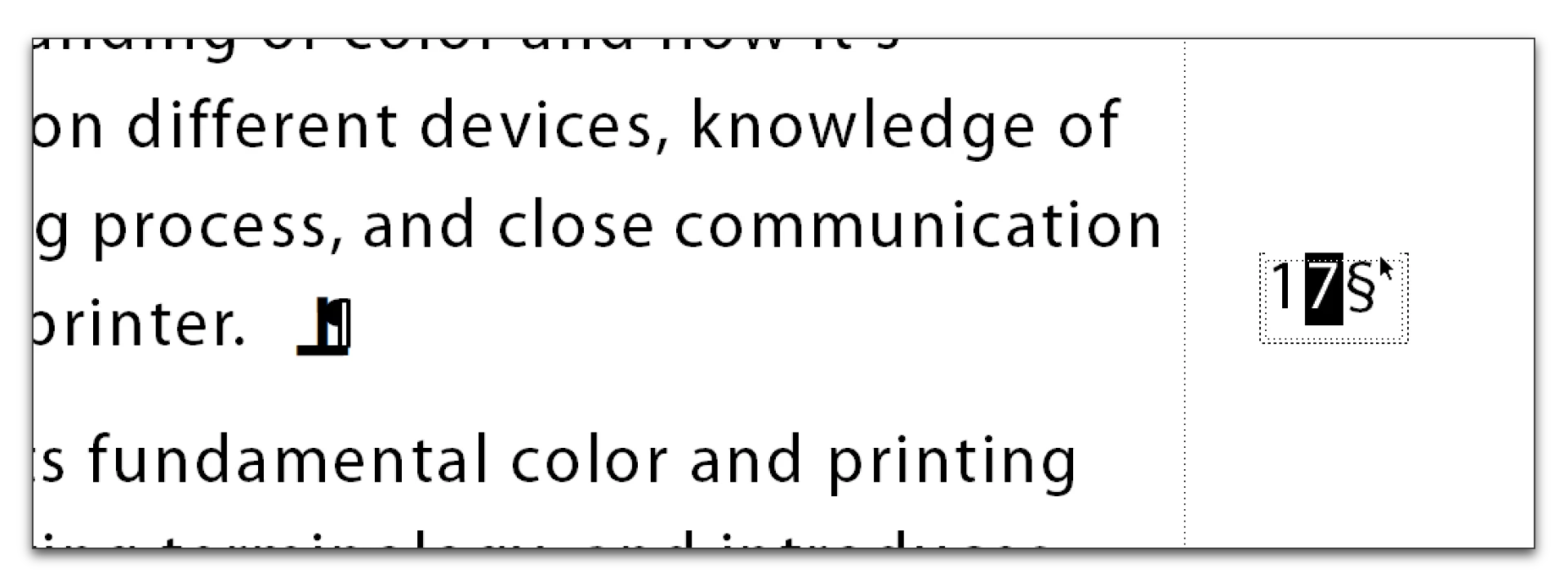
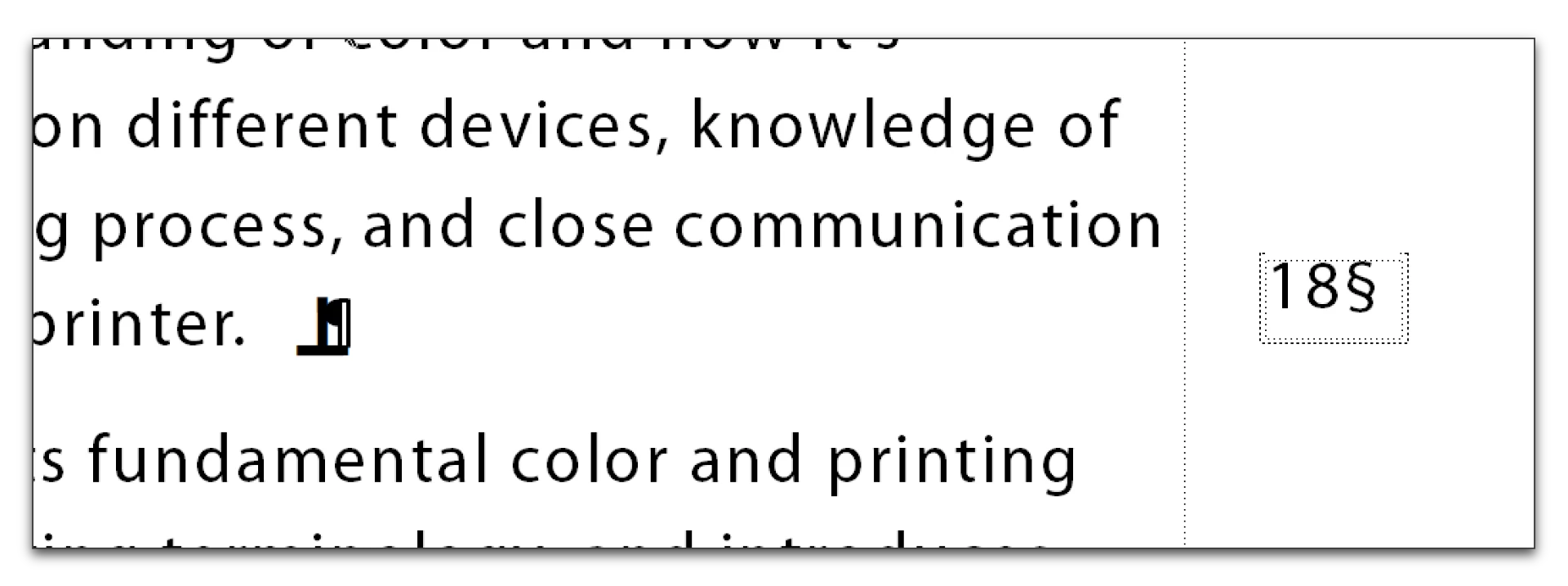
Barb ... just one more related question. I made a change, and copied the anchor at the end of the line. How do I select the text to change from "14" to "17"?


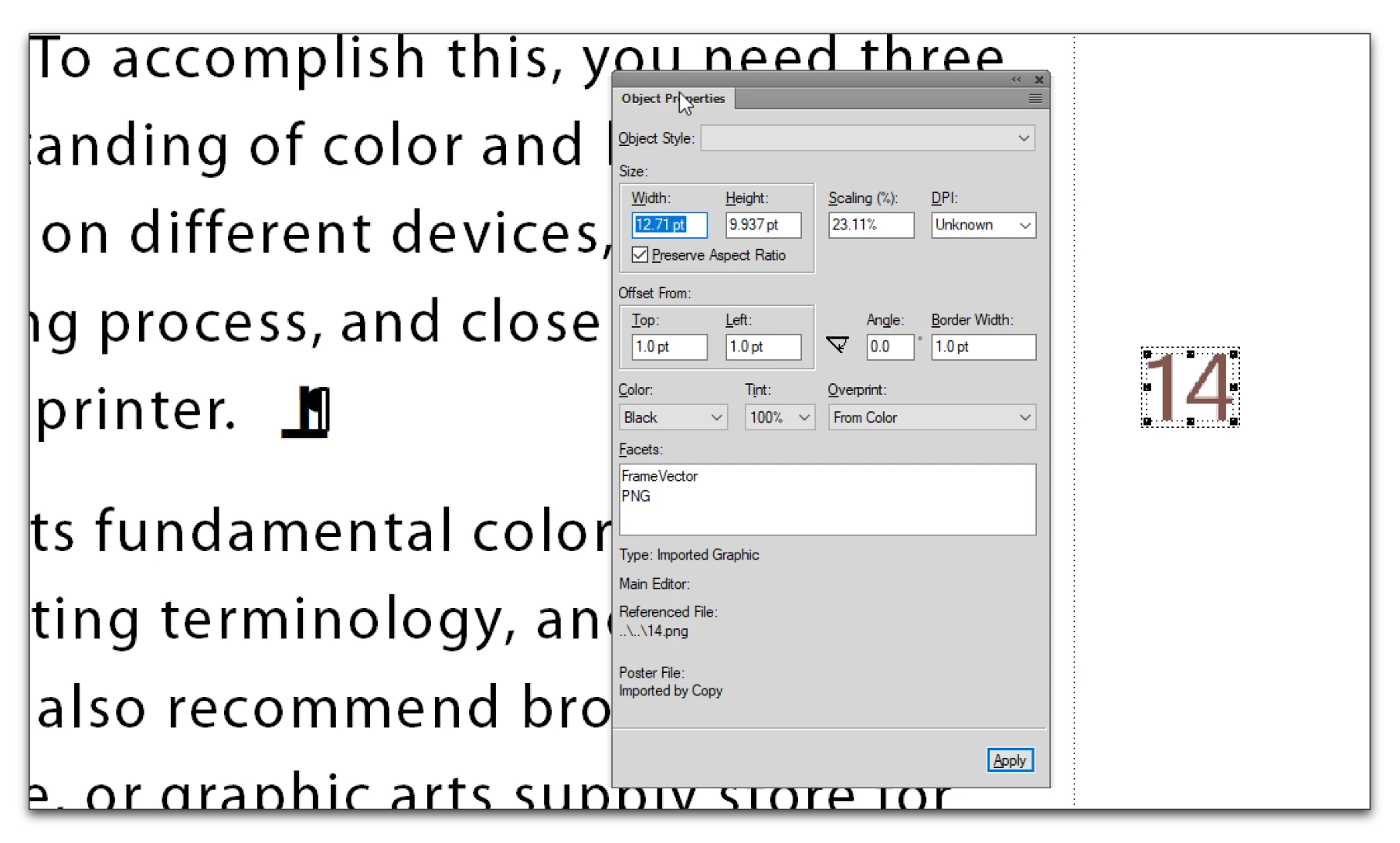
I'm assuming it is text (and that would be the easiest to edit). So click (or double-click) your mouse on the 14 and just change it like any other text.

It could be an image, however, that was imported from another application. If you suspect that is the case, you can click on the 14 and choose Graphics > Object Properties. I just made that 14 in Photoshop, saved it as a .png. You can see that it is an imported graphic called 14.png in the Object Properties pod. In that case, you'll need to update a copy of the graphic.

2 replies

Barb Binder
Community Expert
Community Expert
October 2, 2017

I'm back.

This is a pilcrow: ¶ and it indicates the end of a paragraph. You want to select the anchor (upside down T) and not the pilcrow. You can click next to the anchor, hold the Shift key and tap a left or right arrow key on the keyboard to select it. Then Edit > Copy, move to a 2017 edit, click at the end of that paragraph and Edit > Paste.

I learned this trick hundreds of years ago (or maybe it just feels that way). Before an anchor at the end of a paragraph, I add an em space by tapping Esc spacebar m. (Sequential keystrokes, not consecutive). This spaces my anchor away from the period which tucks itself inside the anchor space and makes the selection easier.

But it's our secret. When you hide text symbols, no one can see it.

P.S. You could also select the frame, but be sure to select the anchored frame and not the text frame inside or you will lose the anchored frame properties when you paste. Selecting the anchor itself is safer, IMHO.

~Barb at Rocky Mountain Training
Barb Binder
Community Expert
Community Expert
October 2, 2017

You can't actually attach a number to a change bar so my guess is that the number is in an anchored frame (assuming it moves with text edits, or just in a text frame if it doesn't) with the position set to outside column. Can you show a screen shot with View > Text Symbols activated that shows the entire paragraph (or better yet several paragraphs) that appear next to the change bar?

~Barb at Rocky Mountain Training
gtrsolo1Author
Participating Frequently
October 2, 2017

Thanks, Barb--Attached is a screenshot. Full disclosure--I work primarily in Word, and have learned FrameMaker piecemeal . Any insight/solutions are helpful!

Barb Binder
Community Expert
Community Expert
October 2, 2017

Always happy to help...

I see two anchors in your screen shot. If you highlight one anchor or the other, does Fm highlight the frame around the 14?

~Barb at Rocky Mountain Training