kelisymons
Participant
December 12, 2016
Answered

Bleed in FM

  • December 12, 2016
  • 2 replies
  • 1351 views

Hi, some page in my document need t have a grey banner down the outside page. I have added a rectangle to the outside edge of the master page for these pages, placed outside the text frame. How to I get it to print outside the page? I can't seem to see or access past the edge of the page? Thanks in advance.

    This topic has been closed for replies.
    Correct answer Barb Binder

    It's not intuitive.

    I have added a banner to the left side of the page. The page size is 6" x 8".

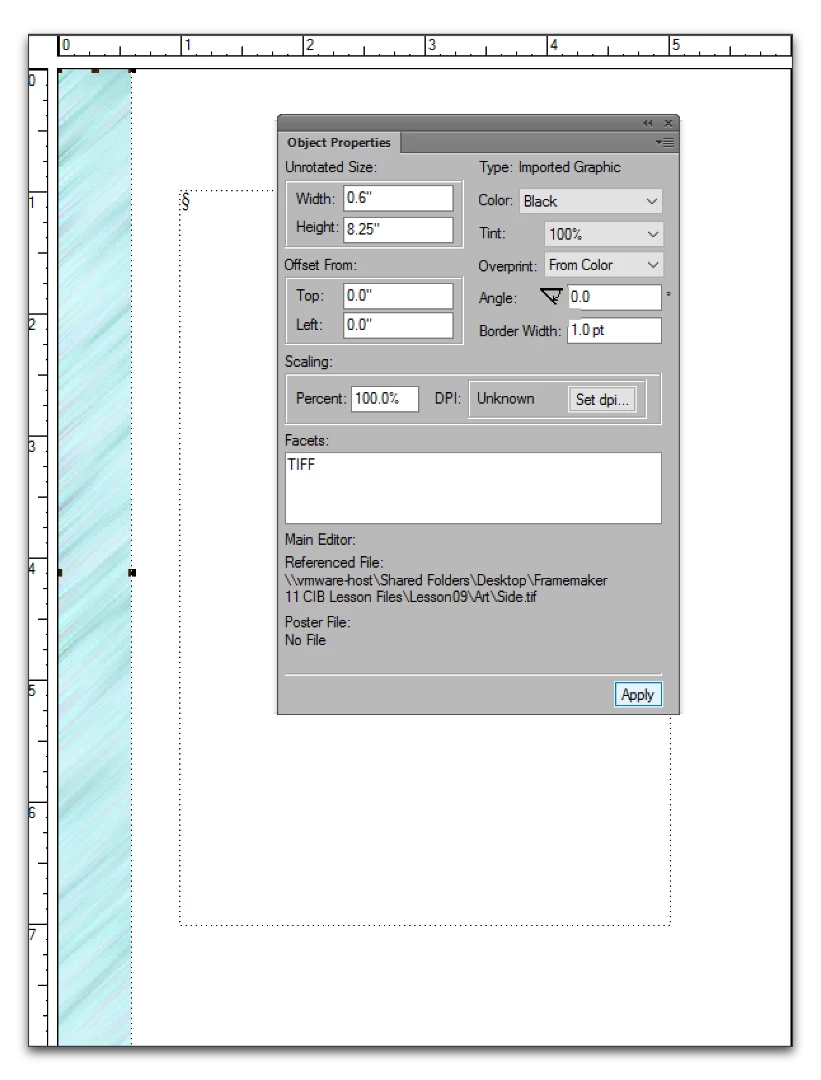
    For an 1/8" bleed on three sides, the banner is 1/8" wider and 1/2" taller than needed. In the image directly below, the offset is 0 from the top of the page and 0 from the left, so the bottom is not visible. You can still see the other sizing handles.
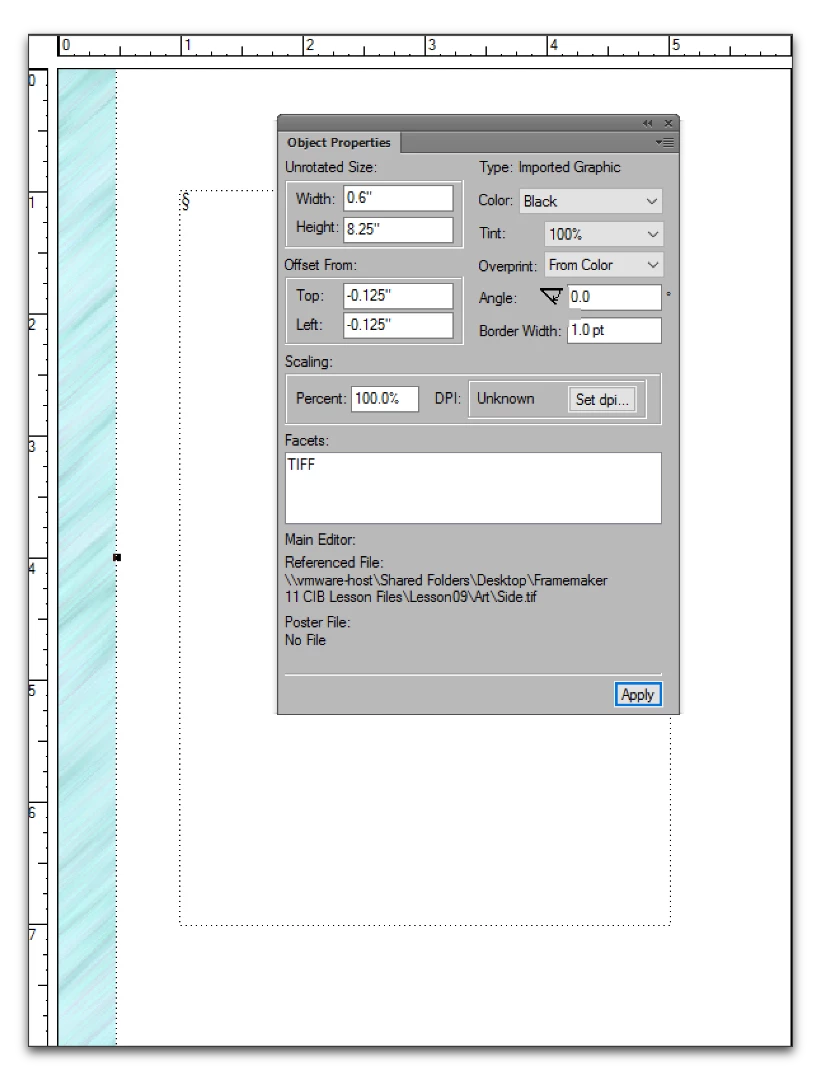
    To shift the banner up and left, go to Graphics > Object Properties and change the Top and Left Offsets to -0.125". (Positive values move the image down and right, negative values move it up and left.) Note: you won't ever see the bleed in FrameMaker, but you can see the offset values and the missing handles.
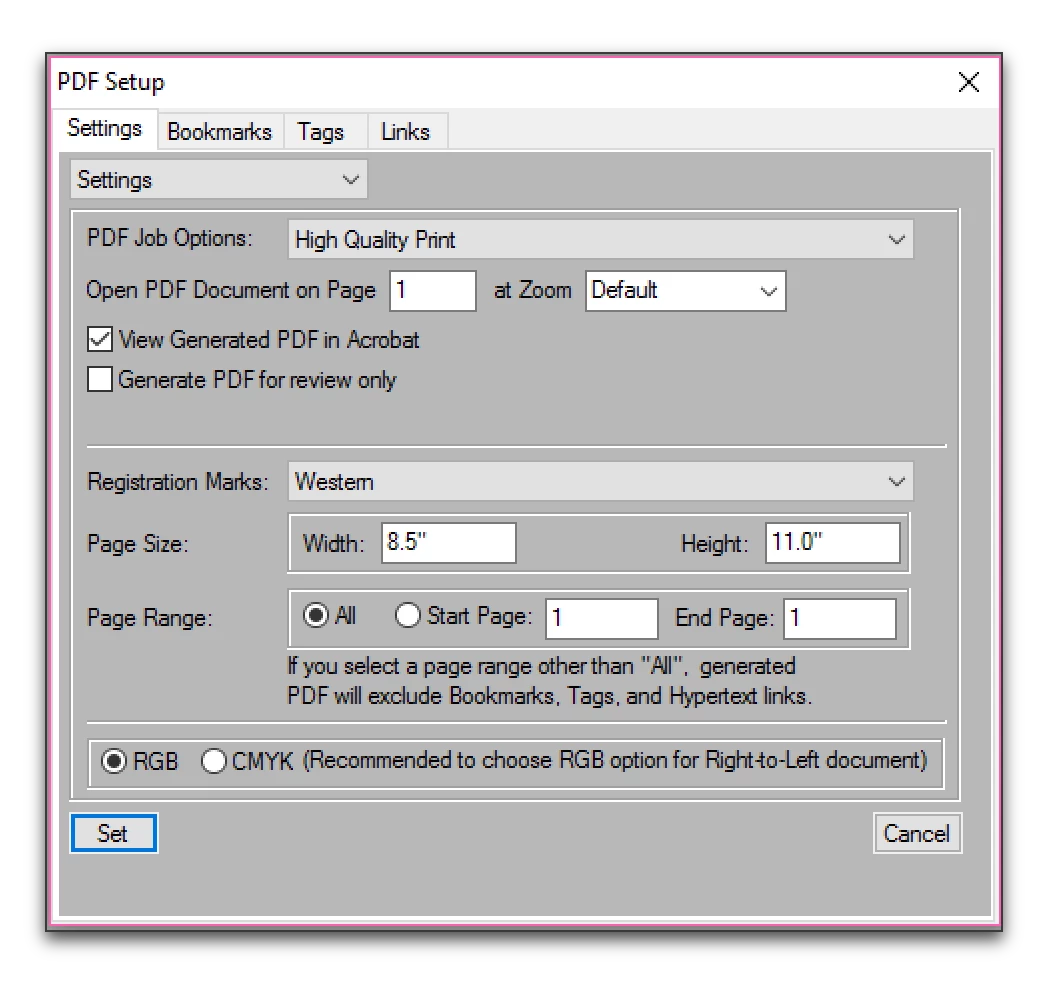
    To confirm the bleed, print or create a PDF with the page size set larger than the actual size, and the Registration Marks set to Western.
    You can see the trim lines and the bleed in Acrobat (or if you print it).

    2 replies

    Barb Binder
    Community Expert
    Community Expert
    December 15, 2016

    Hi kelisymons—did this answer your question? If not, just come back and let us know.

    ~Barb

    ~Barb at Rocky Mountain Training
    kelisymons
    Participant
    February 9, 2017

    Hi Barb

    I am so sorry I didn't reply to you. I had a deadline with my book and then went on leave. Your response was really helpful and I was able to apply the bleed easily. My book is now printed and it looks fantastic. Thank you very much!

    Keli

    Barb Binder
    Community Expert
    Barb BinderCommunity ExpertCorrect answer
    Community Expert
    December 13, 2016

    It's not intuitive.

    I have added a banner to the left side of the page. The page size is 6" x 8".

    For an 1/8" bleed on three sides, the banner is 1/8" wider and 1/2" taller than needed. In the image directly below, the offset is 0 from the top of the page and 0 from the left, so the bottom is not visible. You can still see the other sizing handles.

    To shift the banner up and left, go to Graphics > Object Properties and change the Top and Left Offsets to -0.125". (Positive values move the image down and right, negative values move it up and left.) Note: you won't ever see the bleed in FrameMaker, but you can see the offset values and the missing handles.

    To confirm the bleed, print or create a PDF with the page size set larger than the actual size, and the Registration Marks set to Western.

    You can see the trim lines and the bleed in Acrobat (or if you print it).

    ~Barb at Rocky Mountain Training
    Inspiring
    December 3, 2023

    Hello Barb,

    How I could get trim lines like you have in the PDF?

    I use ver. 17.0.2.


    When I set the crop marks in publish setting like this:


    I only get the poor trim lines as you can see below:


    Thank you.


    Adam


    Barb Binder
    Community Expert
    Community Expert
    December 3, 2023

    Hi Adam:


    Crop marks indicate the trim area. When you design a document that's being printed on paper that is larger than the document size, the crop marks indicate where to trim the paper to get to the final size.


    Your crop marks are right against the edge of the paper, which means that your paper size and trim size are the same and the marks are unnecessary.


    ~Barb


    ~Barb at Rocky Mountain Training