Inspiring
October 31, 2019
Answered

Cannot Compare FrameMaker - "...contains multiple flows with the same name."

  • October 31, 2019
  • 8 replies
  • 1207 views

Hi, I cannot compare FM between file old and new by FrameMaker 2019 there are have info message below.
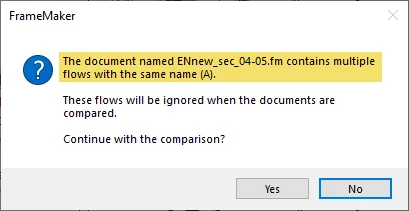
Please help me, Thank.

Charl.s

This topic has been closed for replies.
Correct answer Barb Binder

Hi Charl:


Yes, I just found your file—it was in my spam folder. The issue is what I guessed in my first answer. 


Specifically, pages 280–283 of both files are using Flow A, and then pages 284–304 are using a disconnected second occurence of Flow A. You have two Flow A tags in each file.


To repair this:

  1. Open a copy of ENnew__sec_04-05.fm. (Don't work on the original in case something goes wrong—work on a copy.)
  2. Click in the text on page 284.
  3. Edit > Select All in Flow (this selects the content on pages 284–304)
  4. Edit > Cut
  5. Use Format > Document > Delete Pages to remove pages 284–304.
  6. Click at the end of the text on page 283 and use Edit > Paste to paste the text you cut in step 4 back into the file. 
  7. Review each page to make sure everything is there, and correctly formatted.
  8. Repeat steps 2–8 for ENold__sec_04-05.fm.


Once all of the content is back in a single flow for both documents, Document Compare should work as expected.


~Barb 

8 replies

Barb Binder
Community Expert
Community Expert
May 7, 2020

Hi Charl: Since I was't there when it happened, I can again only guess. My guess is that someone got to the 4th page in the document and wanted to add more content. Instead of typing, importing or pasting the content at the bottom of the 4th page, they instead inserted a disconnected page. It is very rare that one needs to add a disconnected page—instead, just add content. FrameMaker will automatically add the pages for you to hold the new content.


~Barb 

~Barb at Rocky Mountain Training
Inspiring
May 8, 2020

Hi Barb,


Thank you very much for your take care and suggest.


Thanks.

Charl.s

Barb Binder
Community Expert
Barb BinderCommunity ExpertCorrect answer
Community Expert
May 7, 2020

Hi Charl:


Yes, I just found your file—it was in my spam folder. The issue is what I guessed in my first answer. 


Specifically, pages 280–283 of both files are using Flow A, and then pages 284–304 are using a disconnected second occurence of Flow A. You have two Flow A tags in each file.


To repair this:

  1. Open a copy of ENnew__sec_04-05.fm. (Don't work on the original in case something goes wrong—work on a copy.)
  2. Click in the text on page 284.
  3. Edit > Select All in Flow (this selects the content on pages 284–304)
  4. Edit > Cut
  5. Use Format > Document > Delete Pages to remove pages 284–304.
  6. Click at the end of the text on page 283 and use Edit > Paste to paste the text you cut in step 4 back into the file. 
  7. Review each page to make sure everything is there, and correctly formatted.
  8. Repeat steps 2–8 for ENold__sec_04-05.fm.


Once all of the content is back in a single flow for both documents, Document Compare should work as expected.


~Barb 

~Barb at Rocky Mountain Training
Inspiring
May 7, 2020

Hi Barb,


Great it work!! Thank you so much for your help, I can fixed as your step already.
Can you please let me know, How to know Flow A disconnected on which page? Thank you.


Kind Regarsd,
Charl.s

Barb Binder
Community Expert
Community Expert
November 1, 2019

Yes, Charls. You can attach a file to your response (public) or email it to me directly (private) at barb [at] rockymountaintraining.com. Substitute an @ sign for [at]. 


~Barb

~Barb at Rocky Mountain Training
Inspiring
May 6, 2020

Hi Barb,

Sorry for very late reply, I still try to solve the problem this issue

And I have send simple file to you via mail "barb@rockymountaintraining.com"

Did you receive mail from me? Thank you.


Regards,

Charl.s

Barb Binder
Community Expert
Community Expert
November 1, 2019

Yes. We understand the question, but since we can't see your file, you will have to figure out why the compare docs isn't working. I'm guessing one of the files has one or more disconnected frames that are assigned Flow A. Please start by following the first two steps that frameexpert listed, and look for disconnected frames. If there aren't any, continue through his list.


~Barb

~Barb at Rocky Mountain Training
Inspiring
November 1, 2019

"1) Select all of the text in the document's main text flow (Control+A)."

Can you please let me more detail about "document's main text flow" where is it? It mean body page or not? Thank.

Inspiring
November 1, 2019

Hi BarbBinder, Can i send sample file to you?

Charl.s

Inspiring
November 1, 2019

Sorry for confuse, I don't know tag appropriate for this case.

My method is compare file FM old content and new content by function "Document Compare" but cannot done.

Barb Binder
Community Expert
Community Expert
October 31, 2019

Hi Charls:


Or someone didn't quite understand how flow tags work, and there are disconnected frames in the document using the Flow A tag. If this is the case, when you follow frameexpert's first two steps, there will frames with content on some of the body pages. If this is the case, you will need to connect them using Format > Customize layout.


~Barb

~Barb at Rocky Mountain Training
frameexpert
Community Expert
Community Expert
October 31, 2019

Yes, you may have to ultimately use Barb's solution. My steps are kind of a fact-finding mission to see where the problem may lie. That is why you should run it on a copy of your document.

www.frameexpert.com
Jeff_Coatsworth
Community Expert
Community Expert
October 31, 2019

Are you trying to compare 2 FM docs both converted to FM2019 or are you attempting a compare of an older version doc & a new FM2019-converted one? You used the "content migration" tag, so I'm a bit confused as to what exactly you are trying to compare... 

frameexpert
Community Expert
Community Expert
October 31, 2019

It's hard to tell without seeing your document. Try this if it is appropriate (on a copy):

1) Select all of the text in the document's main text flow (Control+A).

2) Cut the content to the clipboard (Control+C).

3) Delete all of the body pages in the document. You will now be viewing the master pages.

4) Add a body page to the document.

5) Paste the clipboard text into the first body page (Control+V).

6) Save the document and try the compare again.

www.frameexpert.com