
Inspiring
October 3, 2023
Answered

Coloured text backround - text centered verticaly

  • October 3, 2023
  • 3 replies
  • 465 views

Hello,

please how can I center text verticaly in Pgf. Box? I don´t like that the text is very close to the upper side.

@Barb Binder(https://www.youtube.com/watch?v=pWhHcvswB1I) I saw you have the coloured boxes in your Reference page. So is there possibility to put coloured box as a backround for the paragraph? I know how the put objects from Refence page above/below the paragraph in the Paragraph designer, but not as you have in the Caution paragraph....
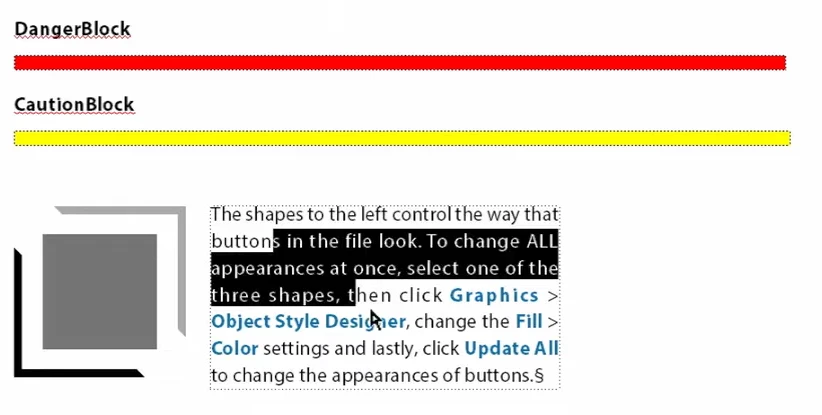

 

Can you give me advice?


Thanks


Adam


    This topic has been closed for replies.
    Correct answer FrameMaker-dk
    1. Go to Reference pages and create a new empty graphics frame. You will be prompted to name it and you name it Black
    2. Fill the empty graphics frame with black color using the graphics tools
    3. Go to Body pages
    4. Create a text frame
    5. Enter text in the text frame and use Paragraph Designer to make the text white
    6. In the Font tab of the Paragraph Designer assign a black background to the text
    7. In the Advanced tab of the Paragraph designer assign a black color to the Pgf Box (setting bottom corner right)
    8. In the Advanced tab of the Paragraph designer assign a Frame above and below the text. Choose the graphics frame "Black" you created in #1.
    9. Alternatively you can create a single table cell in a text frame. Using the tables margins and padding settings you can customize sizes to your liking.

    3 replies

    Barb Binder
    Community Expert
    Community Expert
    October 4, 2023

    Hi Adam:


    Bjørn listed the 8 steps you need to accomplish the same look as seen in my video—and the missing piece is visible in your first screen shot.


    That yellow CautionBlock frame on the Reference page is added above and below the Caution paragraph style in Paragraph Designer > Advanced > Frame Above Pgf and Frame Below Pgf to extend the shading above and below the caution paragraph. Once set up, you can format the paragraph by just assigning the style.


    I'll mark his answer as correct but of course come back if you need additional clarification. 


    ~Barb

    ~Barb at Rocky Mountain Training
    Inspiring
    October 4, 2023

    Thank you very much Barb.

    FrameMaker-dkCommunity ExpertCorrect answer
    Community Expert
    October 3, 2023
    1. Go to Reference pages and create a new empty graphics frame. You will be prompted to name it and you name it Black
    2. Fill the empty graphics frame with black color using the graphics tools
    3. Go to Body pages
    4. Create a text frame
    5. Enter text in the text frame and use Paragraph Designer to make the text white
    6. In the Font tab of the Paragraph Designer assign a black background to the text
    7. In the Advanced tab of the Paragraph designer assign a black color to the Pgf Box (setting bottom corner right)
    8. In the Advanced tab of the Paragraph designer assign a Frame above and below the text. Choose the graphics frame "Black" you created in #1.
    9. Alternatively you can create a single table cell in a text frame. Using the tables margins and padding settings you can customize sizes to your liking.
    Bjørn Smalbro - FrameMaker.dk
    Inspiring
    October 4, 2023

    Thank you.

    Bob_Niland
    Community Expert
    Community Expert
    October 3, 2023

    How is the "Pgf Box" implemented?

    If done as a 1- or 2-cell borderless Table, the Table Cell Padding attributes can provide the spacing trivially.

    As a Text Frame, you might need some empty spacing paragraphs.
    There are other methods as well. Which to use might depend on the workflow target. To HTML or XML might rule out some approaches.