Inspiring
June 25, 2018
Answered

Consistent indenting, bullets, dashes etc

  • June 25, 2018
  • 1 reply
  • 2373 views

Hello all,

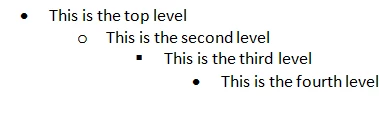
I want to do something like this in FM 2017(this is copied from Word - note the bullet styles):

Ia this possible and if so, I want to be able to employ this throughout all of our documents (i.e. perhaps some style/template).  Would someone be so kind as to offer direction and or topics to read?

Many thanks in advance

Ben

    This topic has been closed for replies.
    Correct answer Barb Binder

    Hi Ben:

    Yes, you can certainly do this in FrameMaker. You will need to set up four paragraph tags for your bullets, each one with a hanging indent, and define the various bullet shapes.

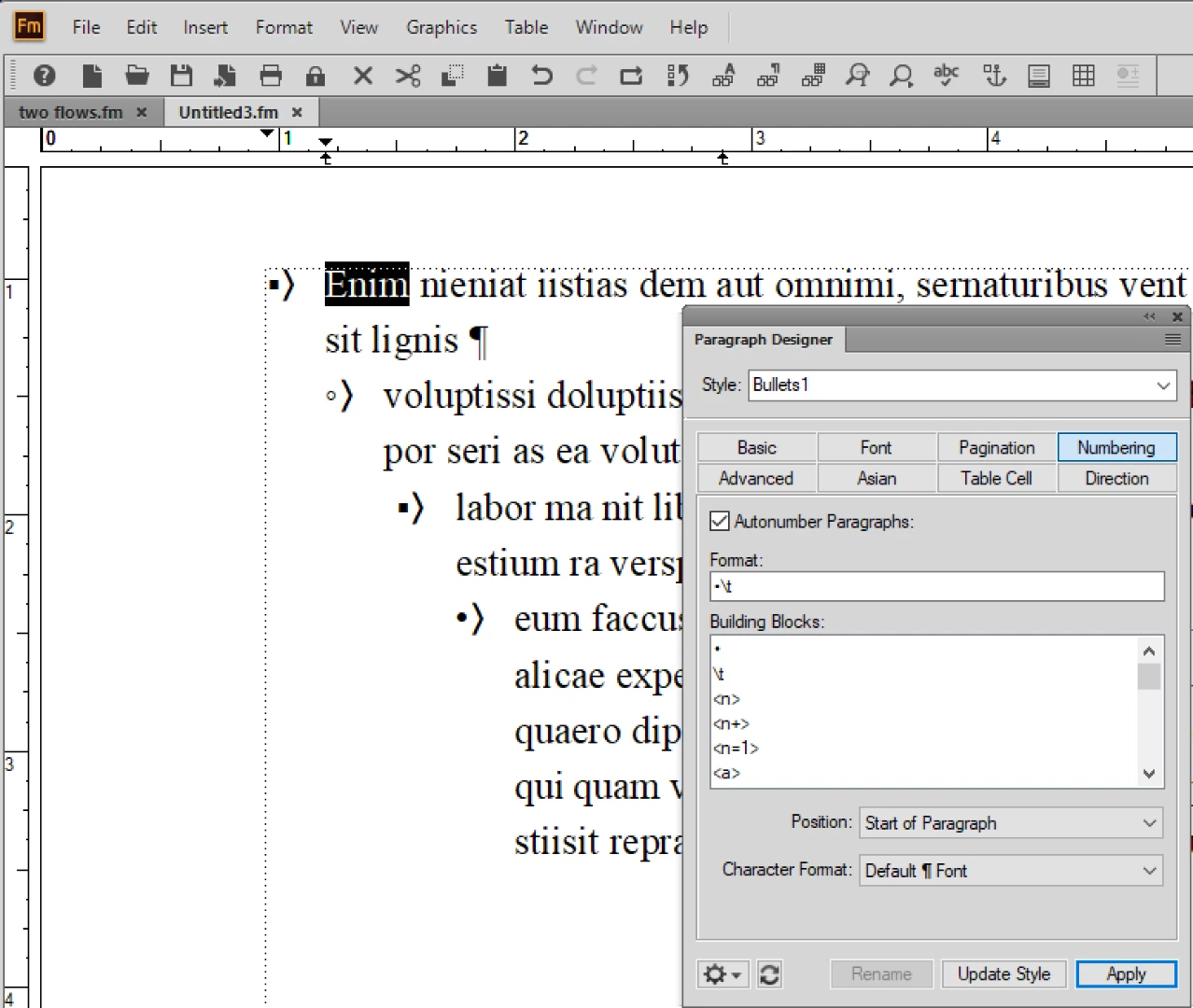
    To define bullets in FrameMaker, use Paragraph Designer > Numbering properties to set up the bullet shapes.

    1. The first and last bullet shapes are at the top of the building blocks list: • produces this character: • . Be sure to follow each bullet with a tab character (\t) so that you can define a hanging indent. i.e., •\t
    2. The second two bullet shapes do not appear in the building blocks list. Use a unicode character at the beginning of the auto-number format line for the two additional shapes (white circle is \u25e6, solid box is \u25AA) i.e., \u25e6\t. You can use a character tag to change the size and color, specified via the list at the bottom of Numbering properties.
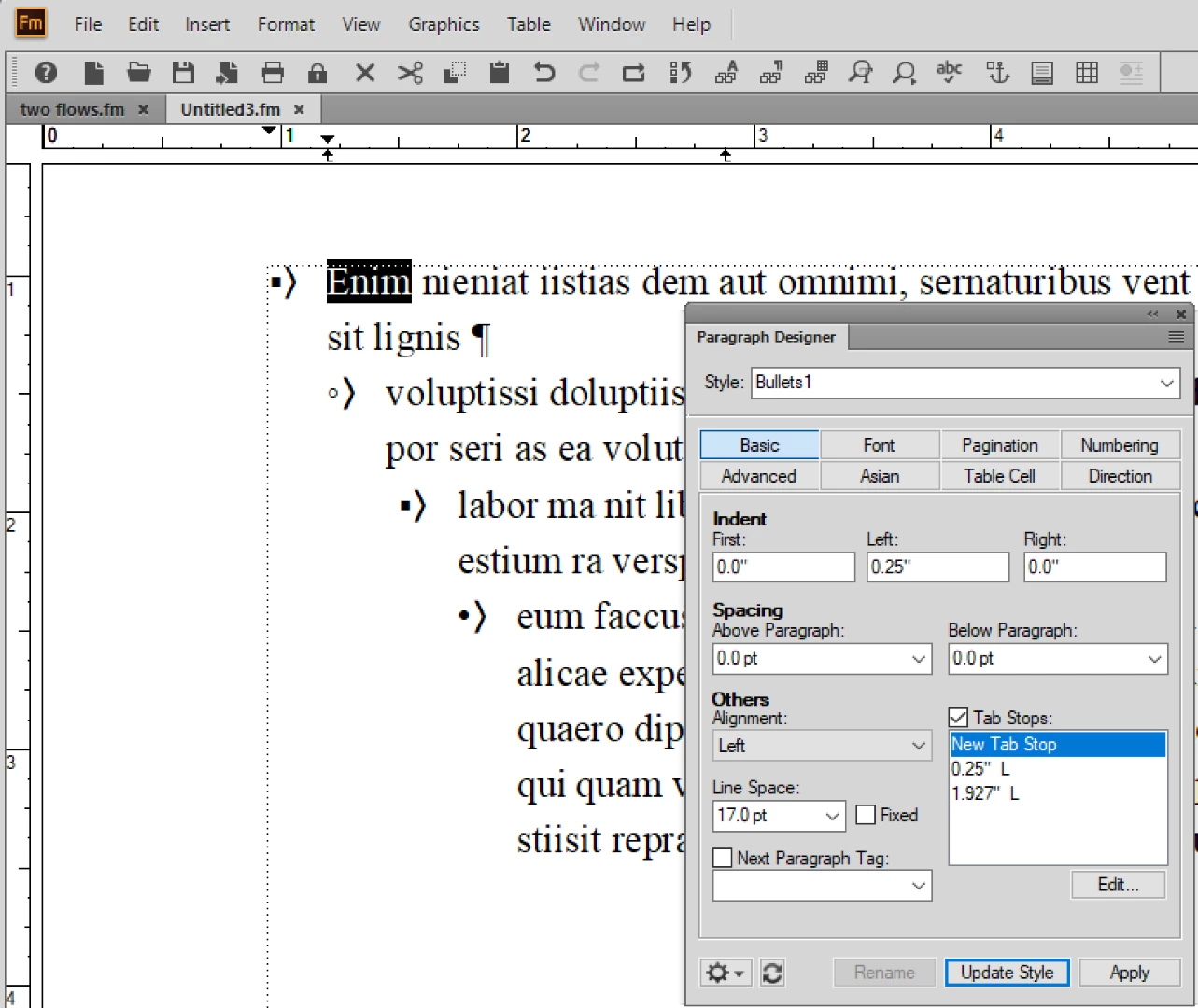
    To define a hanging indent in FrameMaker, use the Paragraph Designer > Basic Properties to set the indents as follows:

    1. The First Line Indent controls the left edge of the bullet
    2. Set a left-aligned tab stop to control the position of the first character of text following the bullet (must have a \t in numbering properties)
    3. Set the Left Indent to the exact same value as the left-aligned tab stop—this impacts the position of the second and subsequent lines of the paragraph. These numbers will increase as you move down the nested lists, but the relationship stays the same.
    ~Barb

    1 reply

    Barb Binder
    Community Expert
    Barb BinderCommunity ExpertCorrect answer
    Community Expert
    June 25, 2018

    Hi Ben:

    Yes, you can certainly do this in FrameMaker. You will need to set up four paragraph tags for your bullets, each one with a hanging indent, and define the various bullet shapes.

    To define bullets in FrameMaker, use Paragraph Designer > Numbering properties to set up the bullet shapes.

    1. The first and last bullet shapes are at the top of the building blocks list: • produces this character: • . Be sure to follow each bullet with a tab character (\t) so that you can define a hanging indent. i.e., •\t
    2. The second two bullet shapes do not appear in the building blocks list. Use a unicode character at the beginning of the auto-number format line for the two additional shapes (white circle is \u25e6, solid box is \u25AA) i.e., \u25e6\t. You can use a character tag to change the size and color, specified via the list at the bottom of Numbering properties.

    To define a hanging indent in FrameMaker, use the Paragraph Designer > Basic Properties to set the indents as follows:

    1. The First Line Indent controls the left edge of the bullet
    2. Set a left-aligned tab stop to control the position of the first character of text following the bullet (must have a \t in numbering properties)
    3. Set the Left Indent to the exact same value as the left-aligned tab stop—this impacts the position of the second and subsequent lines of the paragraph. These numbers will increase as you move down the nested lists, but the relationship stays the same.

    ~Barb
    ~Barb at Rocky Mountain Training
    Inspiring
    June 26, 2018

    Thank you so much Barb (again).

    Barb Binder
    Community Expert
    Community Expert
    June 26, 2018

    Hi Ben—you are most welcome. Always happy to help.

    ~Barb

    ~Barb at Rocky Mountain Training