Inspiring
January 21, 2019
Answered

Cross-Reference in DITAconcept & DITAmap

  • January 21, 2019
  • 1 reply
  • 1074 views

I am using FM2019, can someone tell me how to use Cross-References so they would work in DITA Topics and DITA Map.

As we know that normal FM cross-references do not work in DITA.

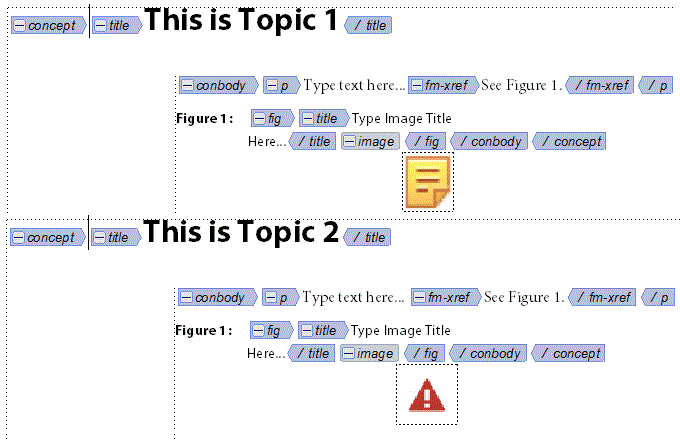
I have two topic files, each file has one cross-reference which points to an image (inside Figure element).

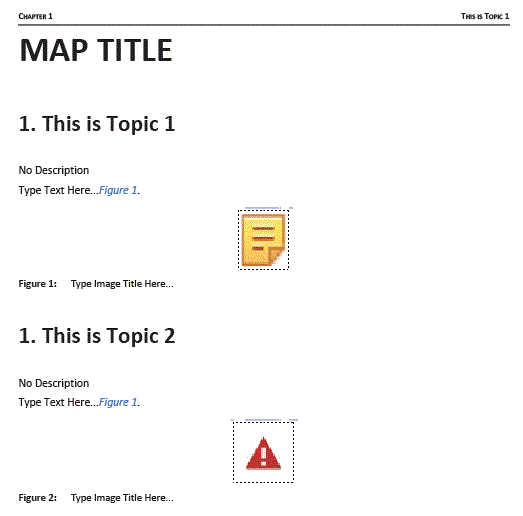
DITA MAP (of two Topic Files) output in PDF: Figures are updated but cross-references are not updated and not working. 1

This topic has been closed for replies.
Correct answer Amitoj

Here is a reference guide for ditafm-output.ini

https://help.adobe.com/en_US/framemaker/2017/ini/framemaker_2017_ini_reference.pdf

This ini file has lot of settings that you can use in terms of how you would like to output your PDF. I am assuming you have multiple topics and finally you want to generate a composite file (single file) and then generate PDF. Another option is to generate the PDF for your ditamap like a Book with multiple chapters.

For the former one, we have the following template in sts file ditabase1.3.template.fm
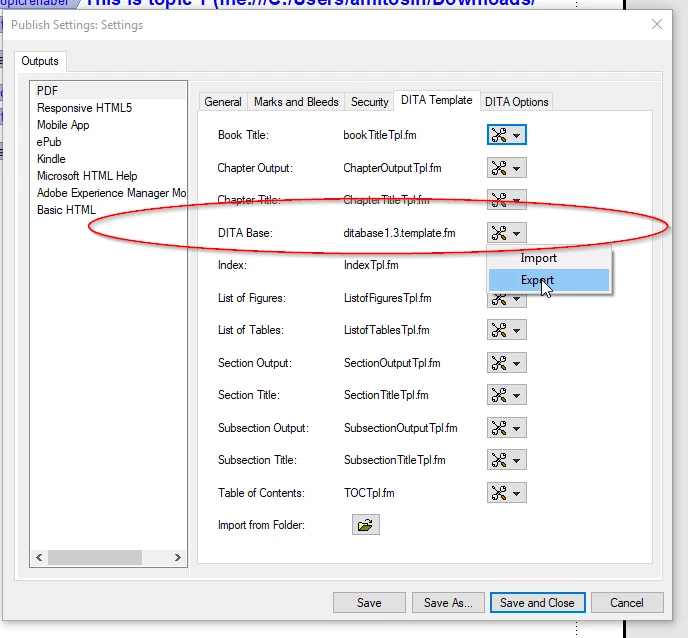
Simply export it and then make changes onto it for configuring how your PDF looks like

Ex: if you export and then finally open in FM the same file and go to Master pages you can change the Chapter 1 to not show.

Regarding numbering, since this number is for the main title title.0 simply change the numbering as in Paragraph designer
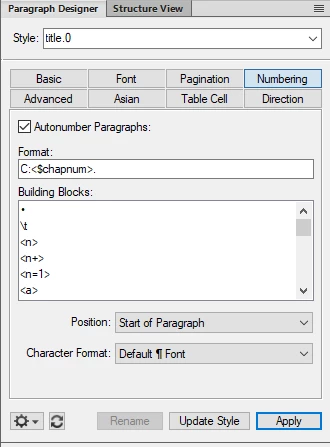
Currently it is set to C:<$chapnum> since chapter number is 1 so it is consistently coming 1 , instead you could remove it or have your own using some of the building blocks.

All the above is UI driven so just use the UI for making these changes in template and finally generate the PDF.

Some links which may be helpful

FRAMEMAKER 11: Easy PDF output from DITAMap - YouTube

Customize the look-and-feel of FrameMaker 10 DITA 1.2 templates – Adobe TechComm Blog

only change with FM2019 is that instead of output template being earlier in installation directory, that has been moved to sts file.

Hope this helps.

Thanks

Amitoj Singh

1 reply

Adobe Employee
January 22, 2019
AixtronAuthor
Inspiring
January 22, 2019

Hi Amitoj.

Appreciate your response, I have managed to create Cross-references and Updated Figure Numbers.

However, in front of my topic title (This is Topic1 & This is Topic2), I see Number 1.

I have three questions:

  • How can I change these numbers (1 for Topic1 & 2 for Topic2), what ID Parameter should I set?
  • How do I delete these numbers (if I do not wish to print these numbers)
  • Finally, how do I edit or change text in the header, such as CHAPTER 1

AmitojCorrect answer
Adobe Employee
January 23, 2019

Here is a reference guide for ditafm-output.ini

https://help.adobe.com/en_US/framemaker/2017/ini/framemaker_2017_ini_reference.pdf

This ini file has lot of settings that you can use in terms of how you would like to output your PDF. I am assuming you have multiple topics and finally you want to generate a composite file (single file) and then generate PDF. Another option is to generate the PDF for your ditamap like a Book with multiple chapters.

For the former one, we have the following template in sts file ditabase1.3.template.fm

Simply export it and then make changes onto it for configuring how your PDF looks like

Ex: if you export and then finally open in FM the same file and go to Master pages you can change the Chapter 1 to not show.

Regarding numbering, since this number is for the main title title.0 simply change the numbering as in Paragraph designer

Currently it is set to C:<$chapnum> since chapter number is 1 so it is consistently coming 1 , instead you could remove it or have your own using some of the building blocks.

All the above is UI driven so just use the UI for making these changes in template and finally generate the PDF.

Some links which may be helpful

FRAMEMAKER 11: Easy PDF output from DITAMap - YouTube

Customize the look-and-feel of FrameMaker 10 DITA 1.2 templates – Adobe TechComm Blog

only change with FM2019 is that instead of output template being earlier in installation directory, that has been moved to sts file.

Hope this helps.

Thanks

Amitoj Singh