
July 14, 2018
Answered

Deleting text in a structured table

  • July 14, 2018
  • 1 reply
  • 647 views

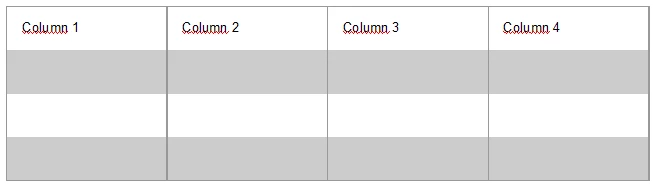
Here is a simple table (no header, no footer, 4 body rows, 4 columns):
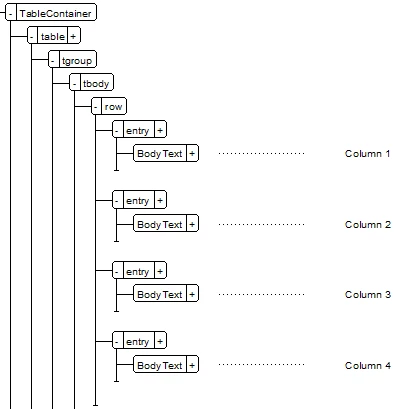
This is the related structure:
I'd like to delete the text in the first row at once:

  • Select the entire row.
  • Press Delete.

The Clear Table Cells dialog box displays.

  • Select Leave Cells Empty.
  • Click Clear.

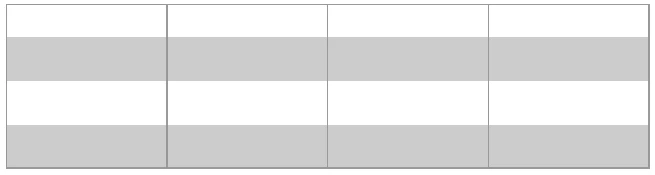
The first row is emptied, as desired:
But the structure has changed:
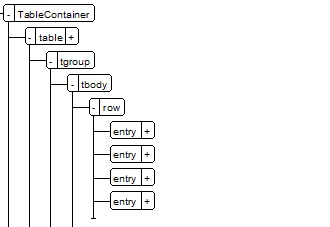
The BodyText elements are gone, too.

Before entering new text, I'll have to insert these elements again. In a large table, that's very time-consuming.

Is it possible to delete text in tables without simultaneously deleting elements in tables?

This topic has been closed for replies.
Correct answer Lynne A. Price

Lothar,

   Yes, when you delete a selection, whether or not the selection is in a table, you delete any selected elements as well as their contents.

If you only want to delete text, you can change all characters to nothing. In the Find/Change pod:

1) Make sure Text is selected from the Find pull-down menu.

2) Either click the Wildcards radio button and type an asterisk (*) in the Find text box, or click the Regular Expressions radio button and type a period (.) in the Find text box.

3) Make sure To Text is selected from the Change pull-down menu.

4) Click the Selection radio button.

5) Click Change All.

Be careful; if you neglect step 4), you will delete all text in the document!

     --Lynne

1 reply

Lynne A. PriceCorrect answer
Inspiring
July 14, 2018

Lothar,

   Yes, when you delete a selection, whether or not the selection is in a table, you delete any selected elements as well as their contents.

If you only want to delete text, you can change all characters to nothing. In the Find/Change pod:

1) Make sure Text is selected from the Find pull-down menu.

2) Either click the Wildcards radio button and type an asterisk (*) in the Find text box, or click the Regular Expressions radio button and type a period (.) in the Find text box.

3) Make sure To Text is selected from the Change pull-down menu.

4) Click the Selection radio button.

5) Click Change All.

Be careful; if you neglect step 4), you will delete all text in the document!

     --Lynne

July 15, 2018

Lynne, many thanks for refreshing my brain. I know Search & Replace with Regular expressions. But for some reason I thought, there must be an easier way to delete an ordinary text in FM.