
Participant
March 19, 2018
Answered

Drag and Drop Files FrameMaker 2017

  • March 19, 2018
  • 1 reply
  • 483 views

I am finding that drag-n-drop of files in FM 2017 behaves differently than in 2015. I want to place a PDF file (an image), non-anchored, on a blank page, without affecting text flow (we aren't using text on these pages). In 2017, it creates an anchored frame and/or jumps the image to a new page and/or replaces the previous image. Is there any way to change the way drag-n-drop of PDF files into FM behaves?

    This topic has been closed for replies.
    Correct answer Barb Binder

    Hi Don:

    It depends on what is active: the page or a flow tag.

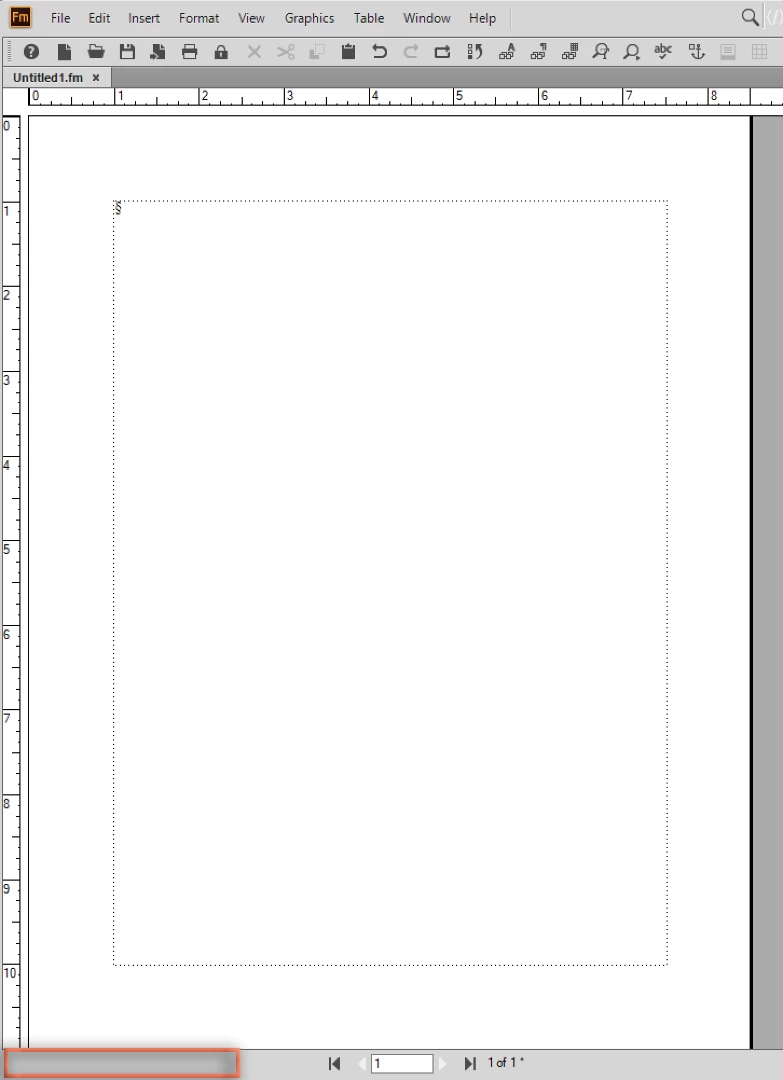
    Before you try it again, click on the page margin (outside any frames) and check the bottom left corner of the status bar—is it empty or does it show a flow tag/para tag combo like Flow A ¶: Body? It should be empty, which means the page is active.

    If you have an active insertion point in the text, Fm will create an anchored frame for you. If you don't, the object will be placed directly on the page.

    ~Barb

    1 reply

    Barb Binder
    Community Expert
    Barb BinderCommunity ExpertCorrect answer
    Community Expert
    March 19, 2018

    Hi Don:

    It depends on what is active: the page or a flow tag.

    Before you try it again, click on the page margin (outside any frames) and check the bottom left corner of the status bar—is it empty or does it show a flow tag/para tag combo like Flow A ¶: Body? It should be empty, which means the page is active.

    If you have an active insertion point in the text, Fm will create an anchored frame for you. If you don't, the object will be placed directly on the page.

    ~Barb

    ~Barb at Rocky Mountain Training
    Participant
    March 19, 2018

    That did it! We've never had to pay attention to the the cursor focus before; it would drop at that point directly regardless. But now this makes perfect sense. Thanks so much!

    Barb Binder
    Community Expert
    Community Expert
    March 19, 2018

    Great!

    This holds true for File > Import > File as well. You just need to be aware of your cursor position and what is active prior to adding graphics.

    As a final thought, if you make a mistake, you can just drag the file out of the anchored frame and onto the page, and then delete the anchored frame. (Or, to go the other way, select the PDF, cut it click in the text and paste and Fm will make an anchored frame for you.)

    ~Barb

    ~Barb at Rocky Mountain Training