
Participating Frequently
January 29, 2024
Answered

Editing Table Header Row

  • January 29, 2024
  • 1 reply
  • 796 views

There is a custom style table that was created by a colleague who’s no longer with the company. I’ve removed the custom style table formatting; however, when I attempt to add the new color to the table header row, the top and bottom portions of that header row will not fill in with the color I’ve selected. I used Pargraph Designer > Advanced tab that gave me the new color blue. I attempted to use Table Desinger > Shading tab to no avail. Does anyone know how I’m able to get the top and bottom portions to fill in with the blue color I selected? See the images below for clarity.
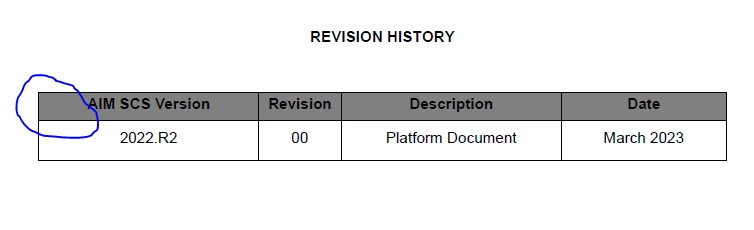


Initial color (Gray) for the table header row



After adding the blue color to the table header row

 

    This topic has been closed for replies.
    Correct answer frameexpert

    Select the entire row and look in the lower left corner of the document window (the status area). Does it say it is a header row that is selected?


    The status area should say Heading Cells. If it says Body Cells, then the first row of your table is not a Heading Row.

    1 reply

    frameexpert
    Community Expert
    Community Expert
    January 29, 2024

    Hi. Check your Ruling. I looks like you may have the Double Ruling Format applied. That is what is giving you the gap.


    Participating Frequently
    January 29, 2024

    Thank you for you advice. I've higlighted the header row and I'm in the Ruling tab, but I don't see anything indicating there is a Double Ruling format applied.


    frameexpert
    Community Expert
    Community Expert
    January 29, 2024

    Select the row and in the Custom Ruling & Shading dialog box and click the Show Current Settings button. That will show you if there are any overrides.