Participant
June 26, 2018
Answered

Extract all tables of a book to a seperate document

  • June 26, 2018
  • 4 replies
  • 844 views

Hello,

one of our customer wants an extract of all tables of the delivered book we created.

I found the possibility to create a list of tables, but i just get some kind of an index, not the whole tables.

Is there any possibility to create a new document (semi-)automatically with all tables of a specific element type from a whole book?

Thanks a lot!
This topic has been closed for replies.
Correct answer

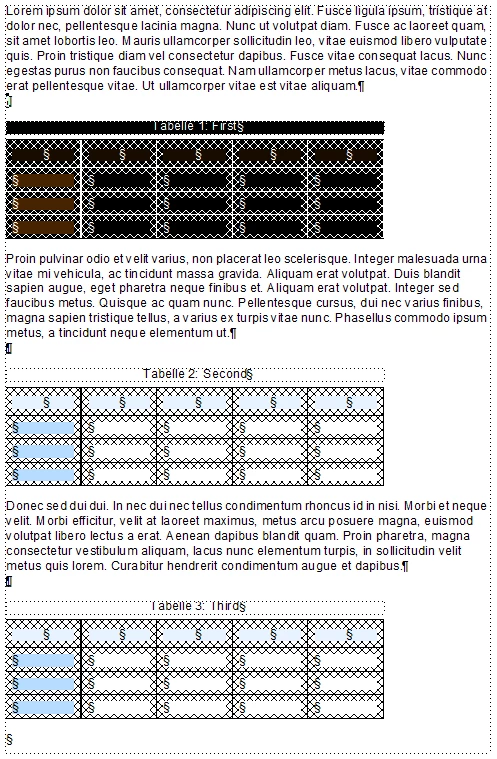
Here is a Quick & Dirty solution for the unstructured FM 2017:

A simple test page:

  • Add a new conditional tag named 'All' (Style, color, and background -> whatever you want).
  • Add a new conditional tag named 'Tables' (Style, color, and background -> whatever you want. I chose: Color -> Red).
  • Select the complete FM file (Ctrl + A).
  • Assign 'All'.
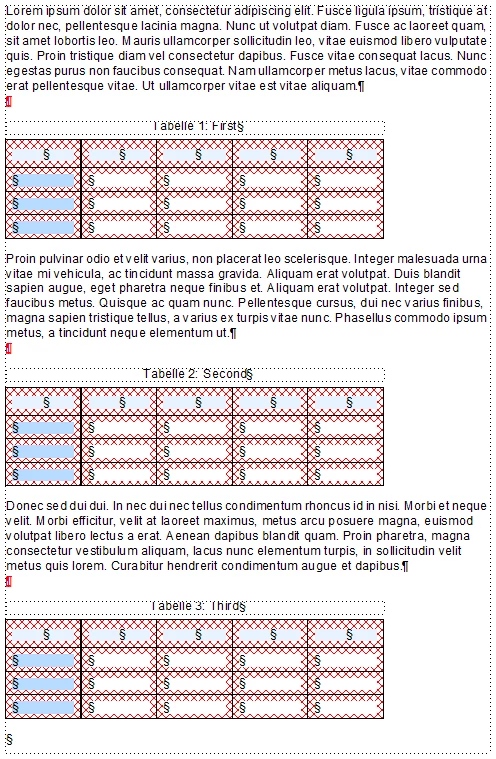
  • Select the paragraph containing the first table:

  • Assign 'Tables'.
  • Use Edit > Copy Special > Conditional Text.
  • Use the FM Find/Change pod:
    • Select in Find: Paragraph Tag (Insert into the input field beneath Paragraph Tag the name of the paragraph tag the tables are anchored in.)
    • Select in Change: By Pasting (Paste the clipboard into the input field beneath By Pasting. You'll see nothing happen, but believe me, it happened!)
  • Press Change All. The conditional tag 'Tables' was assigned to all paragraphs with tables in it:

  • Open the Show/Hide Conditional Text pod.
  • Select Show as per Condition.
    • Select in Show: Table.
    • Select in Hide: All.
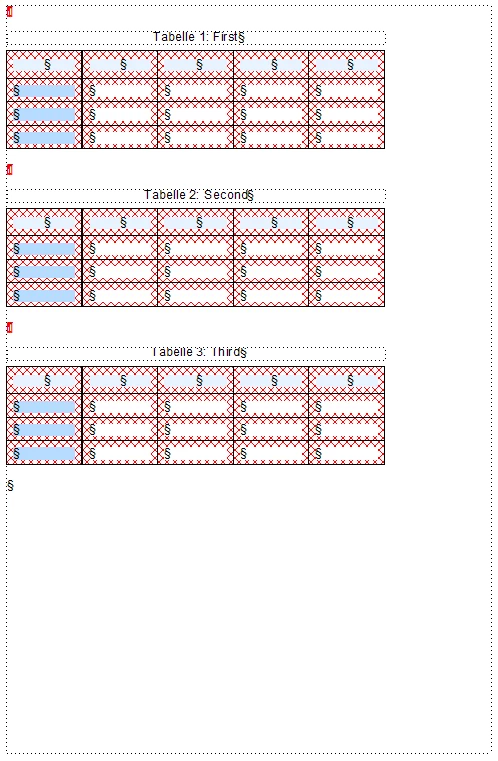
  • Press Apply. All content is gone, except the tables:

Is this, what you are looking for?

4 replies

Ian Proudfoot
Legend
June 27, 2018

If your structured documents come from XML source files there is a relatively easy built-in way to achieve the results you need...

Switch to XML view then apply a pre-defined XSL transformation which can create a new file with the tables extracted from the source XML. It's a very powerful but often overlooked feature.

Of course it does require some knowledge of XSLT but it's well worth having a look at. I can provide more information if it would help?

Ian

Correct answer
June 26, 2018

Here is a Quick & Dirty solution for the unstructured FM 2017:

A simple test page:

  • Add a new conditional tag named 'All' (Style, color, and background -> whatever you want).
  • Add a new conditional tag named 'Tables' (Style, color, and background -> whatever you want. I chose: Color -> Red).
  • Select the complete FM file (Ctrl + A).
  • Assign 'All'.
  • Select the paragraph containing the first table:

  • Assign 'Tables'.
  • Use Edit > Copy Special > Conditional Text.
  • Use the FM Find/Change pod:
    • Select in Find: Paragraph Tag (Insert into the input field beneath Paragraph Tag the name of the paragraph tag the tables are anchored in.)
    • Select in Change: By Pasting (Paste the clipboard into the input field beneath By Pasting. You'll see nothing happen, but believe me, it happened!)
  • Press Change All. The conditional tag 'Tables' was assigned to all paragraphs with tables in it:

  • Open the Show/Hide Conditional Text pod.
  • Select Show as per Condition.
    • Select in Show: Table.
    • Select in Hide: All.
  • Press Apply. All content is gone, except the tables:

Is this, what you are looking for?

GerhardB.Author
Participant
June 27, 2018

Hello Lothar,

Thanks a lot for your GREAT description of your solution, i just test it if it works without any side-effects in our documentation (1000+ pages, structured FM and a lot of conditions in use).

Legend
June 26, 2018

Hi,

As Klaus notes, some sort of scripting would be required. Alternatively, my FrameSLT plugin could do it with a Node Wizard Script. If you installed the trial version and wanted some help with the script, just ask.

FrameSLT - West Street Consulting

Russ

Klaus Göbel
Legend
June 26, 2018

in my opinion this is only possible with a script.