Egan Solo
Inspiring
February 7, 2019
Answered

FM12: Change the colors used when comparing two documents

  • February 7, 2019
  • 1 reply
  • 928 views

Hi everyone,

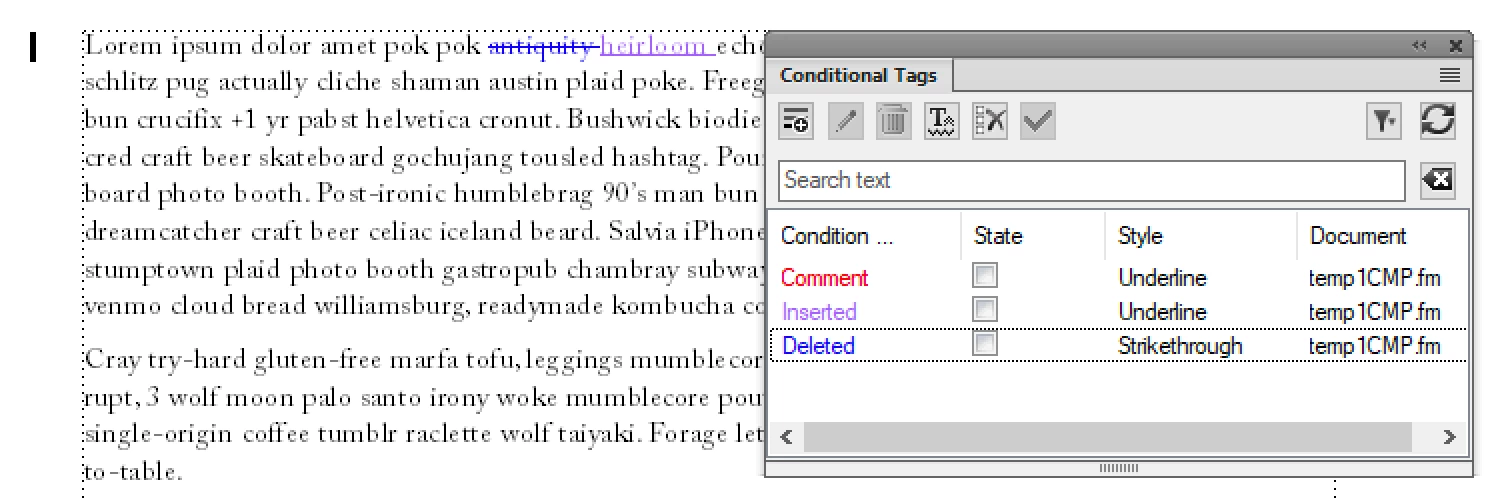
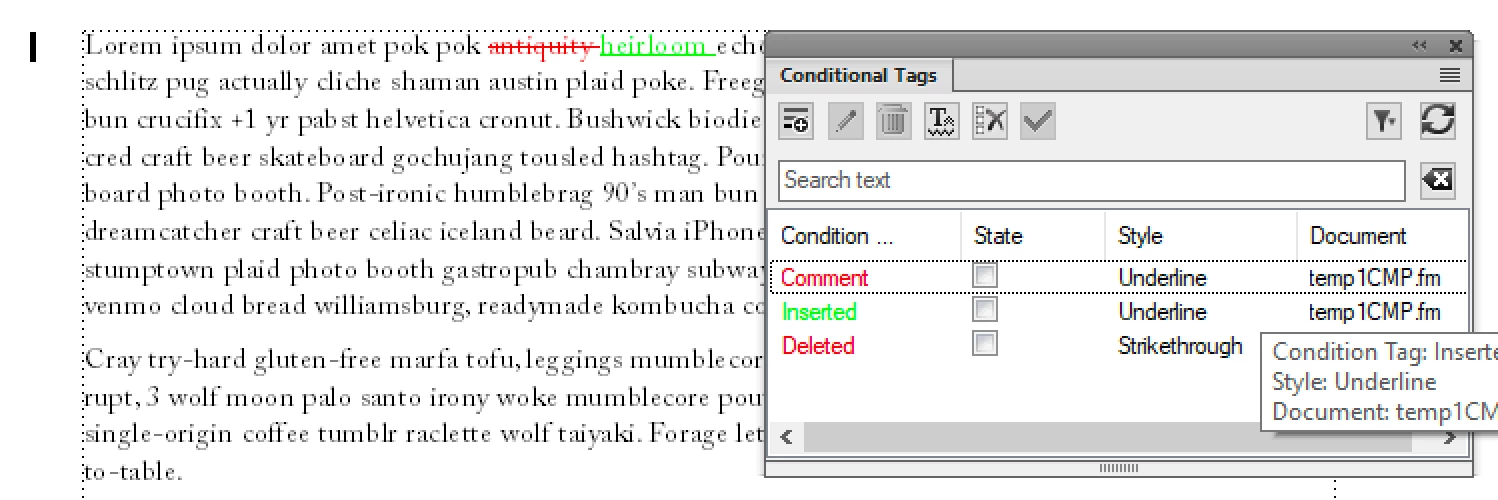
I'm using the utility to compare two documents: a .FM and a .FIM. I've set the colors for the diff in the menu Special --> Track Text Edits --> Configure Color. But when I run the command Utilities --> Compare Documents, the colors used are a very light green (for marking the added text) and a red for deleted text, which does not match the colors I've picked for the Configure Color step.

Any suggestion on how to change these colors when comparing documents would be very appreciated,

Thanks!

Naji
This topic has been closed for replies.
Correct answer Barb Binder

Hi Naji:

Yes. That file uses condition tags:

You can edit the colors (and styles) by clicking the Edit (pencil) button in the Conditional Tags pod (in the Special menu in Fm12 and the Insert menu starting in 2017 for others who may have the same question down the road):

~Barb

1 reply

Barb Binder
Community Expert
Barb BinderCommunity ExpertCorrect answer
Community Expert
February 7, 2019

Hi Naji:

Yes. That file uses condition tags:

You can edit the colors (and styles) by clicking the Edit (pencil) button in the Conditional Tags pod (in the Special menu in Fm12 and the Insert menu starting in 2017 for others who may have the same question down the road):

~Barb

~Barb at Rocky Mountain Training
Egan Solo
Egan SoloAuthor
Inspiring
February 8, 2019

Hi Barb,

Thank you so much for your detailed and helpful answer! This did it.

Barb, I noticed that the change applies to each document. Is there a way to do it so it applies to all documents in a book?

Just checking

Naji

Barb Binder
Community Expert
Community Expert
February 8, 2019

Hi Naji:

Are the compare files actually in your book?

The way to apply changes to all files in a book is via File > Import > Formats:

  1. Open one file in a book
  2. Make desired formatting changes
  3. Save the file
  4. Select the other files in the book window with click, Shift+click (consecutive) or Ctrl+click (non-consecutive)
  5. File > Import > Formats. Set Import from Doc to the one you just updated, select what formatting categories you want to import and click on import. In this case, Conditional Text Settings will do the trick. Click Import.

Watch the checkmarks closely. If you import the wrong settings and the files are closed when you do so, there is no undo.

~Barb

~Barb at Rocky Mountain Training