


Participant
June 11, 2013
Answered

Frame 11 - Moving grouped objects in a graphics frame

  • June 11, 2013
  • 1 reply
  • 779 views

In Framemaker 11, how can I move grouped objects in a graphics frame to an exact location in the frame (using Object Properties, Dimensions/Position/Offset) without changing the line & fill properties of the grouped objects?  When I apply a new Offset position to the grouped objects in Frame 11, the line and fill properties of the groupled objects change to (apparently) some sort of default setting.  I don't want that to happen - I want the grouped objects to all retain their original line and fill properties.  I have been using Frame 9 previously, and the grouped objects retained their original properties after applying the new Offset.

    This topic has been closed for replies.
    Correct answer Arnis Gubins

    When you've grouped the objects and want to use the Object Properties dialog to move these, you have to set all of the properties to AsIs first.

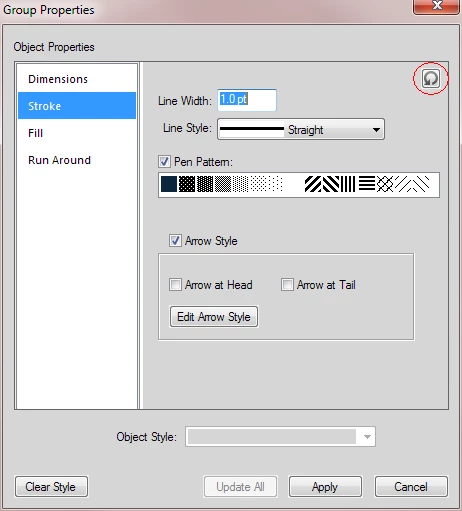
    Select each of Fill, Stroke and RunAround tabs and then click on the counter-clockwise arrow in the upper-right to set these to AsIs first. Then in the Dimesions, set the Top and Left positons of the grouped objects.

    Note: The Clear Style button won't do it for you. It just clears any named style from being applied. You still have to manually clear each property.

    This whole process (Object Styles) still needs some work by Adobe.

    1 reply

    Arnis Gubins
    Arnis GubinsCorrect answer
    Inspiring
    June 11, 2013

    When you've grouped the objects and want to use the Object Properties dialog to move these, you have to set all of the properties to AsIs first.

    Select each of Fill, Stroke and RunAround tabs and then click on the counter-clockwise arrow in the upper-right to set these to AsIs first. Then in the Dimesions, set the Top and Left positons of the grouped objects.

    Note: The Clear Style button won't do it for you. It just clears any named style from being applied. You still have to manually clear each property.

    This whole process (Object Styles) still needs some work by Adobe.

    RBH1963Author
    Participant
    June 11, 2013

    Thanks Arnis, that worked perfectly.  Previously, I tried to find "As-Is" settings for the Stroke and Fill, but no luck.  I clicked on each item individually (Pen Pattern, Arrow Style, etc.) but couldn't find a way to make that work as an "As-Is" setting.  I tried the Clear Style button too, but as you said, that doesn't work either.  The counter-clockwise arrow did the trick!

    Thanks again, that was annoying the heck out of me!!!