
Participant
December 24, 2018
Answered

FrameMaker 2017 - Failed to Initialize. Please download Adobe Support Advisor
  • December 24, 2018
  • 3 replies
  • 1066 views

My laptop just died (CPU failure). Received a new one from work, and am currently installing all of my old application onto it. The new computer is a Windows 10 HP Elite Book G4, i5 7th gen CPU, 120gb M.2 SSD and 20gb of RAM (4 + 16).

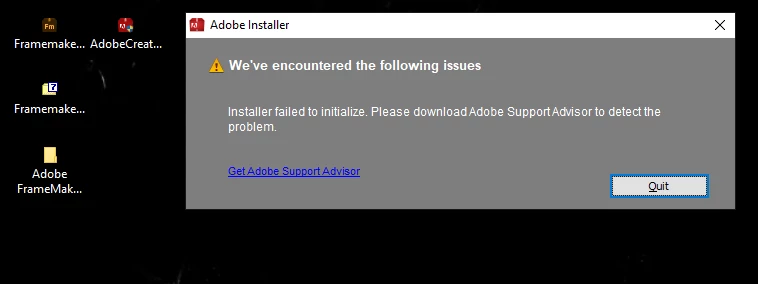
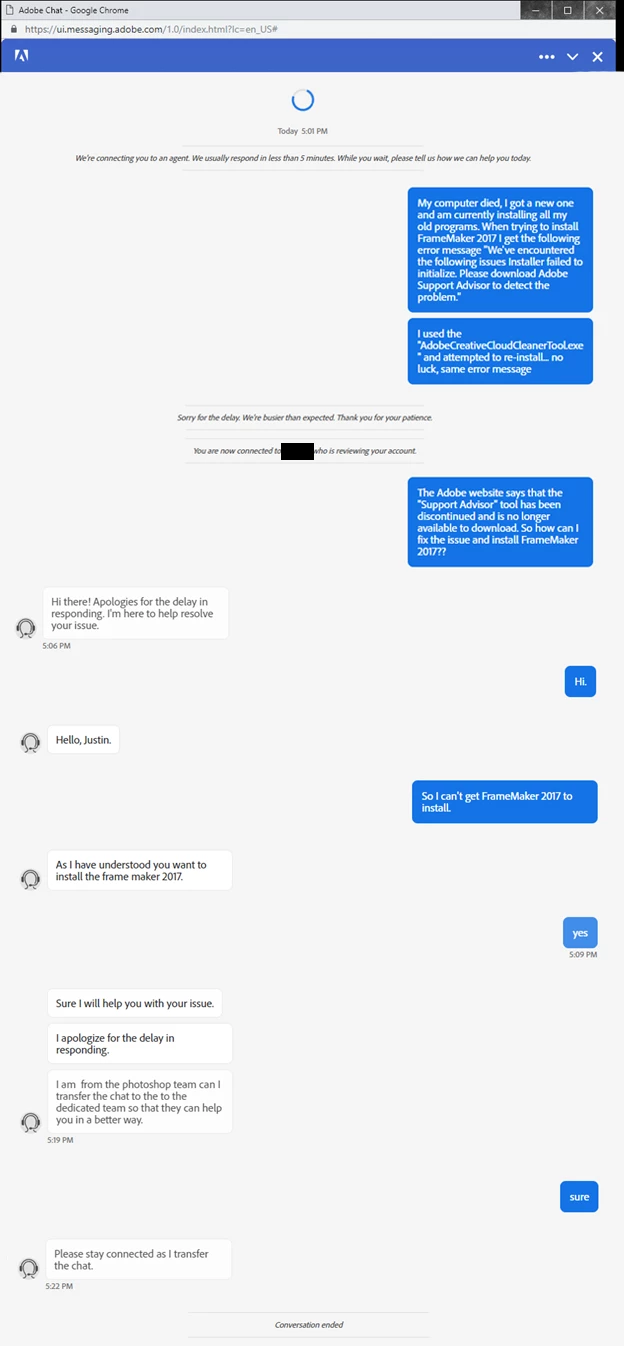
All the Adobe CC apps installed just fine... then came FrameMaker 2017. The screenshot above shows my error message. It downloads fine, extracts the files pretty quickly, then the installer works for about 5 seconds before this message appears. The Adobe website says that the "Support Advisor" has been discontinued, and I can't find it anywhere. I contacted Adobe Support and after 22 minutes on Chat Support, they just ended the conversation on me without any solution.

I've re-downloaded the files 3 times now, I've tried running both the "Framemaker_14_LREFDJ.exe" extractor and the "Set-up.exe" installer, used the "AdobeCreativeCloudCleanerTool.exe", and restarted about 20 times now. After a solid week, I still can not get this to install on my new computer.

I can't upgrade to 2019 because my entire team is running on the 2017 version, and we have a third-party plug-in that works with it.

Does anyone have a solution to getting FrameMaker 2017 to install, or what the error message is actually saying? Any idea where the log files for this would be?

Adobe support:
This topic has been closed for replies.
Correct answer Ashish.K

Hi Malenky ,

I am sorry about the issue you are facing while installing FM2017.

Could you please try to rename the folder "OOBE" to "OOBE_old" under the location below and try to run the installer again:

C:\Program Files (x86)\Common Files\Adobe

If the step above step does not work please send us an email at tcssup@adobe.com with your contact number.

-Ashish

3 replies

MalenkyAuthor
Participant
January 2, 2019

I renamed the entire directory at "C:\Program Files (x86)\Common Files\Adobe" to "C:\Program Files (x86)\Common Files\Adobe_OLD" and FrameMaker 2017 finally installed. I then went back and renamed and replaced the new common files over the old.

After spending weeks uninstalling/re-installing, and several days cleaning up the registry I'm happy and disappointed that the fix was just temporarily renaming a folder.

Thanks Ashish! I would have never thought the common files were holding everything up.

Legend
December 25, 2018

Just as an additional idea: You wrote that you have a 120 GB hard drive. If you install Windows 10 + Creative Cloud (+ Microsoft Office?) there might be just not enough space left? How much space do you have free in C:\?

Jeff_Coatsworth
Community Expert
Community Expert
December 27, 2018

Another idea - you don't mention installing as a local admin - make sure you're doing it with full rights to your c:\ drive.

Ashish.KCorrect answer
Adobe Employee
December 25, 2018

Hi Malenky ,

I am sorry about the issue you are facing while installing FM2017.

Could you please try to rename the folder "OOBE" to "OOBE_old" under the location below and try to run the installer again:

C:\Program Files (x86)\Common Files\Adobe

If the step above step does not work please send us an email at tcssup@adobe.com with your contact number.

-Ashish