Participating Frequently
February 5, 2025
Answered

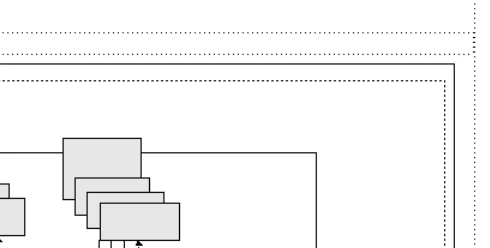
Hello group please suggest me how to add/remove the frame surrounding the image?

  • February 5, 2025
  • 4 replies
  • 739 views

How do I add/remove the black frame which is outside the Anchored frame?
Many thanks!

Correct answer Barb Binder

Is the anchored framed inside a table cell? It has it's own End of Flow marker.


~Barb

4 replies

Participating Frequently
February 7, 2025

Thank you all for the suggestions!

Dave Creamer of IDEAS
Community Expert
Community Expert
February 5, 2025

Can you upload a file, sans any private content?


David Creamer: Community Expert (ACI and ACE 1995-2023)
Barb Binder
Community Expert
Barb BinderCommunity ExpertCorrect answer
Community Expert
February 5, 2025

Is the anchored framed inside a table cell? It has it's own End of Flow marker.


~Barb

~Barb at Rocky Mountain Training
Participating Frequently
February 6, 2025

Yes, it was the thing. Thank you.

Barb Binder
Community Expert
Community Expert
February 9, 2025

We are always happy to help. Come back and see us next time you get stuck. 


~Barb

~Barb at Rocky Mountain Training
Community Expert
February 5, 2025

Hi,

It seems that this is the border of the anchored frame. The dotted line inside of this black frame is the border of the graphics which you had imported.

Open the Anchored Frame pod to check this.

You can remove this black line with the Graphics toolbar (View | Toolbars | Graphics Toolbar).

Select the anchored frame.

Then click the small arrow to the right of the "Set Pen Pattern" icon (see screenshot; this is the 10th icon from top; in the screenshot ).

Then click "Pattern None" (lower right icon).

You can experiment also with the other icons, just to check that you had selected the correct frame.

The icons do not show the current state, but what you want to do.

In case this is really something different like a text frame border (which I do not believe), select this border, right-click to open the context menu and select Object Properties. Then select Stroke and select another pen pattern and click Apply.

Best regards, Winfried

Participating Frequently
February 5, 2025

Hello Win, I tried both the options but the frame around the image wouldnot go. The dotted line is the Anchored point not the frame of the image inserted.

Participating Frequently
February 5, 2025