rogerg69208467
Participating Frequently
July 11, 2018
Answered

how do I change the format off all paragraphs in a document with specific characters without effecting the rest of the paragraphs above or below the targeted paragraphs?

  • July 11, 2018
  • 1 reply
  • 302 views

How do I change the format off all paragraphs in a document with specific characters without effecting the rest of the paragraphs above or below the targeted paragraphs? Frame 11.
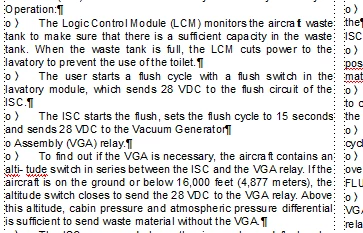
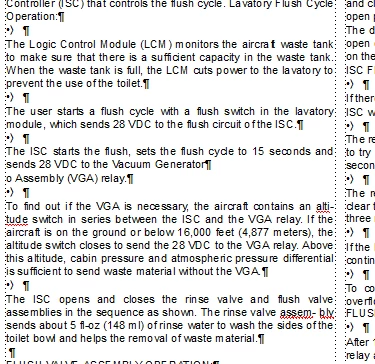
If I paste Bullet format I get this extra paragraph:
    This topic has been closed for replies.
    Correct answer Barb Binder

    Hi Roger:

    The goal is to change the bullet character from the hollow circle to the solid circle?

    If so, I'd do as follows:

    1. Save the file before you start, so that you can revert if you make a mistake, or if this matches other paragraphs that you haven't mentioned yet.
    2. Create a new paragraph tag for the bullets (or use the default Bulleted paragraph tag found in all new documents). Define the bullet in Paragraph Designer.
    3. Manually delete the o \t from the first list paragraph and assign the bullet paragraph tag. Adjust if necessary until it looks the way you want it to.
    4. With your cursor in the same paragraph, choose Edit > Copy Special > Paragraph Format to copy the bullet paragraph format into the clipboard
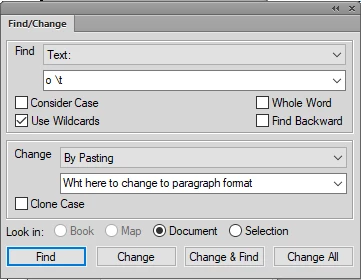
    5. Edit > Find/Change
      1. Find: Text: o \t
      2. Change: By Pasting
        This assigns the bullet paragraph tag to all paragraphs that begin with the hollow bullet
    6. Edit > Find/Change
      1. Find: Text o \t
      2. Change: To Text [leave the text field blank]
        This will remove the o \t from the paragraphs, leaving you with • bullets.

    ~Barb

    1 reply

    Barb Binder
    Community Expert
    Barb BinderCommunity ExpertCorrect answer
    Community Expert
    July 11, 2018

    Hi Roger:

    The goal is to change the bullet character from the hollow circle to the solid circle?

    If so, I'd do as follows:

    1. Save the file before you start, so that you can revert if you make a mistake, or if this matches other paragraphs that you haven't mentioned yet.
    2. Create a new paragraph tag for the bullets (or use the default Bulleted paragraph tag found in all new documents). Define the bullet in Paragraph Designer.
    3. Manually delete the o \t from the first list paragraph and assign the bullet paragraph tag. Adjust if necessary until it looks the way you want it to.
    4. With your cursor in the same paragraph, choose Edit > Copy Special > Paragraph Format to copy the bullet paragraph format into the clipboard
    5. Edit > Find/Change
      1. Find: Text: o \t
      2. Change: By Pasting
        This assigns the bullet paragraph tag to all paragraphs that begin with the hollow bullet
    6. Edit > Find/Change
      1. Find: Text o \t
      2. Change: To Text [leave the text field blank]
        This will remove the o \t from the paragraphs, leaving you with • bullets.

    ~Barb

    ~Barb at Rocky Mountain Training