Inspiring
February 27, 2026
Answered

how to add a dot

  • February 27, 2026
  • 2 replies
  • 1255 views

Hello,

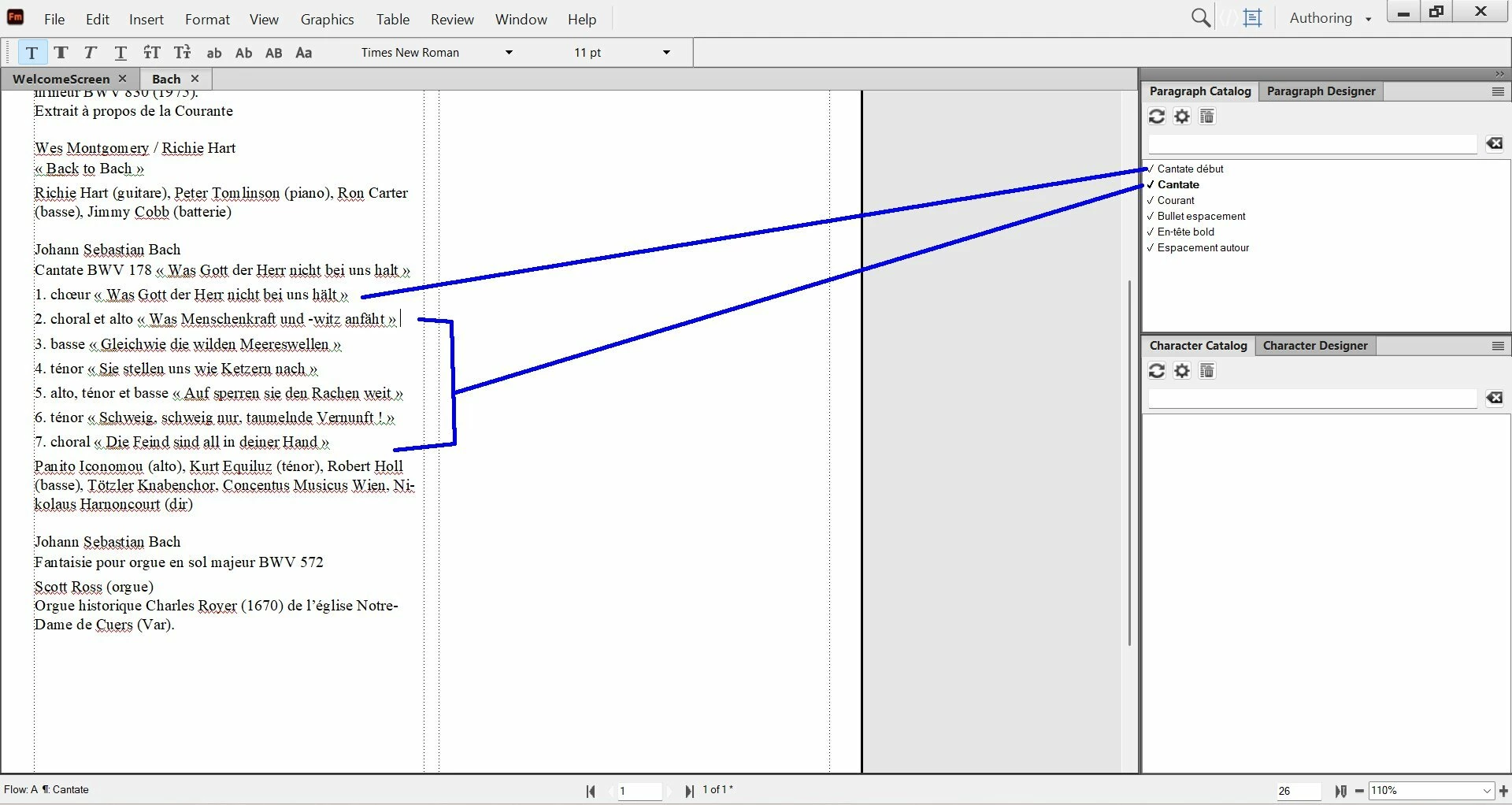
In this example (at the blue lines), I have set 2 paragraphs styles (“Cantate début” and “Cantate”).

You can notice that at the end of each paragraphs concernig “cantate début” and “cantate”, there is no dot. 

How to set “cantate début” and “cantate” in order to add a dot at the end of each paragraph ?


    Correct answer Dave Creamer of IDEAS

    @pierret18811376 I think the easiest thing for you would be to:

    run the Find/Change on your selection,

    once for [space]\p (change to only \p),

    repeat until all spaces are gone, 

    then for \p (change to .\p)


    2 replies

    Dave Creamer of IDEAS
    Community Expert
    Community Expert
    February 27, 2026

    I think you are looking for a bullet. Is that correct?

    To build off of ​@Winfried Reng posts, in the FrameMaker’s Find/Change dialog box:

    Select your text you want to add the bullet to.

    Enter:

    Find Text: [space]\p      (actually type in a space)

    Change to Text: [Alt 0149]\p      (To use an Alt code, hold down the Alt key, type the number on the NUMERIC keypad--0149 in this example, let go of the Alt key.)

    Click change to test; change all if it works.

    David Creamer: Community Expert (ACI and ACE 1995-2023)
    Inspiring
    February 27, 2026

    Hi Dave,

    actually my goal is to add dots at the end of paragraph ( not bullets).

    Dave Creamer of IDEAS
    Community Expert
    Community Expert
    February 27, 2026

    What are “dots”? Periods or some other symbol?

    David Creamer: Community Expert (ACI and ACE 1995-2023)
    Community Expert
    February 27, 2026

    Hi,

    Do you mean a regular dot like a dot or period at the end of a sentence? Directly after the text? Or right-aligned to the right side of the text frame?

    Of course you can just enter such a dot.

    Or you can automate it with automatic numbering. You can set the position to the end of the paragraph and enter your dot as numbering, similar to a list item bullet point. However, you cannot have both: numbering at the start of the paragraph and numbering at the end of the paragraph.

    Or you can enter a new paragraph where your dot should be. Create a new paragraph, e.g. “dot”. Set the automatic numbering as dot at the beginning of the paragraph. And then go to the previous paragraph format (cantate début or cantate) and in the Paragraph Designer in the Pagination tab set the format to Run-in head. And in the Basic tab the Next Paragraph Tag to “dot”. And in the Basic tab of the dot paragraph format set the Next Paragraph Tag to cantate. Now just press ENTER at the end of each cantate or cantate début paragraph just press ENTER.

    Best regards, Winfried

    Inspiring
    February 27, 2026

    Hi Winfried,

    All the text you see is copied from internet and pasted in FM (so I don’t write it line after line).


    In fact, I would like to select the text from 1 to 7, then automate this by a paragraph style :

    1. remove the blank space at the end of the paragraph (in order to do not have a space between the text and the dot).
    2. add a regular dot at the end of the paragraph (see blue dots).


    Is it possible to have 2 paragraph styles on the same paragraph ? By example if I create a “dot” paragraph style, can I have also “cantate”  on the same paragraph ?


    In my case, what is the best choice ?

    Community Expert
    February 27, 2026

    Hm. You could search for the end of a paragraph and insert a dot.

    Search for: \p

    Replace with: .\p

    However, as Search/replace temporarily deletes the paragraph mark at the end of the paragraph mark and then inserts a new one, the paragraph following the found paragraph end will obtain the paragraph format of the found paragraph.

    Therefore in cantate début you would have to enter a dot manually.

    Or, more easily, as your paragraphs always have only a single line: 

    In the Search/replace dialog select Regular Expressions.

    Search for: (.)$

    Replace with: $1.

    Before you do extensive search/replace operations always make a backup copy!