
Inspiring
October 16, 2024
Answered

How to add custom Elements to TOC

  • October 16, 2024
  • 4 replies
  • 438 views

Context: I'm using FM 2022, and this is the first structured book I've ever made.


I created a book (File > New > Book), then added the following documents:

RevisionSummary

ForewardSafety

Chapter1... through Chapter5


Chapter1 - Chapter5 pull elements from the same EDD, which includes the following:

- Chapter (highest level element in the document

-  Section (there are several sections nested within eachother)


The other two files also include Section and Chapter elements, though the element catalogues are pulled from a slightly different EDD. 


I want to create a book-level TOC that includes the Chapter and Section elements for all of these files. However, when I select Insert > Create TOC, the Chapter and Section elements are not available. In fact, most of the elements in these documents are not included.
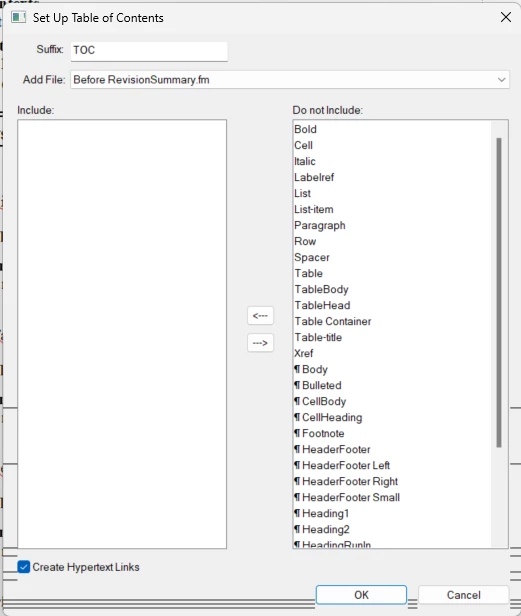
 

Can anyone tell me what I'm doing wrong?

This topic has been closed for replies.
Correct answer hanna_1612

So basically my issue was that I had added structure to my files, but not to the book itself. I could actuallly see this when I selected the .book file; there were red errors all over the Structure View pane. 


In case this helps anyone else, here's what I did to get my elements to appear in the TOC creation dialog:

1. I created three elements with validhighestlevel applied to them: Book, Frontmatter, and Chapter.

2. I imported the elements from my EDD into the .book file

3. I imported the updated elements from the EDD into all of my book documents.

4. In the book, I applied the Book element as the element containing all of my document

5. I opened each document and ensured that Frontmatter or Chapter was the highest level element.

6. I selected my book file, then Edit > Update book. This was necessary for the structure view to reflect all of the changes to the book files.

7. I selected Insert > Create TOC. Then all of my elements were visible in the TOC creation dialog. 

4 replies

hanna_1612AuthorCorrect answer
Inspiring
October 17, 2024

So basically my issue was that I had added structure to my files, but not to the book itself. I could actuallly see this when I selected the .book file; there were red errors all over the Structure View pane. 


In case this helps anyone else, here's what I did to get my elements to appear in the TOC creation dialog:

1. I created three elements with validhighestlevel applied to them: Book, Frontmatter, and Chapter.

2. I imported the elements from my EDD into the .book file

3. I imported the updated elements from the EDD into all of my book documents.

4. In the book, I applied the Book element as the element containing all of my document

5. I opened each document and ensured that Frontmatter or Chapter was the highest level element.

6. I selected my book file, then Edit > Update book. This was necessary for the structure view to reflect all of the changes to the book files.

7. I selected Insert > Create TOC. Then all of my elements were visible in the TOC creation dialog. 

frameexpert
Community Expert
Community Expert
October 16, 2024

Try Updating the book first. Sometimes FrameMaker will only show the Elements/Paragraphs from the first component of the book. Updating may help. If that doesn't work, temporarily move a book component that has your Chapter and Section elements up so that it's the first component in the book. Update the book and then see if you can add Chapter and Section elements to the TOC. Once you do, you can move the component back to its proper place in the book.

Matt-Tech Comm Tools
Community Expert
Community Expert
October 16, 2024

What is the element containing the title text?

Can you provide a screenshot of the structure view at the top of your chapter?


-Matt Sullivan, FrameMaker Course Creator, Author, Trainer, Consultant
Inspiring
October 17, 2024

The Chapter and Section elements hold the title text. Here's a screenshot - I've covered up anything that might be proprietary information, just to be safe. Everything under a black bar is just text.

Jeff_Coatsworth
Community Expert
Community Expert
October 17, 2024

@hanna_1612 just noticed that your project appears to be in a OneDrive location - this is usually not recommended (better to keep things local & check them back into a source control system or backups only to the OneDrive spot). 

Jeff_Coatsworth
Community Expert
Community Expert
October 16, 2024

Having only worked with unstructured FM, I thought the process was the same with structured docs too.