
rachelt14433776
Known Participant
December 4, 2018
Question

How to adjust and save text formatting?

  • December 4, 2018
  • 2 replies
  • 726 views

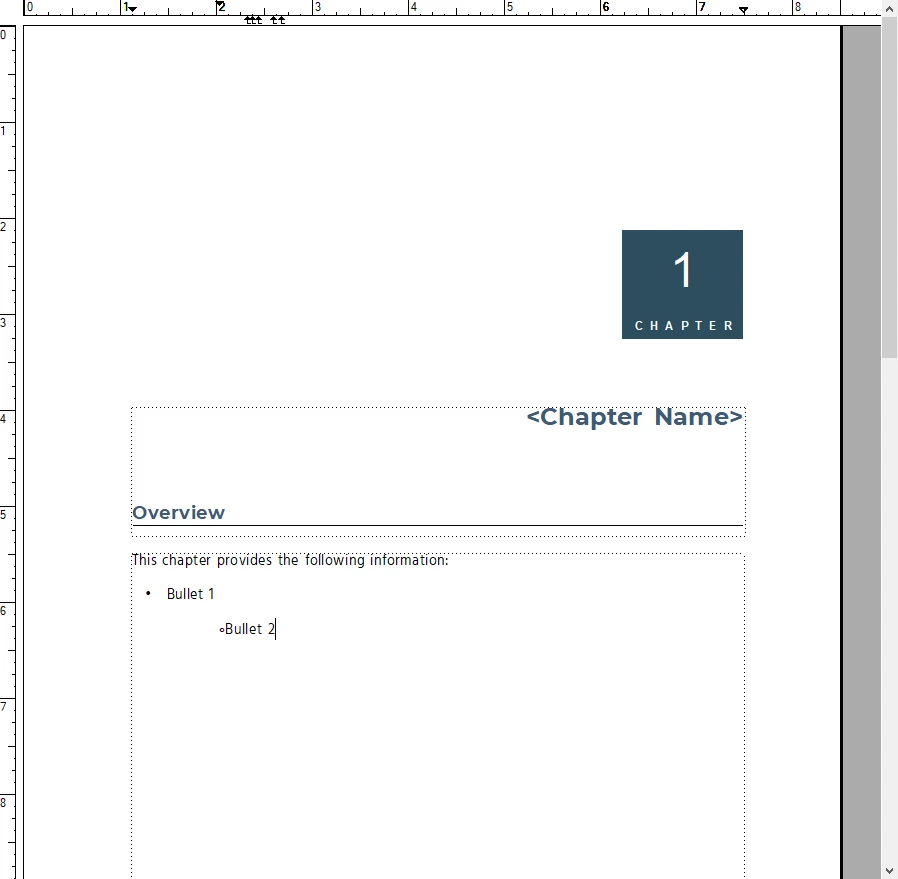
I am able to adjust the formatting for both the bullet and text separately using the tab stops in the Ruler. However, I have added a different Bullet 2 type to be used and can't adjust the text separately as there is no tab stop unless I click Tab. However, this doesn't apply the changes to all other Bullet 2 types, even when click Update Style. We need to be able to save the formatting with the text appropriately spaced out, like Bullet 1, so that every time we add that bullet type, the appropriate spacing appears.
This topic has been closed for replies.

2 replies

Barb Binder
Community Expert
Community Expert
December 4, 2018

A couple of thoughts here, Rachel:

  1. When defining tabs, it is helpful to work with text symbols showing. We can't tell from your first screen shot if there is a tab between the hollow circle and the text, or not.
  2. You have a lot of tab stops defined in your second screen shot. I would remove all of them and start over. (Use Paragraph Designer > Basic > Edit > Delete All > Continue > Update Style.

Then, set up the level 1 bullet with a single tab character on the line and single tab stop in the ruler/Paragraph designer. The Left indent should match the tab stop so that you will have a hanging indent for text that wraps to a second line. You can add tabs and set indents either in Paragraph Designer > Basic > or by working in the ruler, but always choose Update Style and remove any overrides when you get the look you want.

Once that is working again, change the name and click on Create Style to create a level 2 bullet. Change the First line indent to match the tab stop for the level one bullet, and increase the Left indent and tab stop. Again, the Left indent and tab stop values should match to give you a hanging indent. Choose Update Style and remove any overrides.

~Barb

~Barb at Rocky Mountain Training
Jeff_Coatsworth
Community Expert
Community Expert
December 4, 2018

That sounds like you are applying manual overrides to the formatting of the paragraph tag for Bullet 1 and Bullet 2 - you should "bake in" your changes into the paragraph tag settings so it can be used elsewhere as a template or format import.

rachelt14433776
Known Participant
December 4, 2018

That's what we're trying to do. We were able to do so with the Bullet setting, already embedded in FrameMaker. We manually added the second white Bullet and we click Tab on the keyboard to create the desired spacing. We clicked Updated Style but the Tab didn't carry over.

rachelt14433776
Known Participant
December 4, 2018

What settings do I need to adjust to move the "Bullet 2" text?