Participant
July 30, 2024
Answered

How to change font color for specific words?

  • July 30, 2024
  • 2 replies
  • 651 views

I am trying to change the font color for "Contacting"on page 92 only. However, when I highlighted on the specfic words and change the color from paragraph designer, all the words on the same row is changed as well. How can I change the color for the specific words only? 

    This topic has been closed for replies.
    Correct answer FrameMaker-dk

    In order to change the color of specific characters, you will use the "Character Designer" panel. You can find it under View -> Panels or press Ctrl+D.
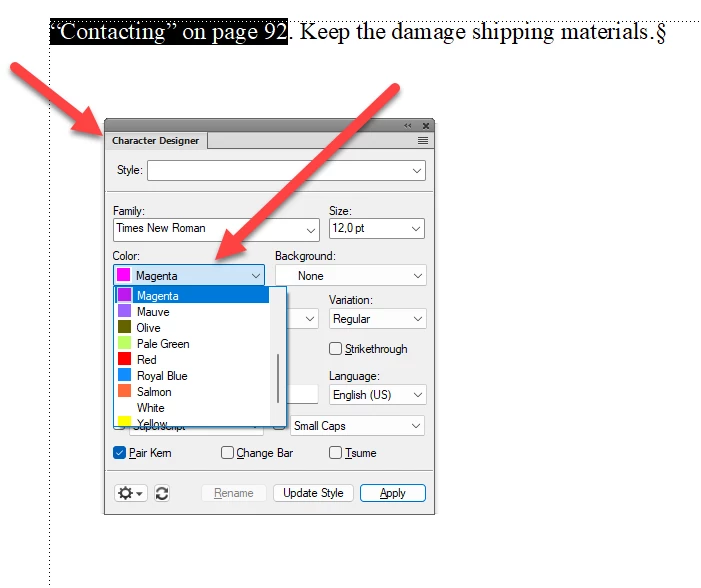
    Select the characters you want to colorize and select a color in the dropdown. Click "Apply". If you want to colorize other text instances, you may want to create a character style for that.

    In that case:

    1. Select some text
    2. Set the the Character Designer panel to "As Is" like this:
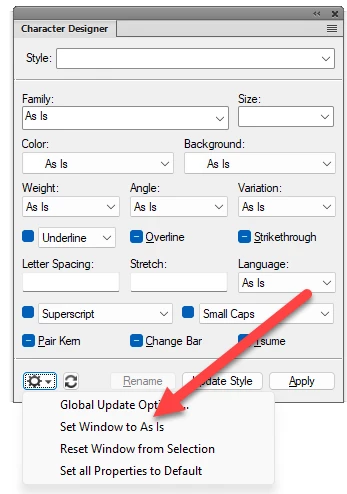
    3. This will set all settings in neutral. Now choose a color in the dropdown

    4. Write a Style name in the Style name box
    5. Click "Create Style" in the bottom of the panel.
    6. Click "Apply"
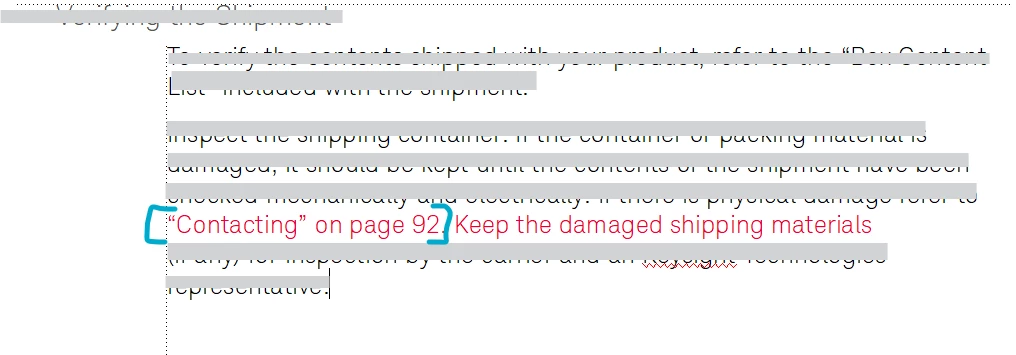
    7. When you now apply the style on any characters, it will colorize them, but not change the size, or font or other decorations.

     

    2 replies

    Bob_Niland
    Community Expert
    Community Expert
    July 30, 2024

    It appears that "Contacting" on page 92 is a Cross-Reference.

    If so, you can also make the coloration an automatic part of the Xref definition. If you have a Character Format, perhaps named:
    Red
    set to As-Is for everything except:
    Color:  Red

    then the Xref, perhaps named:
    Name: TopicOnPage
    could be set to:
    Definition: <Red>“<$paratext>” on page <$pagenum>

    FrameMaker-dkCommunity ExpertCorrect answer
    Community Expert
    July 30, 2024

    In order to change the color of specific characters, you will use the "Character Designer" panel. You can find it under View -> Panels or press Ctrl+D.

    Select the characters you want to colorize and select a color in the dropdown. Click "Apply". If you want to colorize other text instances, you may want to create a character style for that.

    In that case:

    1. Select some text
    2. Set the the Character Designer panel to "As Is" like this:
    3. This will set all settings in neutral. Now choose a color in the dropdown

    4. Write a Style name in the Style name box
    5. Click "Create Style" in the bottom of the panel.
    6. Click "Apply"
    7. When you now apply the style on any characters, it will colorize them, but not change the size, or font or other decorations.

     

    Bjørn Smalbro - FrameMaker.dk