

Participating Frequently
March 25, 2015
Question

How to fix table continuation to next page?

  • March 25, 2015
  • 2 replies
  • 2340 views

Hi,

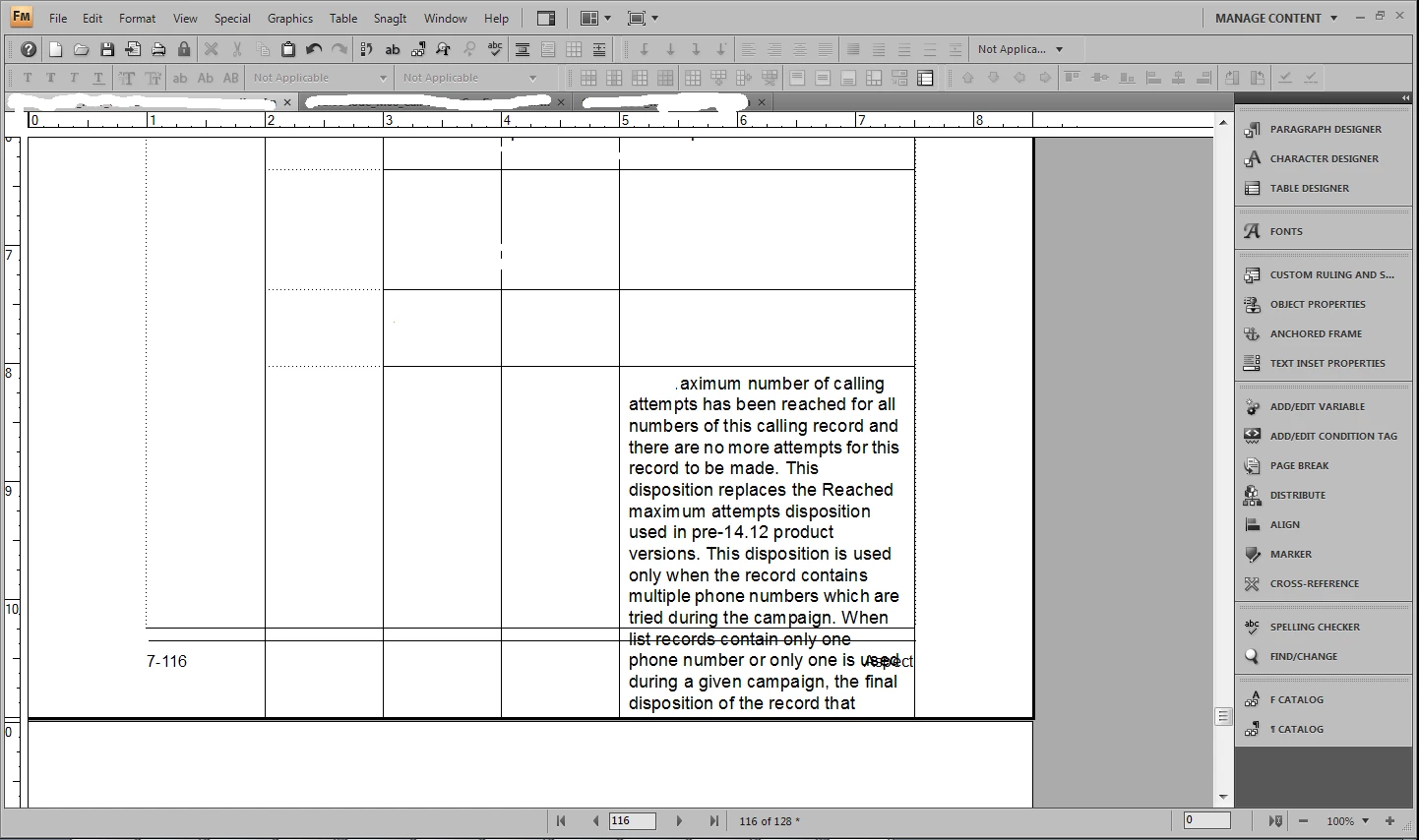
I have come across one issue as shown in the screenshot. I am unable to make the table continue to next page once the current page getting over.

Please assist me on this.
Thanks,

Praveen

    This topic has been closed for replies.

    2 replies

    Anvinder_Singh
    Participating Frequently
    March 26, 2015

    Using the default settings of framemaker, if the contents inside the box exceed the length of the page then the particular row moves on to the next page.

    Please check the table style as per the mentioned image:

    If this doesnt help, Please go to C:\Users\username(with which you are logged in)\AppData\Roaming\Adobe. There will be a framemaker folder, Please rename it to "framemaker_old" and then launch framemaker and check.

    Arnis Gubins
    Inspiring
    March 25, 2015

    Either the Autoconnect for the page's text frame is turnred off or the Table settings have an incorrect widow/orphan setting (avoid using "1") or you have a  Keep With setting applied on one of the last two rows that you show on the page.

    kumar27aAuthor
    Participating Frequently
    March 26, 2015

    Hi Arnis,

    I tried with Orphan Setting by changing values between 2 to 255 but still the issue is on. I was unable to find "page's text frame" to turn on it either Keep With setting. Please help with their locations where I can find them.

    Thanks,

    Praveen

    Arnis Gubins
    Inspiring
    March 26, 2015

    For checking the individual rows of the table, first place the cursor in the row to b checked. Then Table > Format > Row Format... and you will see this dialog window:

    Check each of the last rows to ensure that it starts anywhere and has no Keep With setting.

    To check if the text frame has Autoconnect turned on, first ctrl-click on the text frame to select it. It will show black squares in the corners and mid-points when it has been selected. Then Graphics > Object Properties and select the Text Frame option in the panel.

    The Flow Autoconnect Setting has to be turned on in order to automatically add a new page when content overflows the existing page.