Inspiring
December 8, 2016
Answered

how to modify paragraph widths

  • December 8, 2016
  • 1 reply
  • 564 views

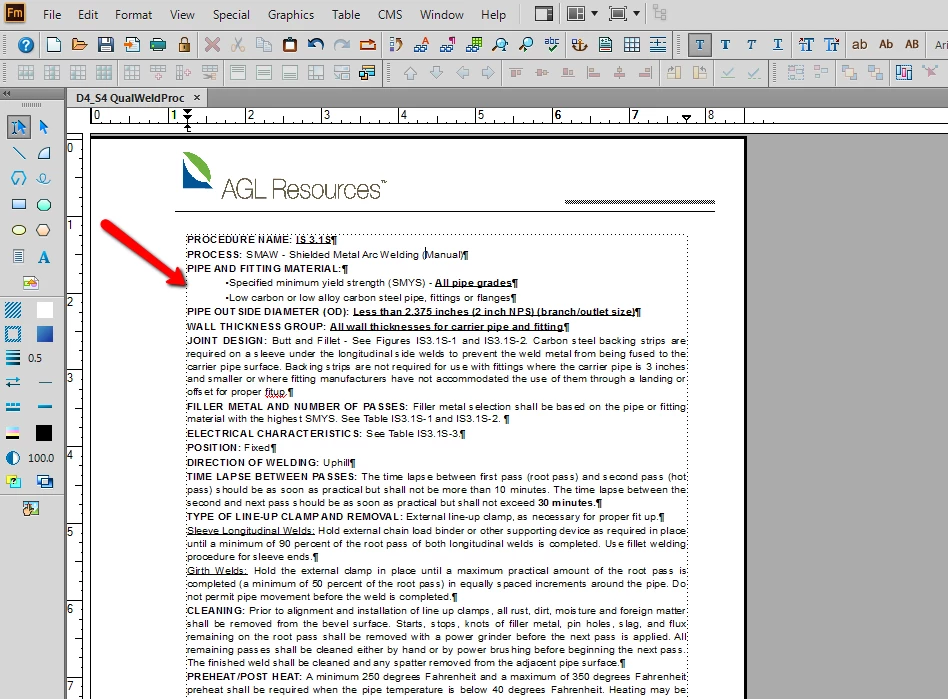
I am trying to widen the dashed frame in which my text appears in the image below?  How do I do this?

    This topic has been closed for replies.
    Correct answer Barb Binder

    Well, I thought you were pointing to the bullet, obviously!

    I see that you have a custom position for your header, so to not disturb that:

    1. View > Master Pages
    2. Control + click on the template frame (the big empty one in the middle of the page)
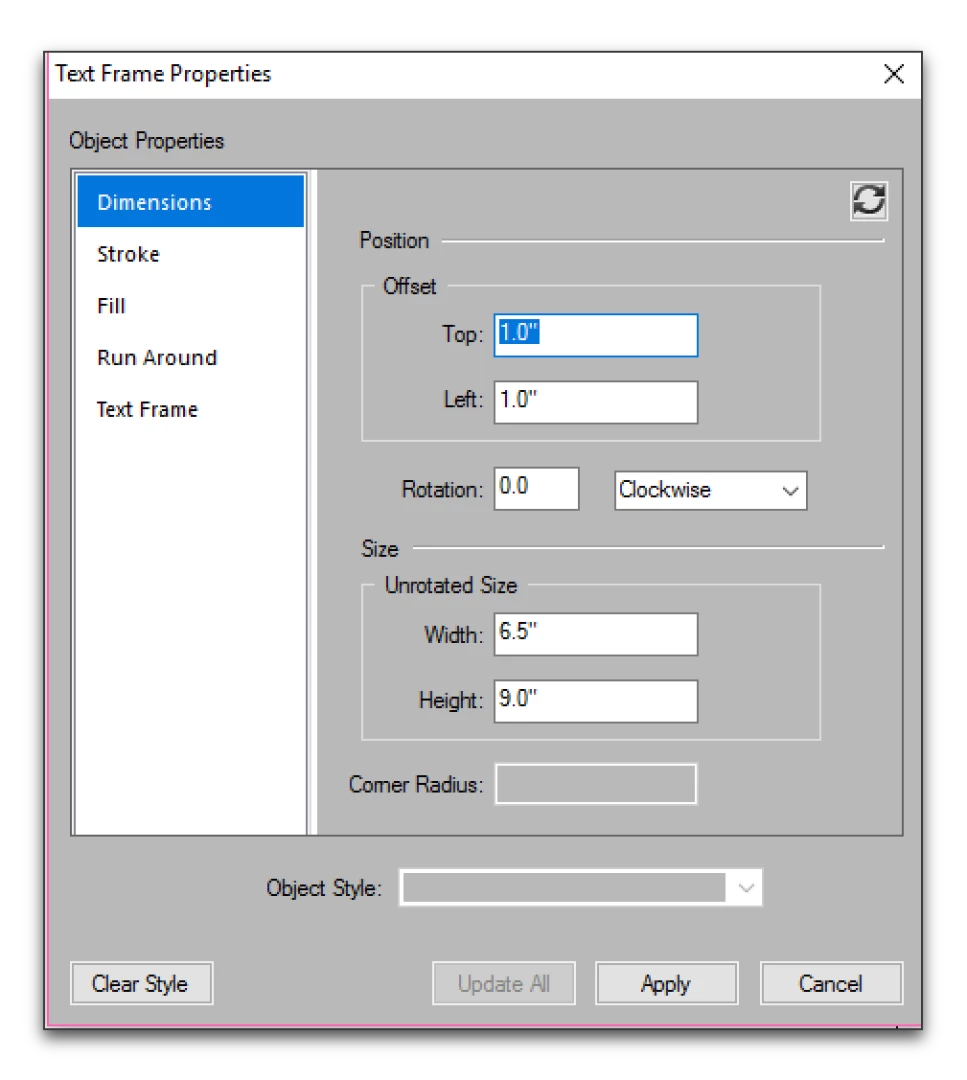
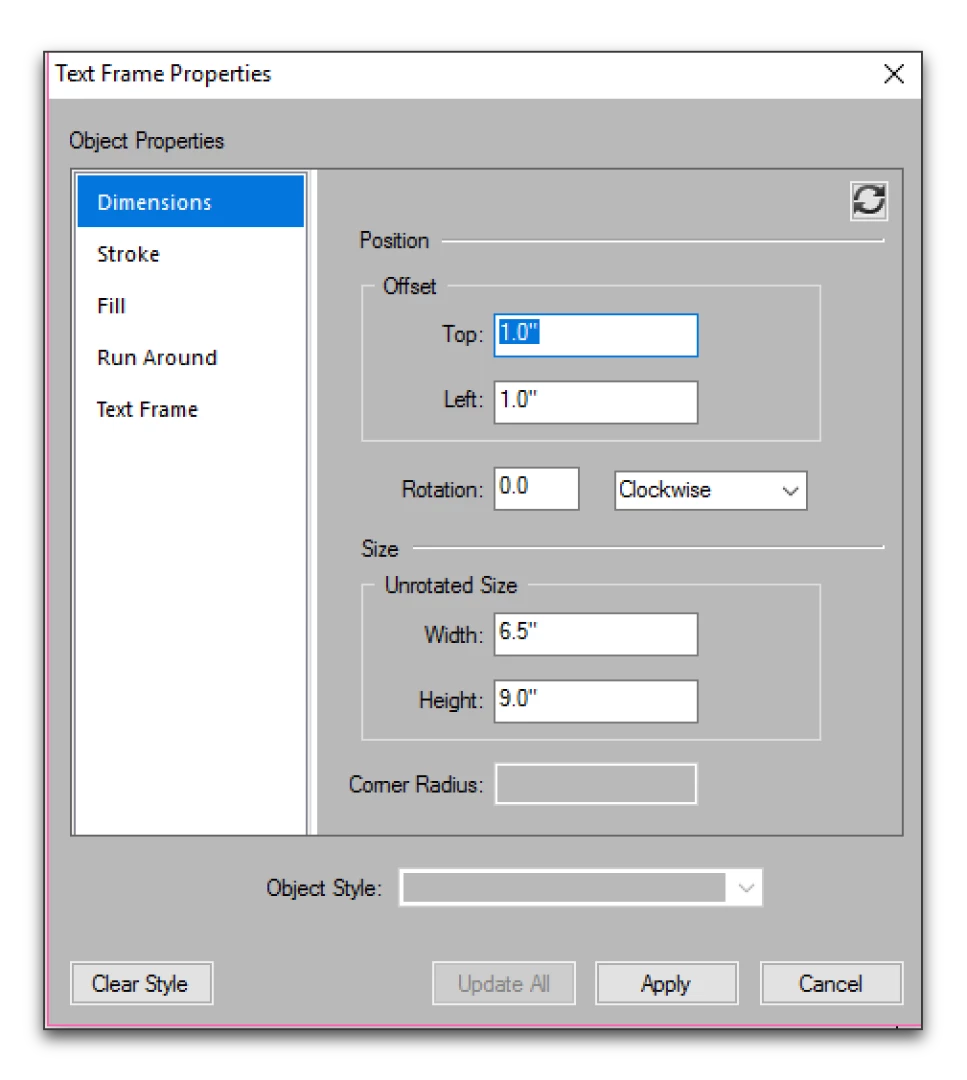
    3. Format > Customize Layout  > Customize Text Frame > Dimensions. Modify the Width, Height, Top and Left Offsets, and click Apply. Repeat for the facing page, if double sided.
    4. View > Body Pages and the text will reflow.

    Now this is much easier, more intuitive and less math if you use Format > Page Layout > Column Layout and change the margins. But when you have a custom size and/or placement of the running heads (which you do), it moves them back to the default position.
    Practice on a copy of the file!
    1 reply

    Barb Binder
    Community Expert
    Community Expert
    December 8, 2016
    • Place your cursor in one of the two paragraphs.
    • Format > Paragraphs > Designer > Basic
    • Update the 1st line indent value.
    • Update All.

    I can see from the ruler that you also have a left indent set. You may want to adjust that value as well, depending on the look you are after. Bullets normally have a left indent that matches the tab stop, to produce a hanging indent.

    But you would need to add a tab character between the bullet and the first character of the text. This can easily be done in Format > Paragraphs > Designer > Numbering, again followed by update all. If this produces duplicate bullets, you can remove them manually or via Find/Change.

    ~Barb at Rocky Mountain Training
    Inspiring
    December 8, 2016

    Hi Barb,

    Thanks for your response and help.  I need to better explain my question as I don't think that's what I was looking for...

    I'd like to change the margin for all of the text on that page so that each paragraph extent can run wider on the page...There is a dashed line that is framing the text.  It seems like this is what needs to be modified.

    Barb Binder
    Community Expert
    Barb BinderCommunity ExpertCorrect answer
    Community Expert
    December 8, 2016

    Well, I thought you were pointing to the bullet, obviously!

    I see that you have a custom position for your header, so to not disturb that:

    1. View > Master Pages
    2. Control + click on the template frame (the big empty one in the middle of the page)
    3. Format > Customize Layout  > Customize Text Frame > Dimensions. Modify the Width, Height, Top and Left Offsets, and click Apply. Repeat for the facing page, if double sided.
    4. View > Body Pages and the text will reflow.

    Now this is much easier, more intuitive and less math if you use Format > Page Layout > Column Layout and change the margins. But when you have a custom size and/or placement of the running heads (which you do), it moves them back to the default position.

    Practice on a copy of the file!

    ~Barb at Rocky Mountain Training