Known Participant
July 14, 2023
Question

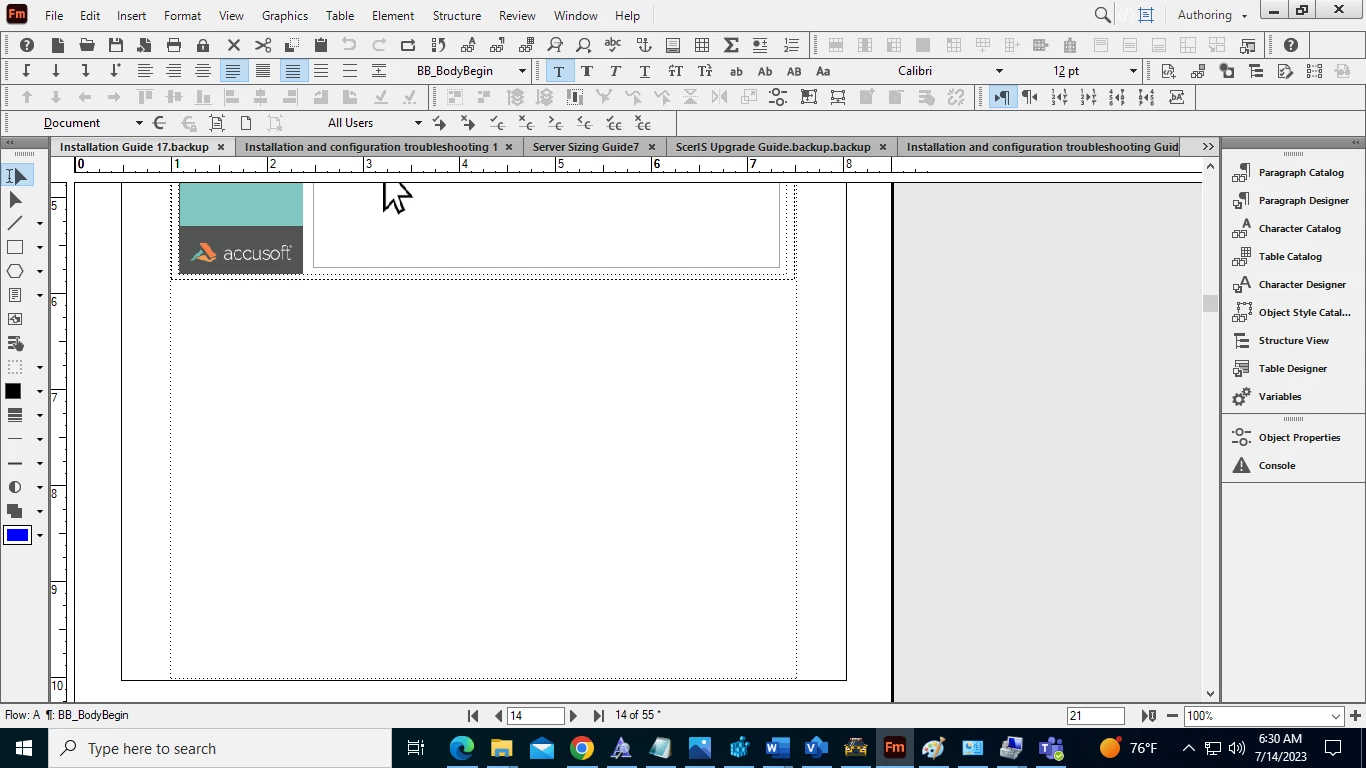
How to remove extra space after an image in Adobe Frame Maker?
  • July 14, 2023
  • 3 replies
  • 529 views

How to remove extra space after an image in Adobe Frame Maker?



    This topic has been closed for replies.

    3 replies

    Community Expert
    July 18, 2023

    Hi @Amit Mani30445109n307 ,

    if you are talking about the gap between the imported graphic and the surrounding anchored frame after import: that is the standard setting in FM.


    Only way I know of to avoid this is the PlugIn "ImpGraph" by Bruce Foster.

    But Bruce died in 2011 and I don't know if his PlugIns are available anymore.


    Afaik the only other way would be to use a script that changes the gap afterwards.


    Best

    Stephan

    K.Daube
    Community Expert
    Community Expert
    July 18, 2023

    Since FM-15 (2019) this setting can be changed in Edit > Preferences > Global > General "Image Padding". Default there is 6pt - approx 2mm.

    Barb Binder
    Community Expert
    Community Expert
    July 18, 2023

    Hi Amit:


    I'm not clear either. I can't tell if you have images in a table, or inside a graphic frame or anchored frame. Can you share some more information and perhaps an arrow pointing the specific issue?


    ~Barb

    ~Barb at Rocky Mountain Training
    K.Daube
    Community Expert
    Community Expert
    July 18, 2023

    The image is in an Anchored Frame - what are the specifications of the ¶ with the anchor in it? What are the specifications for t he next ¶ in sequence? Are there any 'Keep with previous/next'?

    Known Participant
    July 18, 2023

    Yes K. Daube, it's kept with Previous/Next.

    Bob_Niland
    Community Expert
    Community Expert
    July 14, 2023

    Text space or extra border?
    I can't tell from the screenshot.
    If the image is in an Anchored Frame, merely shrink the AF to the art.
    If not, just is the image being set in the text flow?