
Inspiring
January 8, 2013
Beantwortet

How to remove highlighted yellow text

  • January 8, 2013
  • 1 Antwort
  • 6174 Ansichten

Using FM10 (TCS 3.5), I have sent a manual for revision and the corrector has highlighted in yellow some parts of the text using the Adobe Reader. I have imported this PDF-for-revision to FM and the same yellow highlighted parts have been imported inside my documents. How to remove these highlighted parts ?

Nicolas
Beste Antwort von Arnis Gubins

Nic,

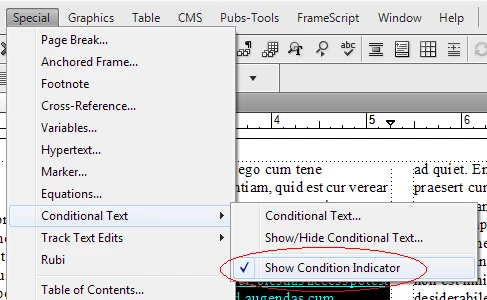
In the Status Bar, the "(FM_PDF_Comments_Highlight)" entry means that a condition tag has been applied to the text. Sorry, my bad. I forgot about the way things were marked up when they come back from PDFs.

Condition indicators (i.e. the colours) can be turned off by toggling the the Special > Condtional Text > Show Condition Indicator option.

Alternatively, you can delete the condition indicators if you don't need them anymore or change the colour assignments of the condition tag(s).

1 Antwort

Arnis Gubins
Inspiring
January 8, 2013

IIRC, the highlights are being applied as background colour via an (untagged?, i.e. override) character format. Place the cursor in one of these yellow highlight areas and examine your status bar in ttthe lower-left corner of the document window. Open up the Character Designer (Ctrl D) and check the "Background Color" setting. If it's enabled, then that's your culprit.

You can use the Find/Change utility to hunt these down and remove either the override or paste an appropriate format back in.

Inspiring
January 8, 2013

Hi Arnis,

I have followed your procedure but the "Background Color" is not enabled. On the lower-left corner, I find the following: (FM_PDF_Comments_Highlight) Ench: A :*ListeàPuces 

ListeàPuces is the paragraph label (french)

Jeff_Coatsworth
Community Expert
Community Expert
January 8, 2013

The asterisk indicates an override – select & reapply the paragraph tag again to eliminate it