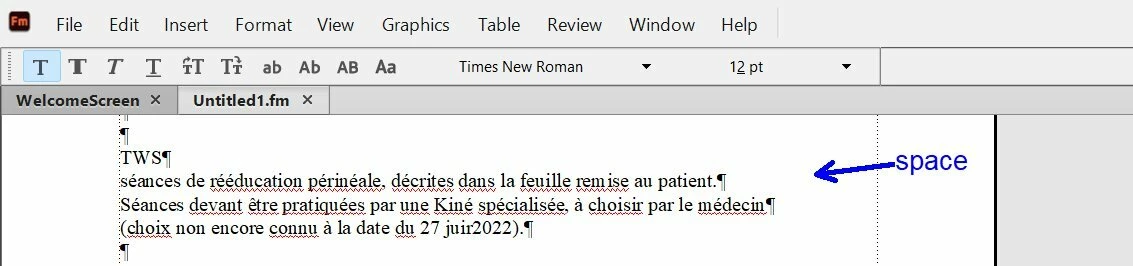
Can you remove the pilcrows ¶ at the end of each line and replace them with a space to make a single paragraph?
In FrameMaker, we only have four alignment options: Left, Right, Center and Justified. Justified adjusts the horizontal spacing so that the first and last words on each line are flush against the left and right margin, except for the last line, which aligns with the left margin then stops wherever it ends.
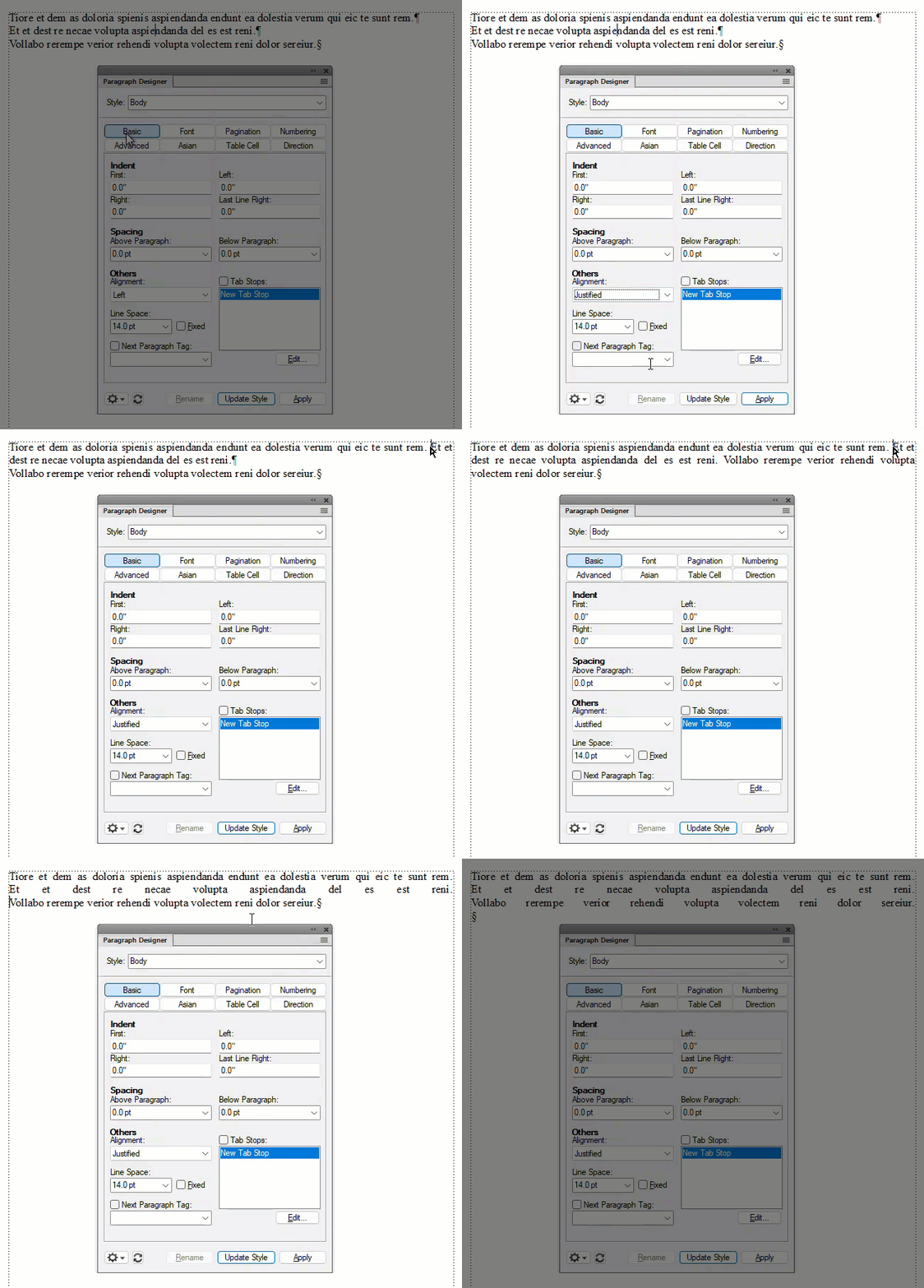
In the demo below, I have each of the three lines as a single paragraph so Justified is ignored. Then, I remove the ¶s and replace with a space and that works for the first two lines, but the last line ends where it does naturally. Finally, I change the ¶s to line breaks (Shift+Enter as per Dave) and that allows Fm to force the lines all the way across.
In the back of my mind, I think you were an InDesign user? Or have used InDesign? InDesign has a lot more justification options, including forcing a single line all the way across but Fm doesn't do that.
Can you remove the pilcrows ¶ at the end of each line and replace them with a space to make a single paragraph?
In FrameMaker, we only have four alignment options: Left, Right, Center and Justified. Justified adjusts the horizontal spacing so that the first and last words on each line are flush against the left and right margin, except for the last line, which aligns with the left margin then stops wherever it ends.
In the demo below, I have each of the three lines as a single paragraph so Justified is ignored. Then, I remove the ¶s and replace with a space and that works for the first two lines, but the last line ends where it does naturally. Finally, I change the ¶s to line breaks (Shift+Enter as per Dave) and that allows Fm to force the lines all the way across.
In the back of my mind, I think you were an InDesign user? Or have used InDesign? InDesign has a lot more justification options, including forcing a single line all the way across but Fm doesn't do that.
Justified is only going to work on multi-line wrapping text. What you are looking for is “forced” or “full” justify. FrameMaker doesn’t have that setting as far as I know.
Supposedly, you can use a shift-enter (line break) to use full justify IF you add DoJustifyOnEOL=On to your user maker.ini file (appdata\Roaming\Adobe\FrameMaker\[version number]\
However, I could not get it to work properly.
Translate
David Creamer: Community Expert (ACI and ACE 1995-2023)




 AdChoices