MR89
Inspiring
March 12, 2018
Answered

Last table row hidden

  • March 12, 2018
  • 4 replies
  • 891 views

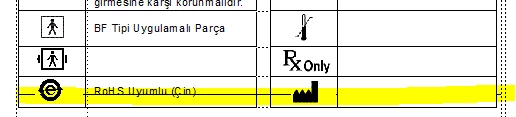
When adding text in the cell directly above, the last row in my table disappears, and I'm not sure how to get it to appear.  The content is there, it just gets pushed below...

Before:
After:
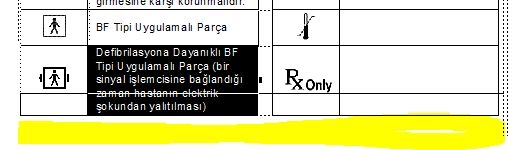
Where does it go?

    This topic has been closed for replies.
    Correct answer Arnis Gubins

    As other's have suggested, you appear to have a table in a text frame within an anchored frame. Adding the additional content pushes the content below past the text frames boundary and thus is no longer visible. If that mid-section of the page with the tables is supposed to be a fixed size, then all you can do is adjust your table content to fit.

    4 replies

    MR89
    MR89Author
    Inspiring
    March 13, 2018

    I'm copying content from a word doc converted to frame, but not table elements, so that shouldn't matter.  It's a large document with multiple columns.  I'm currently entering content into the coulmns, and I'm trying to fit a table with symbols into the column.  The columns have sections separated by frames; the table is not at the bottom of it's section.  I extend the anchored frame down to give the table some room to add more content, but the last row gets pushed down behind something.  Even when I add a new row, I can highlight it, but I can't see the row.  There's nothing below the table in the column that would be cutting it off, so I wasn't sure what it's hiding behind.  The highlighted part of the document is the spot I'm at:

    The highlighted row below is what disappears.  The cursor is where I'm pasting information.  When pasted

    I've managed a way around it for now, but I'd thought I'd follow up cause I'm baffled.  Thank you so much to each of you for your timely responses!

    Arnis Gubins
    Arnis GubinsCorrect answer
    Inspiring
    March 13, 2018

    As other's have suggested, you appear to have a table in a text frame within an anchored frame. Adding the additional content pushes the content below past the text frames boundary and thus is no longer visible. If that mid-section of the page with the tables is supposed to be a fixed size, then all you can do is adjust your table content to fit.

    Inspiring
    March 13, 2018

    I see this often when one of our contributors copy/pastes a table from Word without the proper follow-up formatting. To correct it, I just convert the table to text and convert it back to a table to strip all unwanted table formatting that was pulled over from Word.

    Inspiring
    March 13, 2018

    If you haven't done many table conversions before, make sure to unstraddle before you do it to preserve the paragraph returns and total number of cells.

    Barb Binder
    Community Expert
    Community Expert
    March 13, 2018

    A whole page screen shot would be helpful. And I see two dotted lines on the right side: is the table inside a frame?

    ~Barb

    ~Barb at Rocky Mountain Training
    Bob_Niland
    Community Expert
    Community Expert
    March 13, 2018

    One frequent cause for this is that the next page is a Disconnected page. Select the text frame on the current page, right-click for Properties and make sure

  • Autoconnect is set
    Repeat for next page.

    There are other possibilities, not easy to discern without seeing the whole page with all metadata. Putting the table in a text frame in an Anchored Frame would also result in run-out-of-sight.

    One thing that does not appear to do it is setting two many rows to
    Row Format > Keep With

  • Next
  • Previous.