Inspiring
February 9, 2023
Answered

Mini TOC or Cross-reference, or something else

  • February 9, 2023
  • 3 replies
  • 816 views

Hi there,


WIN11 X64

Adobe FrameMaker 2020 v 16.0.5.1096


I have a technical manual that consists of a *.book with seven (7) sections. Inside the book, I have a Table of Contents file (TOC), a list of figures files (LOF), and an Index file (IX). Now, each section has its own mini TOC (Section1TOC, Section2TOC, etc.).


Now, comes the weird stuff that puzzles me.

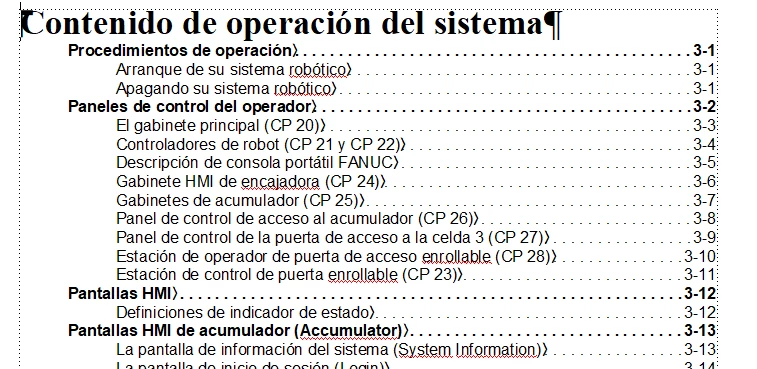
1. Only Section two (2) and section five (5) have their mini TOCs auto-updating.

2. The rest of the sections' mini TOC files are not made to auto-update.

3. ALL mini TOC files have identical settings and tags when comparing their Reference Pages.

4. ALL sections are using the same Paragraph Styles: Chapter title, Heading 1, etc.
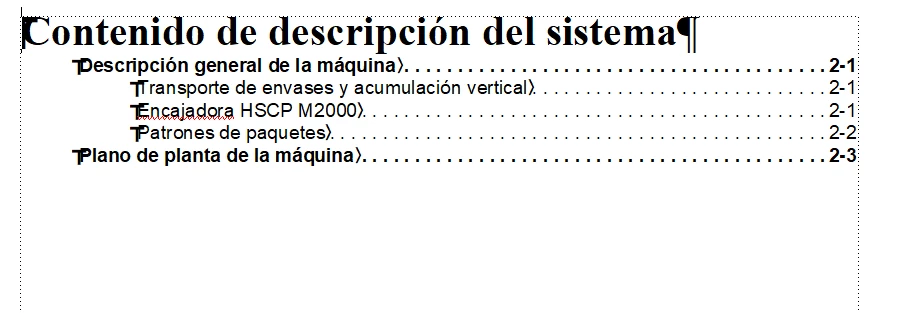
  

The client provided me with a PDF and I noticed that as in FrameMaker, only the section's 2 mini TOC and the section's five mini TOC are clickable.


How can I make the rest of the mini TOCs to auto-update?


Thank you in advance.


This topic has been closed for replies.
Correct answer Barb Binder

Hi @sebdea:


Thank you so much for sharing the files. It makes troubleshooting and explanations so much easier because we don't have to guess.


Let me start out by explaining that FrameMaker supports three different types of generated table of contents:

  1. a book TOC that encompasses headings from the entire book
  2. a standalone TOC that goes in front of a chapter, and collects just the headings from the chapter
  3. a mini-TOC that is embedded within a chapter and collects just the headings from the chapter.


You are sharing standalone TOC's, and not mini TOC's so disregard my initial answer.


Here are the instructions to work with a standalone TOC: https://help.adobe.com/en_US/framemaker/using/using-framemaker/user-guide/topic_generate-toc-or-list-for-document.html


And to update them:

To update a TOC or list that is a stand-alone document:

  1. Make changes to the source document as needed.

  2. In the source document, choose Insert > Table Of Contents. When prompted to create a standalone document, select Yes.

  3. Move items between the list boxes as desired.

  4. Click Set.

https://help.adobe.com/en_US/framemaker/using/using-framemaker/user-guide/topic_update-and-edit-tocs-and-lists.html#topic_update-and-edit-tocs-and-lists__section_update-standalone-toc-or-list


I use both book table of contents and mini table of contents in my work so I'm very familiar with them. I'm certainly aware of the standalone table of contents, but I do not use them as a matter of course. Best I can tell from reading those instructions, and keystroking it on my computer, to update standalone table of contents, you need to click back in the source chapter and then insert it a second time. That's how you update it. It does not make another one.


Someone else have may have more direct experience with these, and can give you additional information on an auto-update option.


~Barb

3 replies

Barb Binder
Community Expert
Barb BinderCommunity ExpertCorrect answer
Community Expert
February 9, 2023

Hi @sebdea:


Thank you so much for sharing the files. It makes troubleshooting and explanations so much easier because we don't have to guess.


Let me start out by explaining that FrameMaker supports three different types of generated table of contents:

  1. a book TOC that encompasses headings from the entire book
  2. a standalone TOC that goes in front of a chapter, and collects just the headings from the chapter
  3. a mini-TOC that is embedded within a chapter and collects just the headings from the chapter.


You are sharing standalone TOC's, and not mini TOC's so disregard my initial answer.


Here are the instructions to work with a standalone TOC: https://help.adobe.com/en_US/framemaker/using/using-framemaker/user-guide/topic_generate-toc-or-list-for-document.html


And to update them:

To update a TOC or list that is a stand-alone document:

  1. Make changes to the source document as needed.

  2. In the source document, choose Insert > Table Of Contents. When prompted to create a standalone document, select Yes.

  3. Move items between the list boxes as desired.

  4. Click Set.

https://help.adobe.com/en_US/framemaker/using/using-framemaker/user-guide/topic_update-and-edit-tocs-and-lists.html#topic_update-and-edit-tocs-and-lists__section_update-standalone-toc-or-list


I use both book table of contents and mini table of contents in my work so I'm very familiar with them. I'm certainly aware of the standalone table of contents, but I do not use them as a matter of course. Best I can tell from reading those instructions, and keystroking it on my computer, to update standalone table of contents, you need to click back in the source chapter and then insert it a second time. That's how you update it. It does not make another one.


Someone else have may have more direct experience with these, and can give you additional information on an auto-update option.


~Barb

~Barb at Rocky Mountain Training
sebdeaAuthor
Inspiring
February 9, 2023

Thank you very much for your time and explanations. I will try to use the links you shared and see how it works.

Bob_Niland
Community Expert
Community Expert
February 9, 2023

sebdea: …only the section's 2 mini TOC and the section's five mini TOC are clickable.

Click where? In the book menu, or in the file? And what happens?

Another possibility (and people sometimes do this) is that the TOC content is a Text Inset from another file that is likely not being auto-generated.


For a recent project, I did the Index as a normal auto-generated file, the TOC is a manually-maintained file with Xrefs (not a mini-TOC, but originally a generated, converted to manual for various reasons).

sebdeaAuthor
Inspiring
February 9, 2023

Hi Bob Niland,


When I click on a TOC heading I am taken to the actual heading in the section. They work as TOC, No, they are not Text Insets. I uploaded two sections with their TOC for reference.


The main TOC, LOF, and Index are fine.

Barb Binder
Community Expert
Community Expert
February 9, 2023

@sebdea:


My first question would be are they actual mini-TOCs or are they just lists that somebody created manually, or via a list of cross references?


If you click on a mini-TOC, the entire thing will highlight at one time. If you right-click a mini-TOC, there is an option to update it. If those two elements are not present, that's why they're not updating.


~Barb

~Barb at Rocky Mountain Training
sebdeaAuthor
Inspiring
February 9, 2023

Thank you, Barb Binder.

That puzzles me too. When I right-click on them I see no option to update those that auto-update. On the other hand, if I open a mini TOC document with clickable links and I open CROSS-REFERENCES Tab, I see no links/cross-references.

I am attaching two sections with their mini TOCs. As you will notice, Section 4 is a short one, therefore it has a clickable mini TOC, while section 3 is a large section, therefore its mini TOC is just pure text.

sebdeaAuthor
Inspiring
February 9, 2023

Hm. I am not allowed to add the files. So, I am attaching Dropbox links if it is OK with you.

Sections 3 and 4: https://www.dropbox.com/s/j28i5jxci6j2x4x/Section%203-4.zip?dl=0