
Known Participant
September 17, 2015
Answered

Missing TOC nesting in HTML5 Publish output

  • September 17, 2015
  • 2 replies
  • 2186 views

I'm using FM2015 alone. I don't have RoboHelp. I also tried this under FM12 with similar results.

I'm trying to use the Publish to Responsive HTML5 feature, but my TOC is not looking correct. I started with a new simple book with 1 document and 1 generated TOC. The main problem I have is that the resulting table of contents that appears in the left pane of the resulting html lists all my topics at 1 level, instead of an "outline" of the topics. For example, if have TOC levels for H1, H2, and H3. I expect to see something like:

* H1 heading

     * H2 heading

          * H3 heading

     * H2 heading

Instead I get everything at the same level.
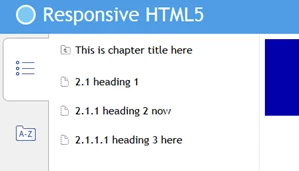
In the "Style Mapping" settings I marked the heading paragraph styles as "split into topics based on this style". I also have a standard TOC generated with all the headings in there.

Can I control the TOC that appears in the responsive HTML output? I'm using the "Azure_Blue" layout. (That's the only layout available. Can I get others?) I'm using all the defaults.

I've found precious little documentation on this "Publish" feature anywhere. It's a great thing if it works.

Thanks.

This topic has been closed for replies.
Correct answer Playful_work1549

To create TOC navigation levels in a TOC in FM Publish Outputs, we need to tweak the indenting, font size & weight property.


We determine TOC level by setting any of these Para Tag properties:

- First Indent,

- Font Size,

- Font weight


i.e. If you wish to have Heading3 appear inside Heading2 like this:

Heading3

     Heading2


In Para Designer >> Update Para Designer properties of these 2 tags (Heading2TOC, Heading3TOC):

-  First Indent of Heading2TOC greater than Heading3TOC

- Or Font Weight of Heading2TOC less than Heading3TOC

- Or Font Size of Heading2TOC less than Heading3TOC


Do let us know if it works for you too.


Amit

2 replies

Deb Sauer
Inspiring
October 4, 2016

Just a quick addendum here: you have to change only ONE of the properties - First Indent, Font Size, OR Font Weight. My TOC was formatted with ChapterTitleTOC, Heading1TOOC, and Heading2TOC pgraf tags with different indents, font sizes, and font weights and my HTML5 TOC was flat until I made them all the same font size and weight and gave them different first indent values. 

Inspiring
July 28, 2020

So frustrating, I just cant seem to get my TOC to nest topics properly based on TOC heirarchy. 

Let me show what I have and maybe someone can pick something up here that is either missing or misconfigured:

Here is the output with all the headings at the heading1 level:

My FM book consists of 2 files, the content file and TOC file. The TOC file has distinctive properties for each heading style (Left indent of 1.0 for each heading, e.g. H1 is 0.0, H2 is 1.0, H3 is 2.0, etc. (Left). In my responsive html5 Publish dialog box, my Source selection is my Book file. Is there something I need to check in the FM reference page?


Are my skin settings ok?


I see Positioning settings, do i need to configure any fields here?


Any advice on this topic woul be greatly appreciated.

Cheers,

Bill

Playful_work1549Correct answer
Adobe Employee
September 18, 2015

To create TOC navigation levels in a TOC in FM Publish Outputs, we need to tweak the indenting, font size & weight property.


We determine TOC level by setting any of these Para Tag properties:

- First Indent,

- Font Size,

- Font weight


i.e. If you wish to have Heading3 appear inside Heading2 like this:

Heading3

     Heading2


In Para Designer >> Update Para Designer properties of these 2 tags (Heading2TOC, Heading3TOC):

-  First Indent of Heading2TOC greater than Heading3TOC

- Or Font Weight of Heading2TOC less than Heading3TOC

- Or Font Size of Heading2TOC less than Heading3TOC


Do let us know if it works for you too.


Amit

whlotusAuthor
Known Participant
September 18, 2015

Hi Amit,

Thanks - that worked. I didn't realize the TOC in the responsive HTML took its formatting from the Frame formats. I changed the first line indents of each HeadingTOC format and now it looks like this:

Another thing that confused me is that the layout of the TOC in the browser depends on the width of the browser window. To get the and buttons the window needs to be very wide or full screen. Otherwise it collapses the TOC outline into a single level. I'm mentioning this in case anybody else notices a problem in the TOC.

Adobe Employee
September 21, 2015

That's Great!

The + & - buttons in the TOC are getting changed due to its Responsive Design - as the screen width is lowered it optimizes itself for the smaller screens. Its by design.

There are 2 views of the TOC:

  • Tree View (shows all levels in single view) - Present by default in the Desktop View
  • Drill Down View (with 1 level in single view) - Present by default in Mobile View

If you wish to see Tree View in all screens - you may follow these steps:

FM >> Publish Dialog >> Responsive HTML5 >> Edit Settings >> Manage Layout >> Edit >> TOC (Tablet/Mobile) >> Mobile TOC drill down >> false >> Save >> Publish Output

Let us know if it gets solved for you.

Amit