ashrae-editor
Known Participant
August 31, 2021
Answered

Script Help/Question

  • August 31, 2021
  • 2 replies
  • 1258 views

I'm trying to teach myself to script. I have a basic understanding of programming syntax and a passing familiarity with basic JavaScript, but I'm pretty much learning on the go.


My goal is to write a script that steps through each table in a document and modifies various settings of each. The first part of the script is borrowed directly from the second example script of the Adobe FrameMaker Scripting Guide (Ch 3, p. 8). The Tbl properties I took from the same doc (Ch 5, p. 523).


When I run the script in the ExtendScript Toolkit, the script executes without error, but none of the settings are applied in my open Frame document (i.e., all of the tables appear as they did before I ran the script).


I'm not sure why it's not working. The documentation available (PDFs and Object Model Viewer) are pretty opaque, and there's very little in the way of explanatory information to help me connect the pieces. I'm guessing I'm out of my depth, but I'd really like to gain proficiency; I'm just not sure how/where to start in general, or how to evaluate deficits in this current project in particular.


I'd very much appreciate any help this fantastic community can offer. Thank you for your time and patience!

---

var doc = app.ActiveDoc;

if(doc.ObjectValid() == true) {
var flow = doc.MainFlowInDoc;
var tbl = 0;
var textItems = flow.GetText(Constants.FTI_TblAnchor);
for (var i = 0; i < textItems.len; i += 1) {
tbl = textItems[i].obj;
tbl.ContentHeight = 2;
tbl.OrphanRows = 2;
tbl.TblCellBottomMargin = 2;
tbl.TblCellLeftMargin = 2;
tbl.TblCellTopMargin = 2;
tbl.TblAlignment = 0;
tbl.TblPlacement = 5;
tbl.TblSpaceAbove = 15;
tbl.TblSpaceBelow = 15;
tbl.TblWidth = 6;
tbl.TblBodyRowRulingPeriod = 1;
tbl.TblBodyRowRuling.Pen = 0;
tbl.TblBodyRowRuling.RulingPenWidth = 0.4;
tbl.TblTopRuling.Pen = 0;
tbl.TblTopRuling.RulingPenWidth = 1.5;
tbl.TblBottomRuling.Pen = 0;
tbl.TblBottomRuling.RulingPenWidth = 1.5;
}
}

--

Note, there may be an easier way to do this--for example by just applying an existing Table style to every table in a doc, which would also work. Just not sure whether that's possible or how to do it.
    This topic has been closed for replies.
    Correct answer frameexpert

    Back to the task at hand. What do you think will happen if you just run this code with the selected table?

    #target framemaker
    
    var doc, tbl, PT = 65536;
    
    doc = app.ActiveDoc;
    tbl = doc.SelectedTbl;
    
    // Set the top ruling only?
    tbl.TblTopRuling.RulingPenWidth = 12 * PT;

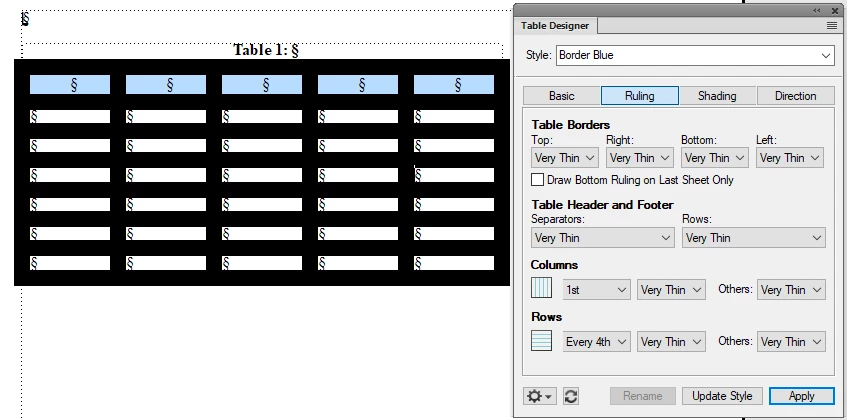
    You may have to refresh the screen (Control + L), but you may see something like this:

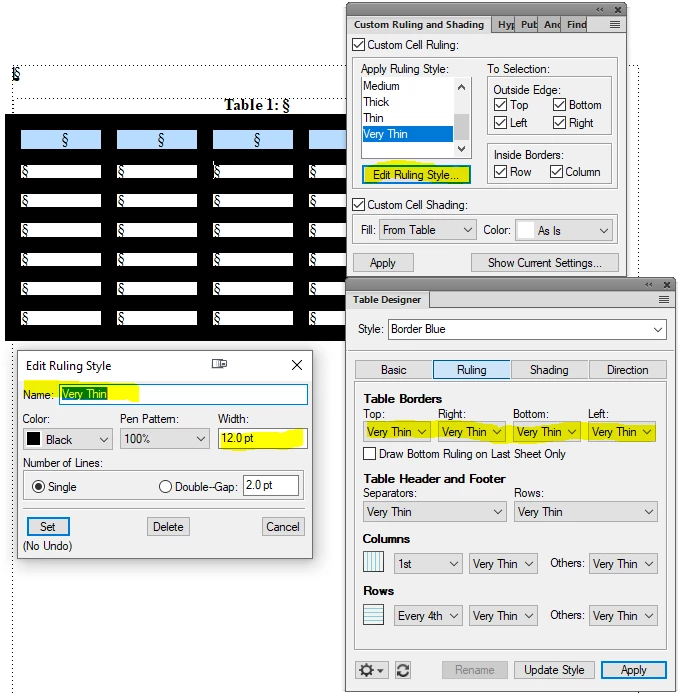
    I purposely chose a large value (12 pt) see we can see it. What the code does is actually change the definition of the Very Thin Ruling Format. So, whereever that Ruling Format is applied, you will see the change, including in other table formats where it is used. Here is the proof from the Edit Ruling Style dialog box:


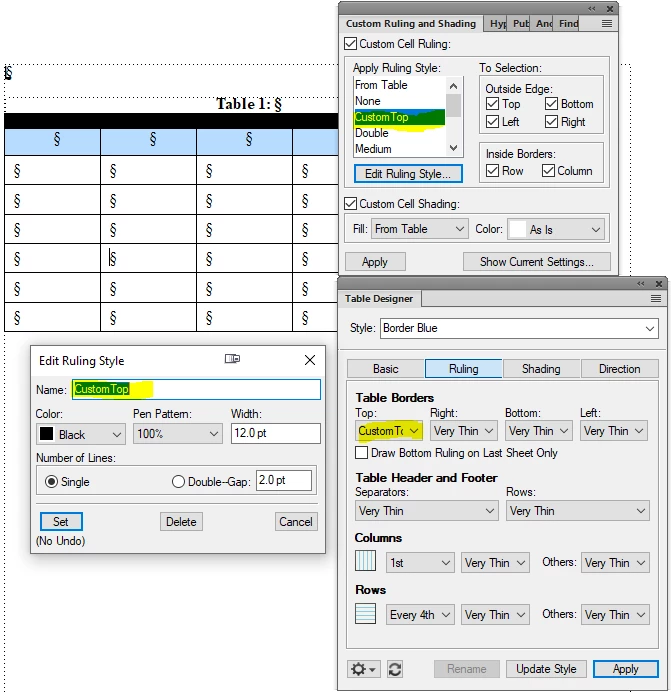
    Here is how I would do it. I would use a function to create new Ruling Formats to apply to the table. For example:

    #target framemaker
    
    var doc, tbl, PT = 65536, rulingFmt;
    
    doc = app.ActiveDoc;
    
    // Get or make the custom ruling format.
    rulingFmt = getRulingFmt ("CustomTop", doc, 12 * PT, 1);
    
    tbl = doc.SelectedTbl;
    
    // Set the top ruling only.
    tbl.TblTopRuling = rulingFmt;
    
    function getRulingFmt (name, doc, width, lines) {
    
    	var rulingFmt;
    	
    	rulingFmt = doc.GetNamedRulingFmt (name);
    	// If the Ruling Format doesn't exist, create it.
    	if (rulingFmt.ObjectValid () === 0) {
    		rulingFmt = doc.NewNamedRulingFmt (name);
    	}
    	
    	// If the width is supplied, apply it to the Ruling Format.
    	if (width) {
    		rulingFmt.RulingPenWidth = width;
    	}
    	
    	// If the lines is supplied, apply it to the Ruling Format.
    	if (width) {
    		rulingFmt.RulineLines = lines;
    	}
    	
    	return rulingFmt;
    }

    Which will give you this:


    2 replies

    frameexpert
    Community Expert
    Community Expert
    August 31, 2021

    When experimenting with scripting, I would suggest working with a single object instead of loop through all of the objects in the flow, document, etc. Here are some examples which are intended to be used as individual scripts.

    #target FrameMaker
    
    /* Selections.jsx. Carmen Publishing Inc.
        Copyright 2015. All rights reserved. Not to be resold.
        Contact rick@frameexpert.com or call 585-729-6746,
        
        This script is not meant to be run as is, but is a collection of snippets
        for working with selected objects in the active document. Copy the 
        desired snippet to a new script, so you can work with a selected object.
        
        Code for the following selected objects are included:
        * Marker
        * Variable
        * Cross-Reference
        * Text inset
        * Anchored frame
        * Table
        * Table cell and row
        * Paragraph
        * Element
        
        There is a "showProperties" utility function at the end that will write
        an object's properties to the JavaScript Console.
    */
    
    // Marker --------------------------------------------------------------------
    // Set a variable for the active document.
    var doc = app.ActiveDoc;
    
    // Set a variable for the selected text range in the document.
    var textRange = doc.TextSelection;
    
    // Get a list of markers in the selected text.
    var textItems = doc.GetTextForRange(textRange,Constants.FTI_MarkerAnchor);
    // Make sure there is a marker in the selection.
    if (textItems.len) {
        // Get the first marker and display its marker text and marker type.
        var marker = textItems[0].obj;
        alert (marker.MarkerText);
        alert (marker.MarkerTypeId.Name);
    }
    
    // Variable -----------------------------------------------------------
    // Set a variable for the active document.
    var doc = app.ActiveDoc;
    
    // Set a variable for the selected text range in the document.
    var textRange = doc.TextSelection;
    
    // Get a list of variables in the selected text.
    var textItems = doc.GetTextForRange(textRange,Constants.FTI_VarBegin);
    // Make sure there is a variable in the selection.
    if (textItems.len) {
        // Get the first variable and display its format name and definition.
        var variable = textItems[0].obj;
        alert (variable.VarFmt.Name);
        alert (variable.VarFmt.Fmt);
    }
    
    // Cross-Reference -----------------------------------------------------------
    // Set a variable for the active document.
    var doc = app.ActiveDoc;
    
    // Set a variable for the selected text range in the document.
    var textRange = doc.TextSelection;
    
    // Get a list of cross-references in the selected text.
    var textItems = doc.GetTextForRange(textRange,Constants.FTI_XRefBegin);
    // Make sure there is a cross-reference in the selection.
    if (textItems.len) {
        // Get the first cross-reference and display its source text and format.
        var xref = textItems[0].obj;
        alert (xref.XRefSrcText);
        alert (xref.XRefFmt.Name);
    }
    
    // Text Inset ----------------------------------------------------------------
    // Set a variable for the active document.
    var doc = app.ActiveDoc;
    
    // Set a variable for the selected text range in the document.
    var textRange = doc.TextSelection;
    
    // Get a list of text insets in the selected text.
    var textItems = doc.GetTextForRange(textRange,Constants.FTI_TextInsetBegin);
    // Make sure there is a text inset in the selection.
    if (textItems.len) {
        // Get the first text inset and display its file path.
        var textInset = textItems[0].obj;
        alert (textInset.TiFile);
    }
    
    // Anchored frame ------------------------------------------------------------
    // Method 1: select the anchored frame's anchor as a text selection.
    
    // Set a variable for the active document.
    var doc = app.ActiveDoc;
    
    // Set a variable for the selected text range in the document.
    var textRange = doc.TextSelection;
    
    // Get a list of anchored frames in the selected text.
    var textItems = doc.GetTextForRange(textRange,Constants.FTI_FrameAnchor);
    // Make sure there is an anchored frame in the selection.
    if (textItems.len) {
        // Get the first anchored frame and display its anchor type and width.
        var aFrame = textItems[0].obj;
        alert (aFrame.AnchorType);
        alert (aFrame.Width/65536);
    }
    
    // Anchored frame ------------------------------------------------------------
    // Method 2: select the anchored frame as a graphic.
    
    // Set a variable for the active document.
    var doc = app.ActiveDoc;
    
    // Get the first selected graphic in the document.
    var aFrame = doc.FirstSelectedGraphicInDoc;
    if (aFrame.constructor.name === "AFrame") {
        // If it is an anchored frame, display its anchor type and width.
        alert (aFrame.AnchorType);
        alert (aFrame.Width/65536);
    }
    
    // Paragraph -----------------------------------------------------------------
    
    // Set a variable for the active document.
    var doc = app.ActiveDoc;
    
    // Get the paragraph at the beginning of the selection or insertion point.
    var pgf = doc.TextSelection.beg.obj;
    if (pgf.constructor.name === "Pgf") {
        // If the selection or insertion point is in a paragraph, display its name.
        alert (pgf.Name);
    }
    
    // Table ---------------------------------------------------------------------
    
    // Set a variable for the active document.
    var doc = app.ActiveDoc;
    
    // Get the table currently selected or that contains the insertion point.
    var tbl = doc.SelectedTbl;
    if (tbl.constructor.name === "Tbl") {
        // If a table is selected, display its table tag and number of columns.
        alert (tbl.TblTag);
        alert(tbl.TblNumCols);
    }
    
    // Table cell (containing the insertion point) -------------------------------
    
    // Set a variable for the active document.
    var doc = app.ActiveDoc;
    
    // Get the paragraph that contains the insertion point.
    var pgf = doc.TextSelection.beg.obj;
    // Get the table cell that contains the paragraph.
    var cell = pgf.InTextObj;
    if (cell.constructor.name === "Cell") {
        // If a cell is selected, display its row object and first paragraph's name.
        alert(cell.CellRow);
        alert (cell.FirstPgf.Name);
    }
    
    // Element (selected) --------------------------------------------------------
    
    // Set a variable for the active document.
    var doc = app.ActiveDoc;
    
    // Make sure the document is structured.
    if (doc.MainFlowInDoc.HighestLevelElement.ObjectValid () === 1) {
        // Get the currently selected element.
        var element = doc.ElementSelection.beg.child;
        // If an element is selected, show its element definition name.
        if (element.constructor.name === "Element") {
            alert (element.ElementDef.Name);
        }
    }
    
    // Element (insertion point) -------------------------------------------------
    
    // Set a variable for the active document.
    var doc = app.ActiveDoc;
    
    // Make sure the document is structured.
    if (doc.MainFlowInDoc.HighestLevelElement.ObjectValid () === 1) {
        // Get the parent element of the current insertion point.
        var element = doc.ElementSelection.beg.parent;
        // If there is a parent element, show its element definition name.
        if (element.constructor.name === "Element") {
            alert (element.ElementDef.Name);
        }
    }
    
    // Utility function for writing the properties of an object to the 
    // JavaScript Console.
    function showProperties (oObject) {
     
        // Get a list of the object's properties.
        var props = oObject.reflect.properties;
        
        for (var i = 0; i < props.length; i++) {
            $.writeln(props[i].name + ': ' + oObject[props[i].name]);
        }
    }
    
    // Utility function for getting the text from a text object such as a paragraph,
    // table cell, text frame, text line, etc. Can also get text from a TextRange or
    // text selection.
    function getText (textObj, doc) {
    
        var text = "";
        // Get a list of the strings in the text object or text range.
        if (textObj.constructor.name !== "TextRange") {
            var textItems = textObj.GetText(Constants.FTI_String);
        } else {
            var textItems = doc.GetTextForRange(textObj, Constants.FTI_String);
        }
        // Concatenate the strings.
        for (var i = 0; i < textItems.len; i += 1) {
            text += (textItems[i].sdata);
        }
        return text; // Return the text
    }
    ashrae-editor
    Known Participant
    August 31, 2021

    Thank you very much! I've saved and will study these.

    Klaus Göbel
    Legend
    August 31, 2021

    Hi and welcome


    The script works, but you have to take care about metrics.

    But you can't see changes, because they are very very small


    CITE from Adobe Scripting Guide:

    Use the TblColWidths() method to change the width of the column. This method accepts the argument in a metric form. So, create the arguments as a metric object using the new Metrics()method.
    NOTE: By convention, there are 72 points per inch. Multiply the inch value with 65536 to get the correct value. 1 inch is equal to 1 * 72 * 65536 points.


    ashrae-editor
    Known Participant
    August 31, 2021

    Klaus, thank you.


    The data types for most of the settings I was trying to specify were int. Do they still require the metric conversion? I assumed the int value was in points, as that's how it's set up in the Table Designer menu, but maybe not?


    Even after changing the values to their metric equivalents I'm not getting the behavior I expected. Maybe I need to format them at the Cell rather than Tbl object level.


    Matt

    frameexpert
    Community Expert
    Community Expert
    August 31, 2021

    I usually set up a variable for the metric value and then use it in my code.

    var PT = 65536, doc, tbl;
    
    doc = app.ActiveDoc;
    tbl = doc.SelectedTbl; // Table with the insertion point.
    // Set the left indent to 12 points.
    tbl.TblLeftIndent = 12 * PT;

    Which properties are not working as you expect?